Contents
Introduction
This page provides steps for how to share an existing document vault file with additional clients. For steps to share files with clients, see Share a Document Vault File with Other Clients.
For more information about the document vault, see Introduction to the Document Vault.
Remove Client Access From One File
To stop a client from seeing a file in the document vault:
-
Under Documents, click Vault.
-
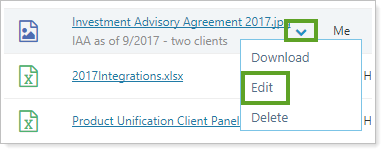
For the file you want to remove access from, click ˅ and then click Edit.
-
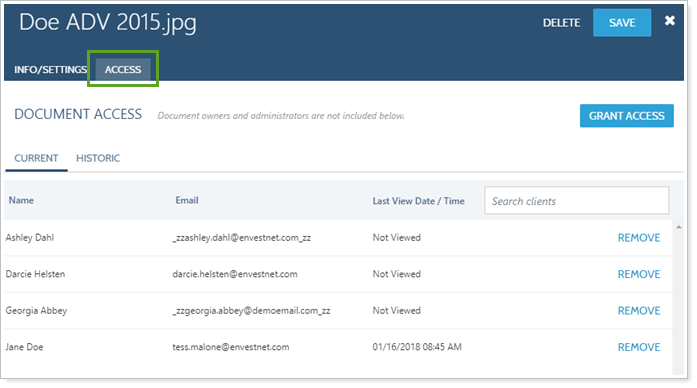
In the Edit panel for the file, click the Access tab.
-
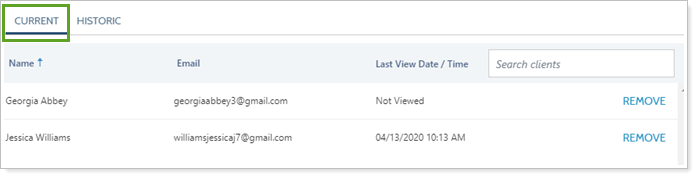
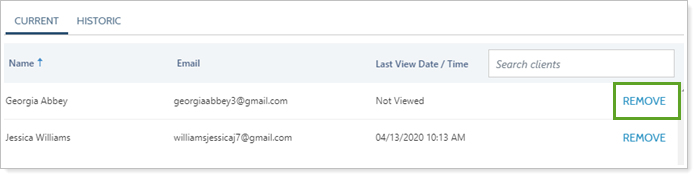
Click Current to see the list of all clients who can access the file.
-
Click Remove in the row for the client you want to no longer have access to the file.
Remove Client Access From Multiple Files
To stop a client from seeing multiple files in the document vault:
-
Under Documents, click Vault.
-
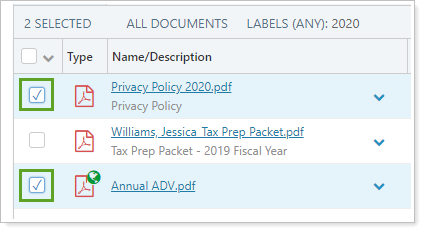
Select the check boxes next to the documents you want to stop a client from accessing.
-
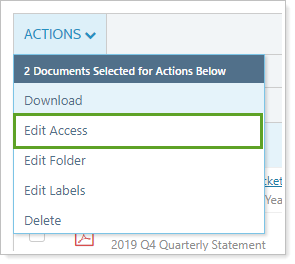
Under Actions, click Edit Access.
-
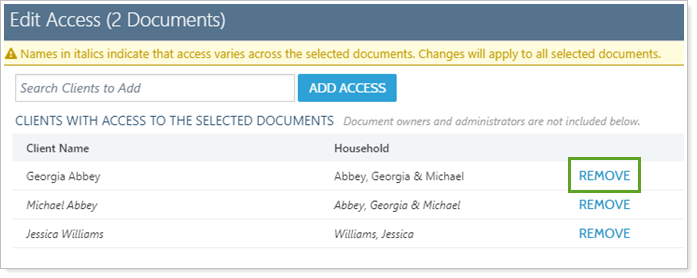
In the Edit Access dialog, click Remove in the row for the client you want to no longer have access to the file.