
Contents
Create a Table module from the Report Studio home page
Create a Table module from within a new report
Available Table module settings
Introduction
Modules are the basis for all reports in Report Studio. After you create a module, you can save it in the library and reuse it in other reports. You can also share modules with advisors across your firm to support collaboration and maintain reporting consistency.
The Table module in Report Studio displays data in a structured format to support detailed analysis and reporting. It supports grouping, filtering, and sorting options to help you organize and display information by the categories most relevant to your report. You can configure columns, apply consistent data settings, and align output with other modules to maintain a clear and consistent reporting experience.
This article provides steps for how to create a Table module and its available settings.
Create a Table module
You can create a Table module in the following locations:
-
From the Report Studio home page.
-
Directly in Report Studio report.
Create a Table module from the Report Studio home page
To create a Table module from the Report Studio home page:
-
On the Tamarac Reporting dashboard, under the Client Reporting menu, select Report Studio.
-
Select New module.

-
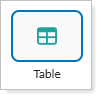
Select Table.
-
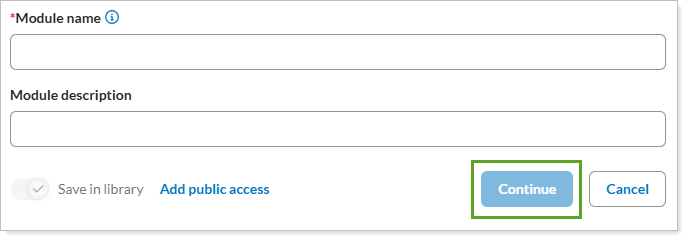
Provide a Module Name and Module Description and select Continue.
-
Complete the desired settings and layout in the Module Settings panel and select Save.
Create a Table module from within a new report
To create a Table module from within a new report:
-
Create a new report. For steps, see Create Reports in Report Studio.
-
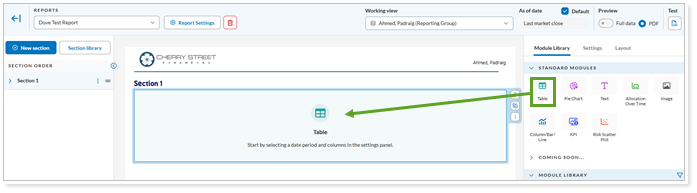
Drag and drop the Table module into the section.
-
Complete any of the desired options under the Settings tab. For more information, see Available Table module settings below.
-
Select Save.
Available Table module settings
Module settings determine the appearance and function of the given modules. For more information, see Module Settings for more information.