
Contents
Introduction
Tamarac CRM applies default session timeout settings to help safeguard client data and strengthen platform security.
By default, Tamarac CRM has the following session timeouts enabled for all users:
-
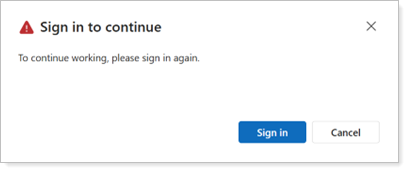
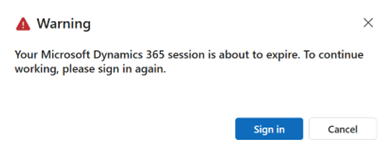
12-hour maximum session lengthBy default, after 12 hours, the platform signs you out and prompts you to sign back in even if you’re using it. A message alerts you 20 minutes before you’re signed out so you can proactively sign in to continue your session.
-
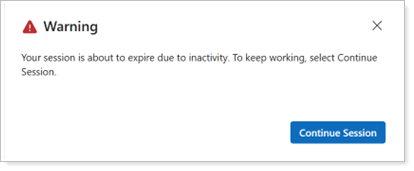
60-minute session inactivity durationBy default, after 60 minutes of not using Tamarac CRM, the platform signs you out and prompts you to sign back in. A message alerts you 2 minutes before you’re signed out so you can proactively continue your session.
This article covers information about session timeout settings in CRM.
Enablement
Tamarac CRM enables default session timeout settings automatically.
Session timeout impact
The following table outlines the default session timeout settings in CRM and how it impacts you:
| Session Timeout setting | cRM default | User impact |
|---|---|---|
| Enter maximum session length |
12 hours/720 minutes |
You must select Sign in to re-authenticate yourself after the 12-hour maximum login period in CRM.
|
| How long before the session expires do you want to show a timeout warning? | 20 minutes |
You receive a warning 20 minutes before the 12-hour maximum session ends in CRM. You can select Sign in to re-authenticate yourself before the session ends.
|
| Duration of inactivity before timeout | 60 minutes |
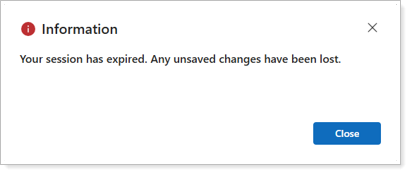
You must select Close and re-authenticate yourself by signing in after 60 minutes of inactivity in CRM.
|
| How long before the session expires do you want to show an inactivity warning? | 2 minutes |
You receive a warning 2 minutes before the session will expire in CRM due to 58 minutes of inactivity. You can select Continue Session to remain logged into CRM.
|
Update session timeout settings
You must have access to Power Platform Admin Center to update the session timeout settings for your firm. This capability is typically available to users with Global Admin or Dynamics 365 Admin roles.
To update your firm's session timeout settings:
-
Open Power Platform Admin Center (external site opens in new tab).
-
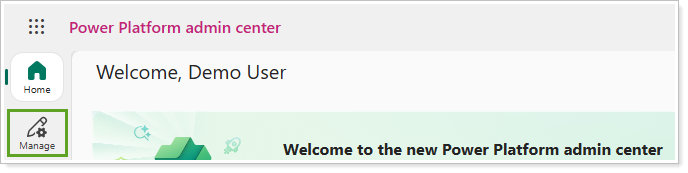
Select Manage.
-
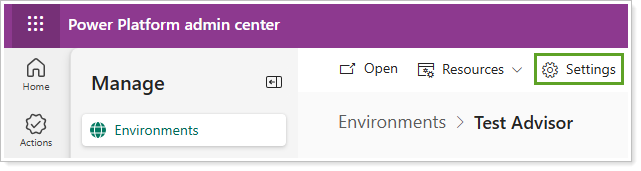
In Environments, select the Production environment for your firm.

-
From the command bar, select Settings.
-
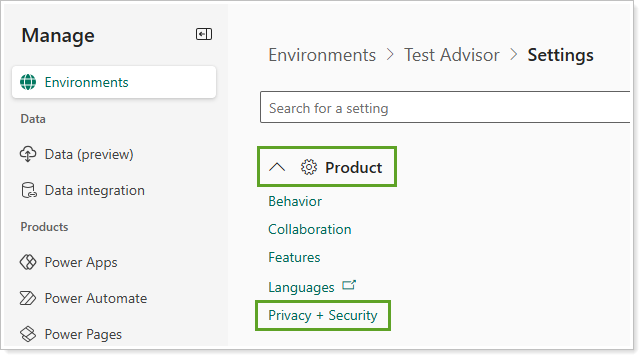
Expand Product, then select Privacy + Security.
-
Under Session Expiration and Inactivity timeout, optionally update the following session timeout settings:
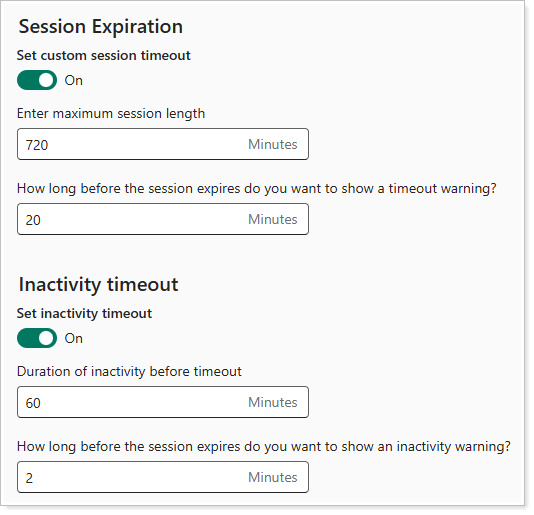
Configuration settings default setting Configuration options Set custom session timeout On On: Enable session timeout based on custom session length.
Off: Disable session timeout based on custom session length.
Enter maximum session length 720 minutes
Enter a custom maximum session length in minutes. The length must be in the following range:
-
Minimum minutes: 60
-
Maximum minutes: 1440
If enabled, must be 1 minute longer than the Duration of inactivity before timeout.
How long before the session expires do you want to show a timeout warning? 20 minutes Enter a custom duration in minutes to display a session timeout warning. The number of minutes must be less than the maximum session length and in the following range:
-
Minimum minutes: 20
-
Maximum minutes: 1440
Set inactivity timeout On On: Enable session timeout based on the number of minutes since the last activity.
Off: Disable session timeout due to inactivity.
Duration of inactivity before timeout 60 minutes Enter a custom duration in minutes to configure the number of minutes of inactivity before session timeout. The duration must be in the following range:
-
Minimum minutes: 5
-
Maximum minutes: 1440
How long before the session expires do you want to show an inactivity warning? 2 minutes Enter a custom duration in minutes to display a session timeout warning due to inactivity. The number of minutes must be less than the duration of inactivity before timeout and in the following range:
-
Minimum minutes: 1
-
Maximum minutes: 1440
-
-
Select Save. The session timeout settings update for all users in the firm environment.
Disclaimer
As part of our ongoing commitment to security best practices, Tamarac CRM has implemented enhanced session timeout and user inactivity handling across its web application. This measure significantly reduces the risk of session hijacking, where an attacker could gain unauthorized access and act within a user's session context.
Our new session expiration will have a maximum session length of 12 hours, and our new inactivity timeouts will have a duration of 60 minutes. However, administrators can configure session duration to meet their organization's needs.
We recognize that some users may find this change disruptive to their workflow. While alternative configurations are available—including extending the timeout duration—these options come with increased risk. Organizations choosing to relax session timeout settings assume greater responsibility in the event of a security breach.
We strongly advise consulting with your Information Security team before making any changes. If you choose to adjust session timeout settings, please do so with a clear understanding of the associated risks and compliance requirements.