
Contents
Introduction
Microsoft Copilot is an AI-powered assistant embedded in Dynamics 365, leveraging generative AI technology to automate repetitive tasks, provide insights, and enhance your decision-making process across the platform.
In Tamarac CRM, you can query Copilot using your own words or prebuilt prompts for real time assistance in streamlining processes, boosting productivity, and improving client engagement.
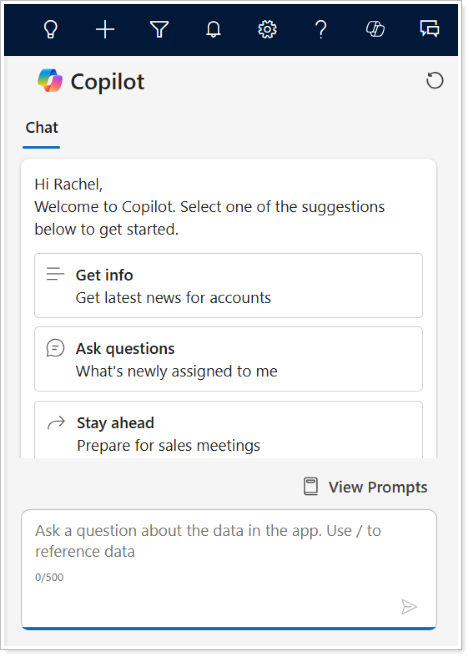
This article provides more information and best practices for using Copilot in Dynamics 365.
Before You Start
Before you turn on Copilot for your organization, work with your IT team and Support to confirm that the following prerequisites are met:
-
Verify that your organization’s region has an Azure OpenAI Service endpoint. For more information, see Move data across regions for Copilots and generative AI features (links to an external site).
-
If your organization’s region has no Azure OpenAI Service endpoint, provide consent in the Power Platform admin center. You must provide consent for data movement across regions to use Copilot in Dynamics 365 Sales and for Copilot to use Bing search so that your sellers can get the latest news about their accounts.
-
Verify that the required connectors for Copilot are not blocked in your organization's Data Loss Prevention (DLP) policies. If the connectors are blocked, an error displays stating Copilot is unable to connect and to try again later. To resolve this issue, you need to unblock and configure the connectors in the policy. For more information, see FAQ about Copilot in Dynamics 365 Sales (links to an external site).
Once all prerequisites are met, the admin user can enable Copilot for your firm.
Enable Copilot in Dynamics 365
Copilot in Dynamics 365 is disabled by default.
If you find Copilot is already enabled due to legacy default configurations, you can maintain the permissions or reach out to Support for assistance.
To enable Copilot in Dynamics 365:
-
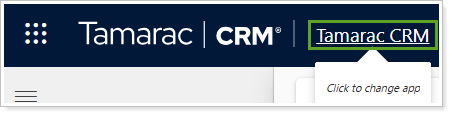
To change your app from Tamarac CRM, select Tamarac CRM.
-
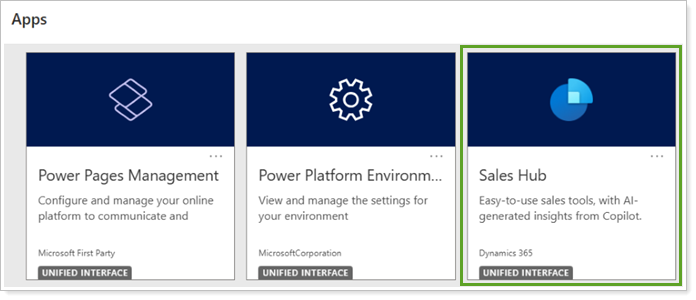
In Apps, select Sales Hub.
-
In the Change area, select App Settings.
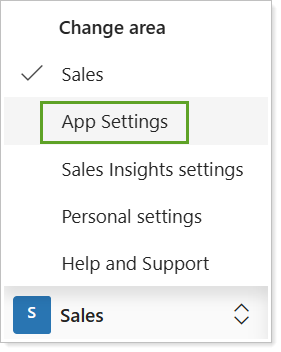
By default, the Overview page opens and displays Sales settings.
-
Access the settings for Copilot in one of the following places:
-
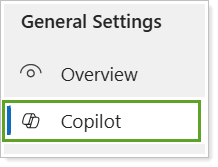
In the side menu, under General Settings, select Copilot.
-
On the Overview or Sales settings page, under Copilot, select Sales Copilot.
-
-
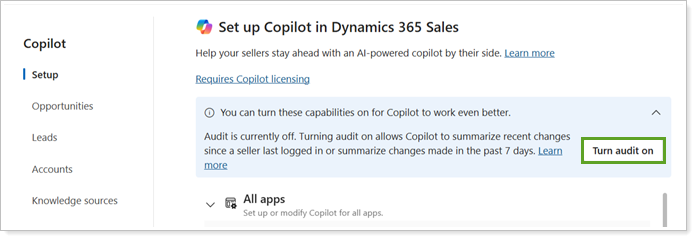
Under Setup, to turn on audit history for the lead, opportunity, and account tables, select Turn audit on. This option will not display if auditing is already enabled for these tables or globally.
Note
You can configure additional tables and fields to make the recent changes list more relevant for your business.
If you configure Copilot with additional tables, turning on audit history will apply to those tables as well. If you remove a table in the future, you must manually turn off audit history.
-
If your organization is in a region where Azure Open AI Service endpoint isn't available and you did not provide the consent for data movement, select Go to Power Platform admin center and follow the instructions to provide consent. For more information, see Move data across regions for Copilots and generative AI features (links to an external site).
-
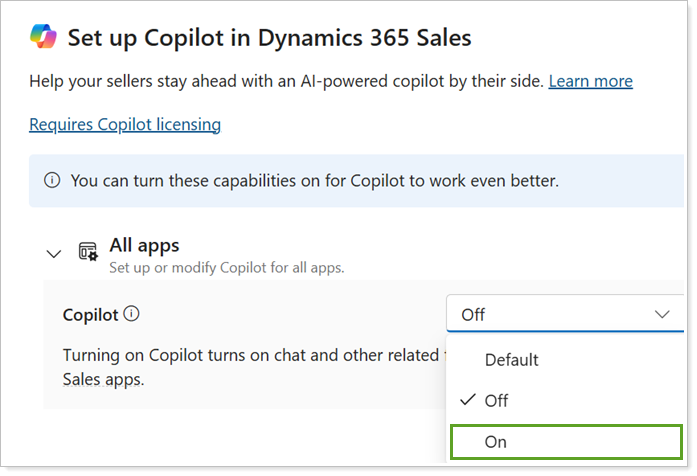
To turn on Copilot only for the desired apps, expand All apps to see global settings. In Copilot, select On to enable for all apps or Off to disable for all apps.
-
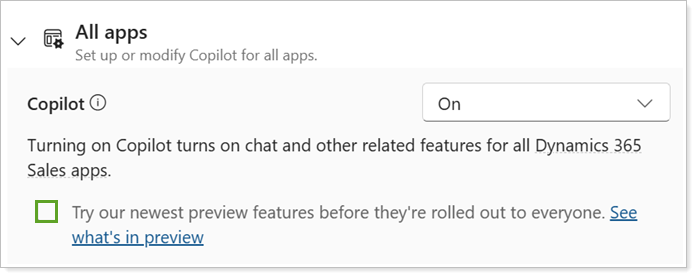
Optionally, to get all the Copilot preview features automatically select Try our newest preview features before they're rolled out to everyone.
-
To override the global setting for individual apps, expand the desired app and select On or Off for the desired individual app.
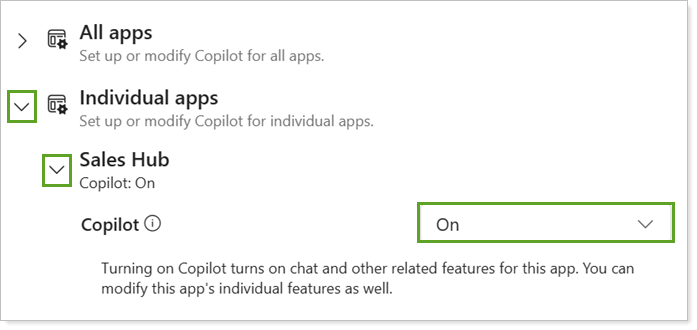
Example
If you want to enable Copilot only for the Sales Hub app, under All apps, select Off. Under Individual Apps and Sales Hub, select On.
-
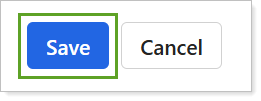
Select Save.
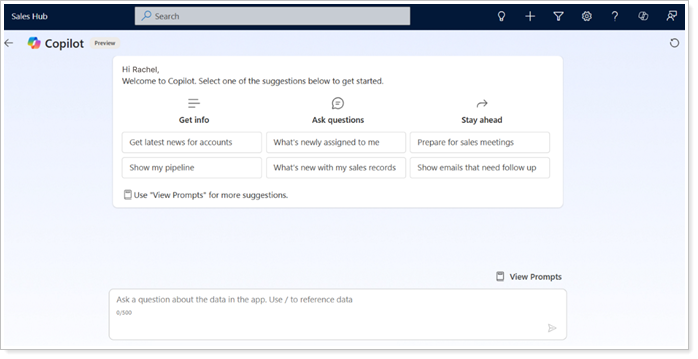
If you select to view the Copilot preview features, the full-screen version in Sales Hub opens.
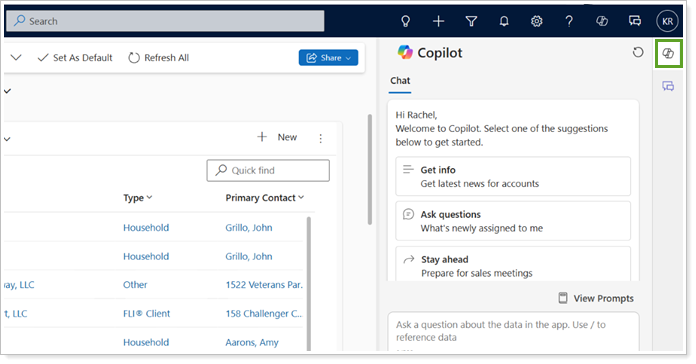
Access Copilot in Tamarac CRM
Once all appropriate configurations are in place, Copilot will appear on the sidebar in Tamarac CRM or as a floating assistant across the platform.
Maximize Copilot's Value
Take full advantage of Copilot by using the features that are most valuable to your firm. Dedicating time to actively using Copilot will help enhance and personalize your insights overtime.
Copilot Capabilities
Copilot Dynamics 365 Sales offers the following capabilities:
| capability | description |
|---|---|
| Record summarization |
Helps provide a quick summary of your opportunity, lead, and account records using predefined fields. |
| Recent changes |
Helps summarize any changes that were made to your lead, opportunity, and account records using the record’s audit history. |
| Information assistance | Helps you retrieve product-related documents and fetch answers to sales-related questions directly from documents stored in SharePoint. |
| Meeting preparation | Helps you prepare for your upcoming meetings, summarizing relevant information from the opportunity or lead records that are associated with the meeting. |
| Email assistance | Helps compose professional emails, summarizes email conversations to add to your customer notes, and reminds you to follow up on emails you haven't replied to. |
| New updates |
Helps you stay current with the latest news about your accounts. |
Copilot capabilities can be tailored to your organization’s needs and preferences.
For details on configuring and customizing this functionality, see Copilot in Dynamics 365 Sales capabilities (links to an external site).
Best Practices
To efficiently implement Copilot into your CRM workflows, consider the following best practices:
-
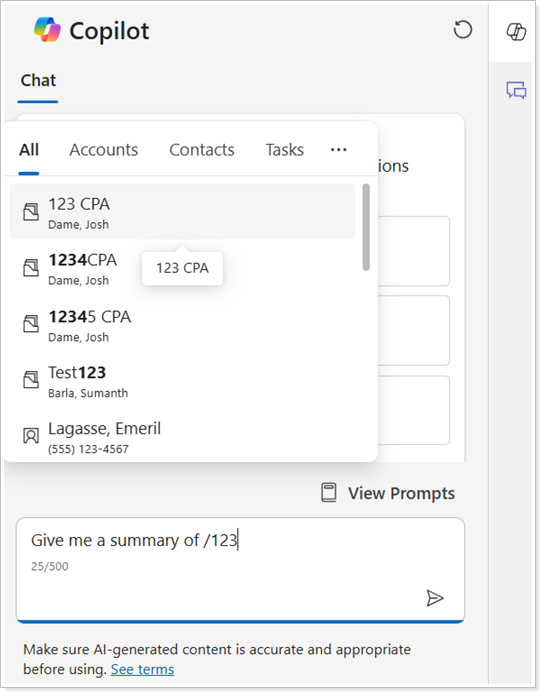
Be specific with your queries. Copilot operates more effectively with prompts that cover specific topics or isolate an entity or record. To query answers for a specific entity or record, enter / before the number or name to search and select from the list.
-
Verify accuracy. While Copilot is a powerful assistant, it can make mistakes. Always review its insights and confirm the data based on your expertise and knowledge of your clients.
-
Use consistently. Copilot learns from your behavior and interactions, so its recommendations will become more tailored over time and with continued use.
-
Customize settings. Adjust settings based on your role to make sure you’re always getting the most relevant insights and suggestions.
-
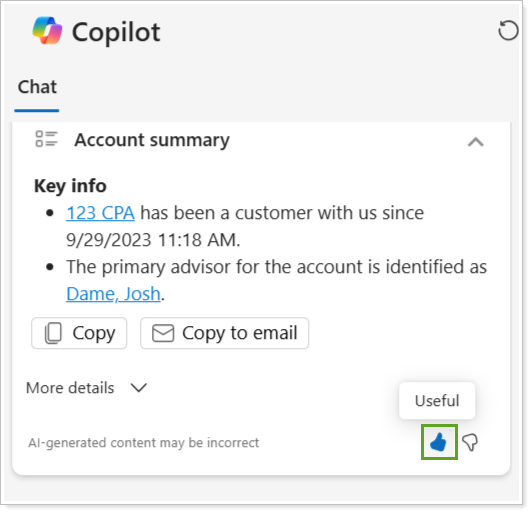
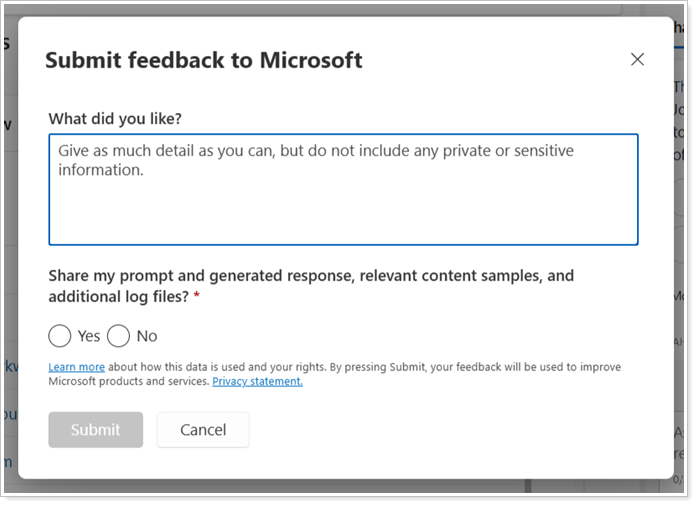
Provide feedback. Provide consistent feedback on recommendations to improve Copilot’s understanding and accuracy.
Sample Queries
To personalize your experience with Copilot, experiment with queries and prompts to help tailor the recommendations to your firm’s unique needs and processes.
To help generate ideas in your practice, use the following sample queries:
| entity or record | sample queries |
|---|---|
| Accounts |
|
| Contacts |
|
| Financial Accounts |
|
| Leads |
|
| Opportunities |
|
| Activities |
|
Important
Copilot only allows users to retrieve information from Dataverse through read-only operations. This means that you can view data that matches your queries, but you cannot make any changes to that data.
Security and Privacy
We know that the security of your data and the privacy of your client’s data is a top concern.
To prioritize safe data management practices, Microsoft Copilot:
-
Encrypts and secures your data flow.
-
Does not store any data outside of Dynamics 365.
-
Only pulls data from records and files that the specific user has access to.
-
Protects prompts and responses from other CRM users and third-party products or services.
To learn more about data security and privacy in Microsoft, see:
-
Privacy & data management overview (links to an external site).
-
Data management at Microsoft (links to an external site).
-
Data, privacy, and security for Azure OpenAI Service (links to an external site).
-
FAQ for Copilot data security and privacy for Dynamics 365 and Power Platform (links to an external site).
Troubleshoot Copilot
The following are common Copilot issues and troubleshooting tips:
| problem | troubleshooting tip |
|---|---|
| Unresponsiveness |
Verify your Copilot license is active, permissions are set correctly, and you have a stable internet connection. |
| Slow Performance |
Verify a stable internet connection, clear your browser cache, and check for system updates. |
| Irrelevant Suggestions |
Ensure Copilot is integrated with the latest CRM data and give feedback to improve its suggestions. |
For additional troubleshooting support, use the following resources:
-
Microsoft Support. For troubleshooting guides, see FAQ about Copilot in Dynamics 365 Sales (links to an external site).
-
Community Forums. Join the Microsoft Dynamics 365 forums for peer support.
-
In-App Help. Use the Help feature in Dynamics 365 for guided tours and context-based help articles.