
Contents
|
Enable Power BI in Tamarac CRM Enable Power BI in CRM App Settings Enable Power BI in CRM Advanced Settings Add Power BI Dashboards to CRM Dashboards |
Introduction
Microsoft Power BI is a data visualization platform designed to enhance business intelligence and insights. It integrates with Dynamics 365 to provide a way to analyze and visualize data stored across your Microsoft Dataverse.
This article provides more information and best practices for using Power BI in Tamarac CRM.
Enrollment
You must have one of the following:
-
Power BI free license. In Tamarac CRM, offers access to Power BI dashboards and Power BI visualization reports.
-
Power BI Pro license. In Tamarac CRM, offers access to Power BI dashboards and advanced Power BI visualization reports, including features such as editing, publishing, deleting, and sharing reports.
Before You Start
You must enable a TDS endpoint in your Microsoft environment.
Enable Power BI in Tamarac CRM
A system administrator must enable Power BI in the following places:
-
Tamarac CRM app feature settings.
-
Tamarac CRM Advanced Settings.
Enable Power BI in CRM App Settings
To enable Power BI in Tamarac CRM app feature settings:
-
Select Tamarac CRM.
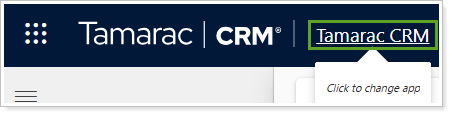
-
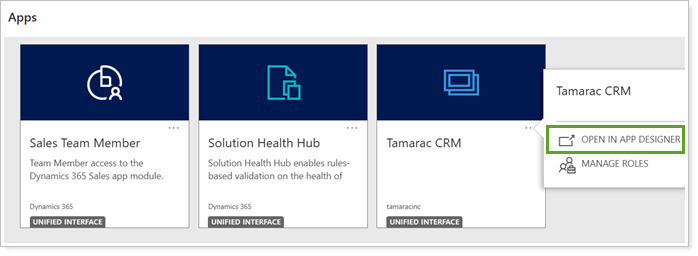
In Apps, select More Options for Tamarac CRM and Open in App Designer.
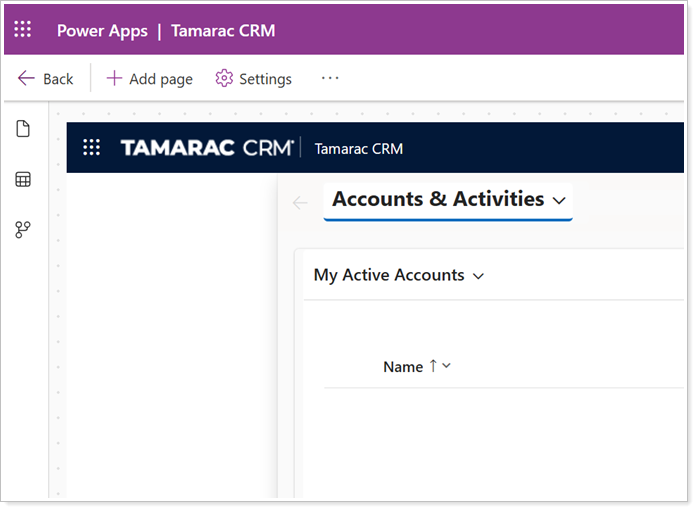
The Tamarac CRM app opens in PowerApps (external link opens in new tab).
-
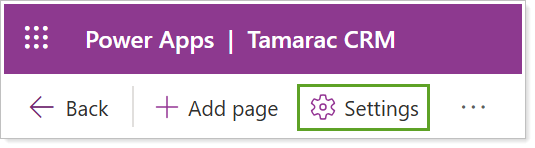
Select Settings.
-
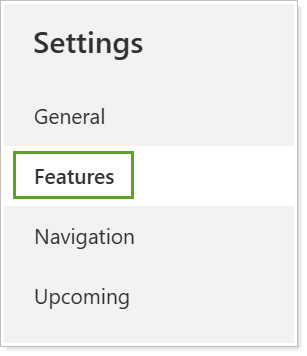
Under Settings, select Features.
-
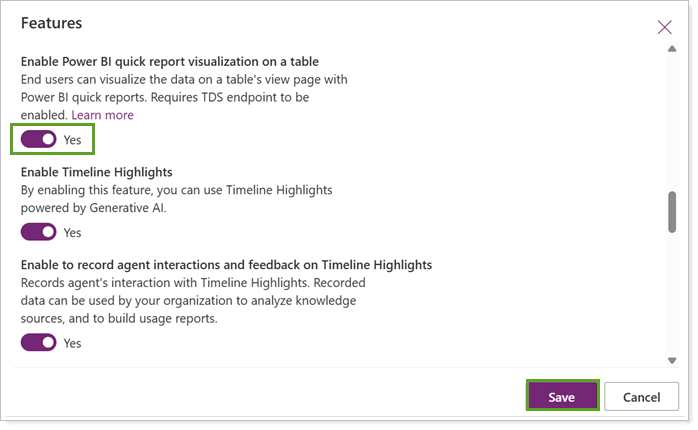
Set Enable Power BI quick report visualization on a table to Yes and select Save.
Enable Power BI in CRM Advanced Settings
To enable Power BI in Tamarac CRM Advanced Settings:
-
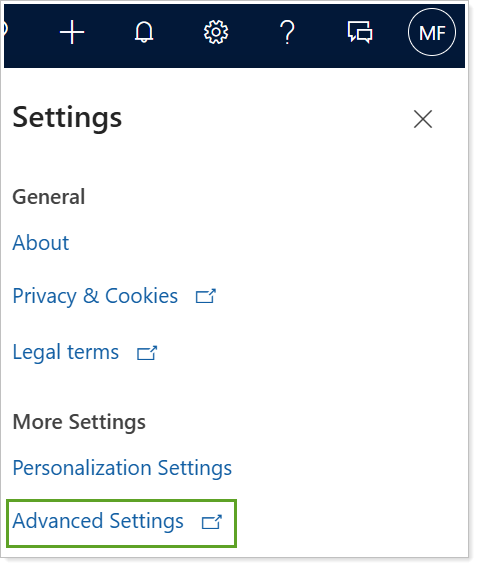
In Tamarac CRM, select Settings.

-
Select Advanced Settings.
-
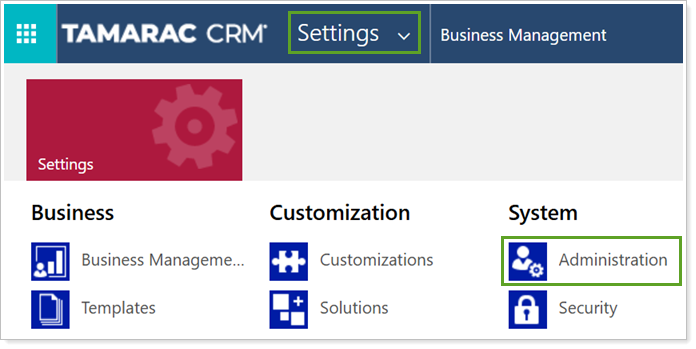
In the Settings menu, under System, select Administration.
-
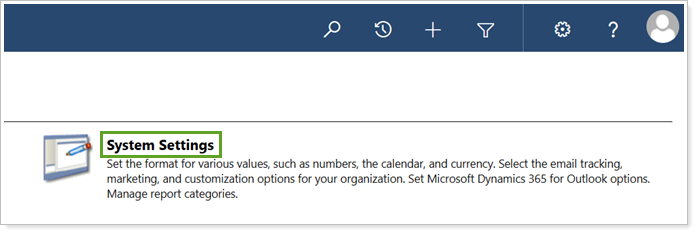
Select System Settings.
-
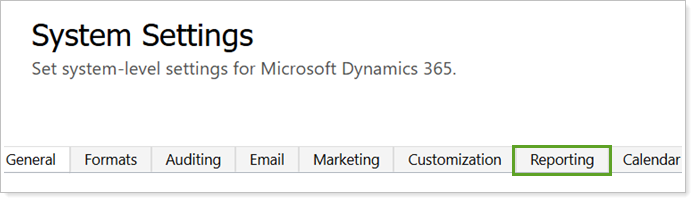
In System Settings, select Reporting.
-
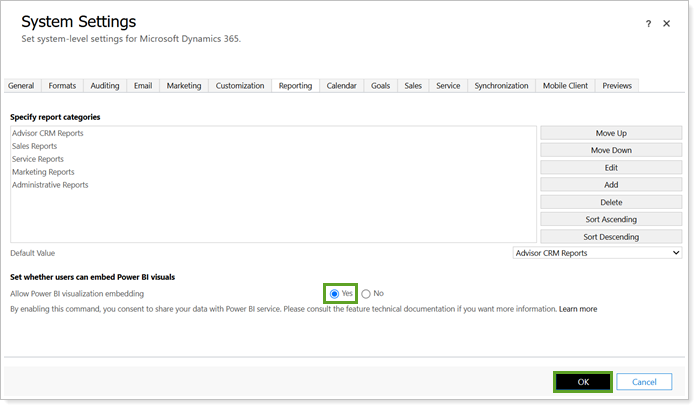
Under Allow Power BI visualization embedding, select Yes.
Select OK.
Use Power BI in Tamarac CRM
Once all appropriate configurations are in place, in Tamarac CRM you can:
-
Add and view Power BI dashboards.
-
Generate Power BI visuals.
Add Power BI Dashboards to CRM Dashboards
Use Power BI dashboards to monitor your business and analyze key metrics. You or other authorized firm users can create dashboards in Power BI and view them in Tamarac CRM.
To learn more about creating a dashboard, see the following resources:
-
Microsoft training module: Create dashboards in Power BI (external link opens in new tab).
-
Microsoft Support article: Introduction to dashboards for Power BI designers (external link opens in new tab).
To add and view a Power BI dashboard in Tamarac CRM:
-
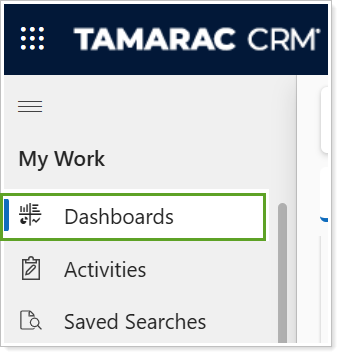
In Tamarac CRM Home, select Dashboards.
-
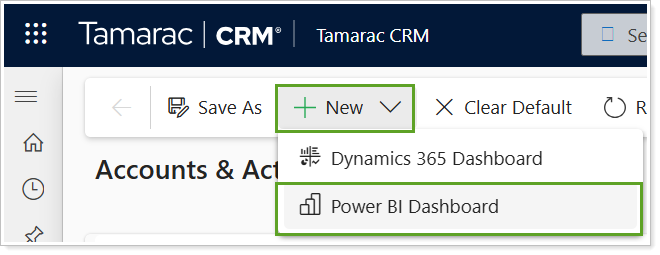
From the command bar, under New, select Power BI Dashboard.
Note
You must enable Power BI in Tamarac CRM Advanced Settings to see the Power BI Dashboard option. After enabling, refresh your dashboards page for the option to appear.
-
Under Dashboard, select your desired Power BI dashboard and then selectSave.
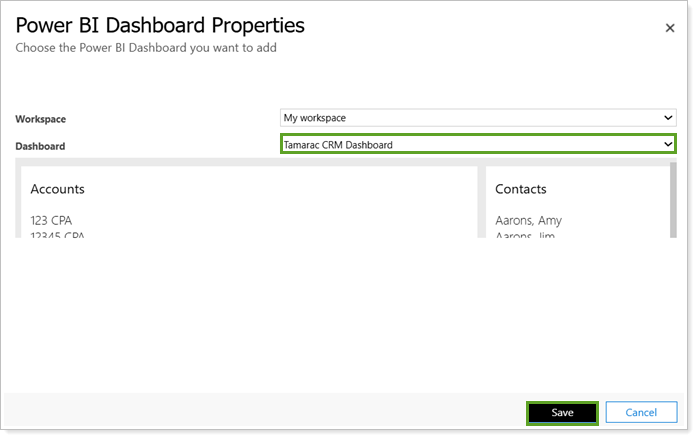
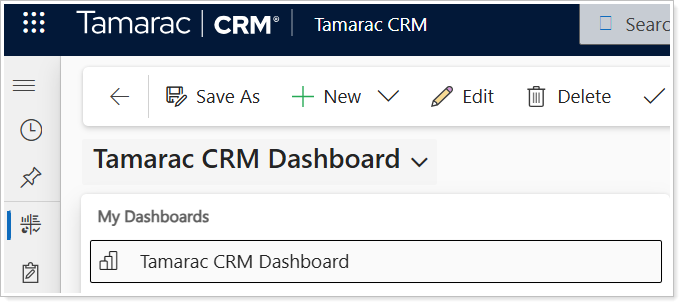
Your dashboard will appear under My Dashboards.
View Power BI Dashboards
Once you’ve added them, you can access and view Power BI Dashboards under My Dashboards in Tamarac CRM on an ongoing basis.
Generate Power BI Visuals
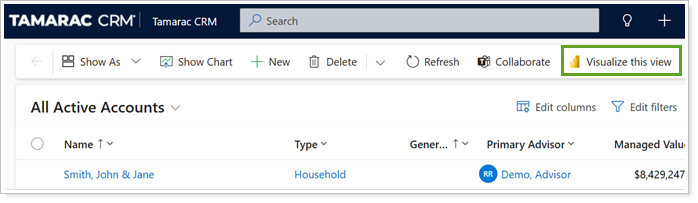
In Tamarac CRM, you can generate visualizations for accounts, contacts, financial accounts, leads, and more on the platform. Power BI produces dynamic visuals based on the way you’re filtering the data in your view, enabling you to adjust record or entity views as much as needed for more targeted reports.
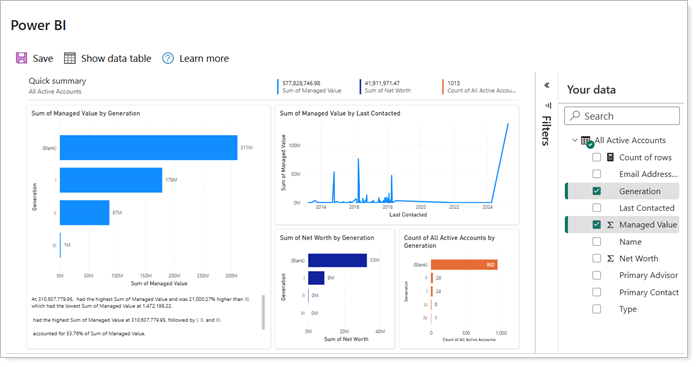
To see these visualizations, select Visualize this view from the command bar of a grid view across Dynamics 365 apps.
Note
This feature is not currently supported for activities due to a Microsoft limitation.
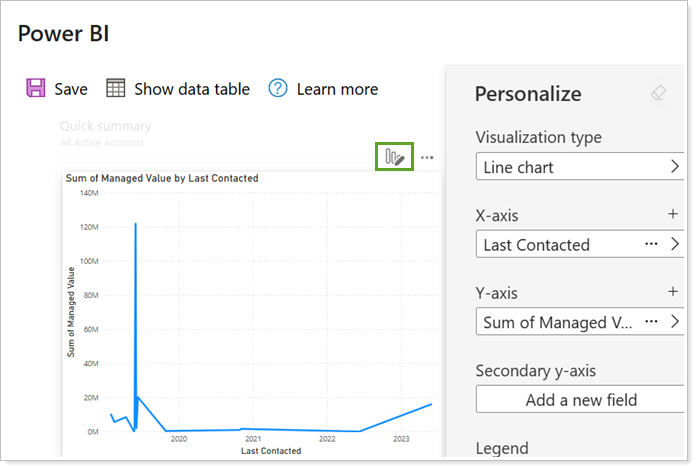
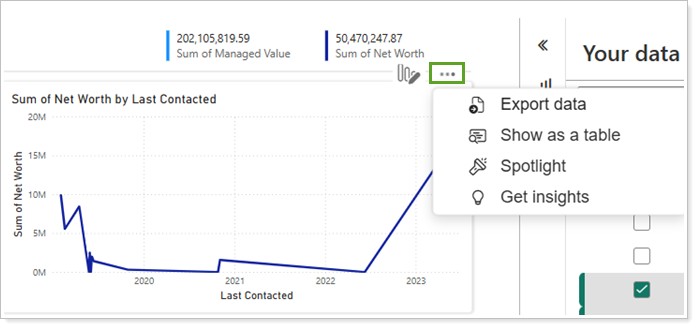
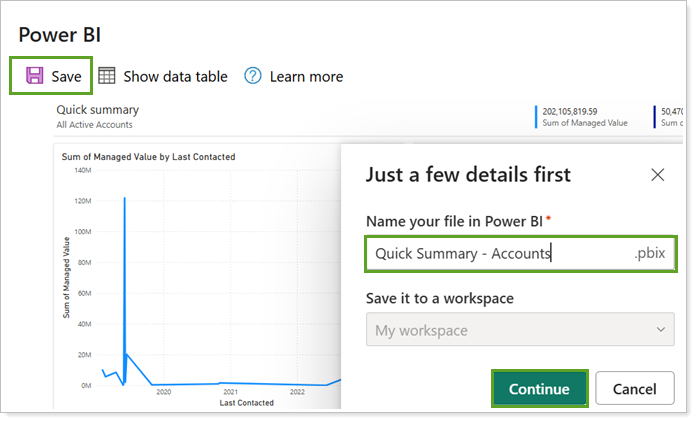
Once you generate a Power BI visual in Tamarac CRM, you can interact with the data in meaningful ways such as:
-
Customize the visual. Select Personalize this visual to tailor the visualization type and data to your preferences.
-
Further refine and export your data. Select More options to adjust, analyze, and export the data in your optimal format.
-
Save the report to your workspace. Select Save to make your visualization report accessible, editable, and shareable in Power BI.
-
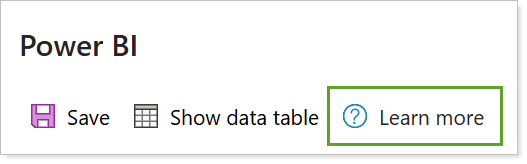
And more. Select Learn More to review detailed Microsoft support articles that cover how to leverage and customize your visualizations.
Note
All Power BI users can use this feature to view data visualizations in Dynamics 365, but you must have the Power BI Pro license to leverage the advanced functionality such as:
-
Full editing capabilities
-
Publish reports
-
Access reports that others publish
-
Delete reports
Best Practices to Maximize Power BI's Value
To efficiently implement Power BI into your CRM workflows, consider the following best practices:
-
Maintain clean data. Regularly review and audit Tamarac CRM entities and records to ensure the accuracy and reliability of your data, creating a strong foundation for effective Power BI insights.
-
Access on a desktop computer. Larger screens provide a more comprehensive view and avoid functionality limitations of mobile interfaces.
-
Filter your views. Apply filters to entity and record views to target specific datasets for Power BI visuals. Continue to update and expand your views as needed for more iterative analysis. For steps to filter view data, see Search on Record Pages.
Troubleshoot Power BI
For troubleshooting support, use the following resources:
-
Microsoft Support. For troubleshooting guides, see Visualize data in a view with Power BI service (external link opens in a new tab).
-
Community Forums. To join the Microsoft Power BI forum for peer support, see Power BI forums (external link opens in a new tab).