Contents
Client Portal
Customize the Contact Us Page in the New Client Portal
Relationships mean everything in finance. When your clients need to reach out to you, you want to be sure they can find the right contact information as quickly as possible. In the Client Portal, the Contact Us page provides contact information for the team serving your clients. In the past, this page showed all the service team members assigned to the client—you couldn’t customize who appeared on the page.
With this release, the Contact Us page gets a refreshed look—and, better yet, you can customize it.
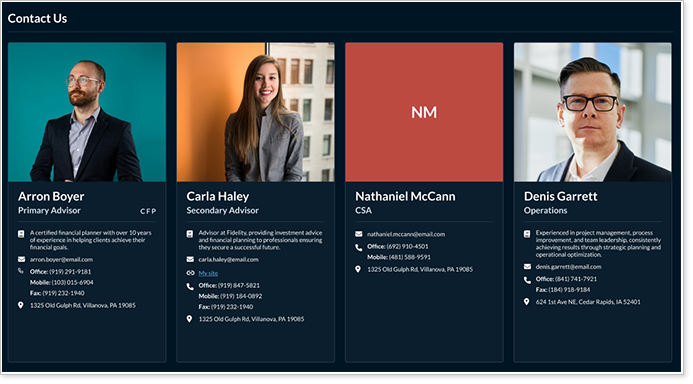
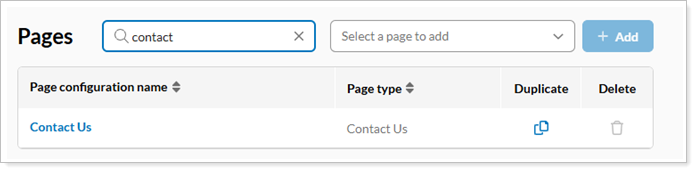
You’ll now manage this page in the Configuration Manager, just like you do other pages.
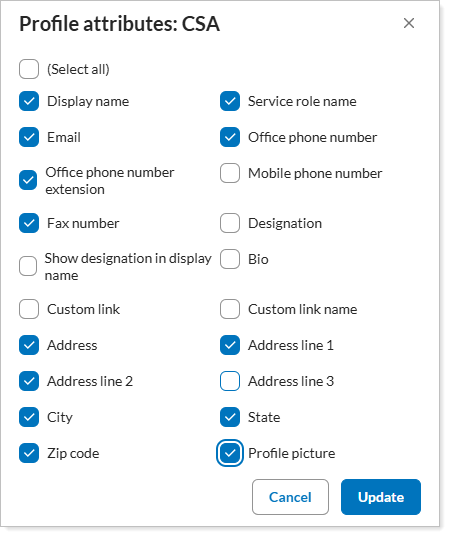
When you edit the Contact Us page, you control which service team roles appear on the page, what order they appear in, and what specific information shows up for each role.
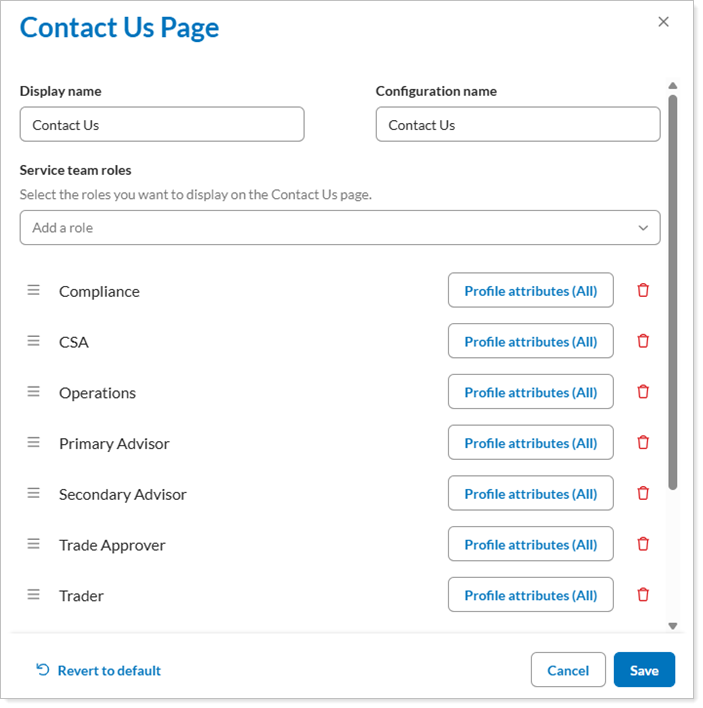
For example, you may want to show more contact information for the client service administrator, while limiting your own contact information. Or perhaps you want to show your bio but omit the bio for the client service administrator. With this change, you can choose.
This will appear by default for existing templates as of this release. For new templates, this is not turned on by default. You will need to configure and add this page to all new templates.
User Experience Improvements on Net Worth and Holdings Pages
As part of our ongoing efforts to continually improve the client portal experience, we’ve refined how some pages work.
-
Net Worth: This page will now work better than ever on any size of screen. On mobile devices, it will look consistent with the web experience, with mobile optimizations added.
-
Holdings: The table on this page now looks cleaner and offers more intuitive scrolling. Additionally, the first column will remain frozen as you scroll horizontally, keeping the context of the account name or holding – whatever you’ve designated as the first column.
These minor enhancements continue to elevate the Client Portal experience, showing your clients that you’re giving them the best service possible.
Add and Group By Effective Maturity Data Points in Holdings Reports
To make wise financial decisions, you and your clients need a clear picture of when fixed income investments are expected to mature. That’s why, with this release, you can now add the following new data points:
-
Effective maturity year. Add as a data point and as a grouping option.
-
Effective modified duration. Add as a data point.
These data points allow better cash flow planning and reinvestment and help ensure that clients’ portfolios align well with their goals.
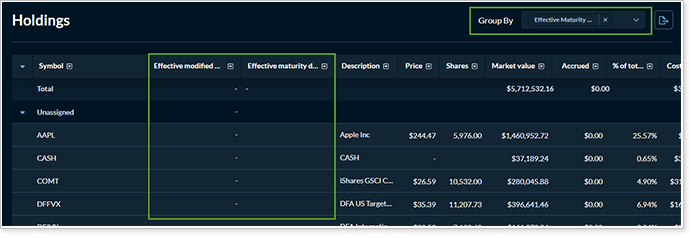
To add effective maturity to the Holdings page, in the Configuration Manager:
-
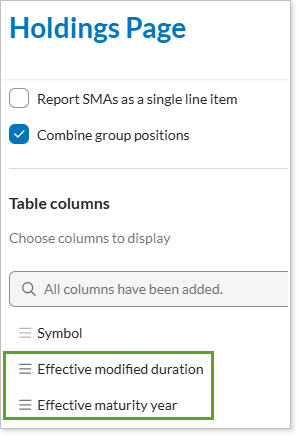
Add the new data points:
-
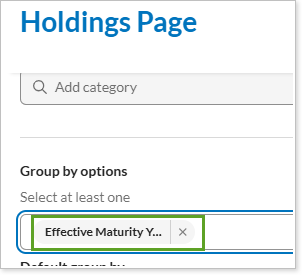
In Group by, select Effective Maturity Year:
Customize How Returns Appear on the Client Portal
You often need to explain performance in a way that makes sense to each client. But until now, the Client Portal only showed annualized returns. That could be confusing—especially for clients who want to see how their investments have grown over time, not just on a yearly basis.
Now, you can control whether returns are shown as annualized or cumulative on the Position Performance and Account Performance page and widget. This gives you more control and helps you better match the report to your client’s needs.
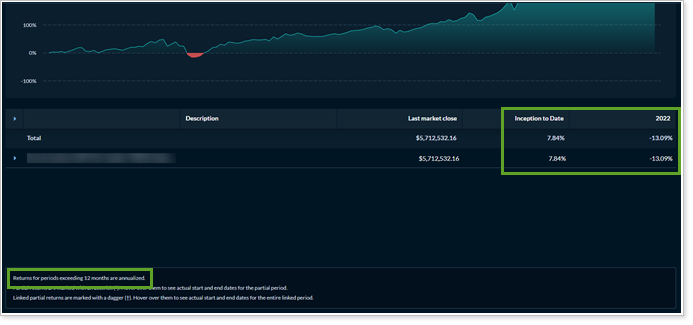
To control how returns appear, in the Configuration Manager, select Annualize returns on the following pages and widgets:
-
Position Performance
-
Account Performance
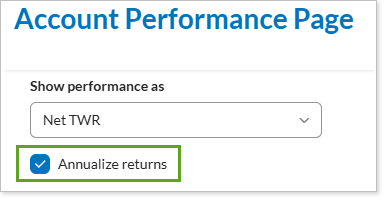
Selected means it’s showing annualized returns. Cleared means it’s showing cumulative returns.
To make sure clients are aware of the type of return they’re seeing, when annualized returns are selected, a footnote appears to indicate that. The footnote is hidden when showing cumulative returns.

The Account Performance chart always shows cumulative returns.
Combine Group Positions on the Holdings Page
The Holdings page is a cornerstone of the Client Portal. Sometimes, though, it becomes intimidatingly long when a client is looking at a reporting group with many accounts and holdings.
Now, you can choose to either combine group positions or report them separately. When you report them separately, you can also add Account name as a column in the table to make it clear which account each lot belongs to.
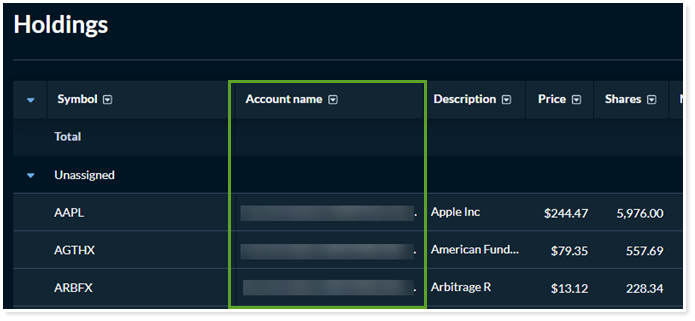
To shorten what clients see on the page and make it easier to digest, you can instead choose to Combine group positions.
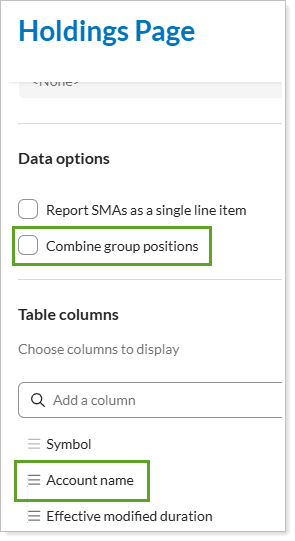
To control whether or not group positions are combined, in the Configuration Manager, select Combine group positions. If you clear this option, you can additionally include the Account name column to help differentiate which account holds the position.
Enhanced Accounts Page in the Client Portal
We are excited to announce significant enhancements to the Accounts Page within the client portal, focusing on configurability and greater flexibility for your firm.
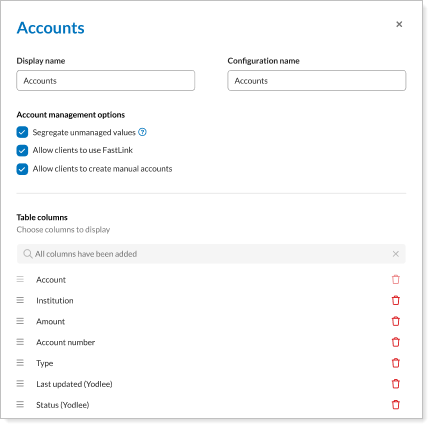
With this release, the Accounts page is now a separate page that you can customize to meet your specific needs. This helps you to create a custom experience for your clients and continue to provide them with important information about their accounts.
With these customizations, you can:
-
Include or exclude the page
-
Choose which columns will appear
-
Sort the columns that appear
New Index Performance Report
We are excited to announce a new report that is now available in the Client Portal. This report uses familiar components from the Account Performance report to deliver clear and actionable insights on index performance.
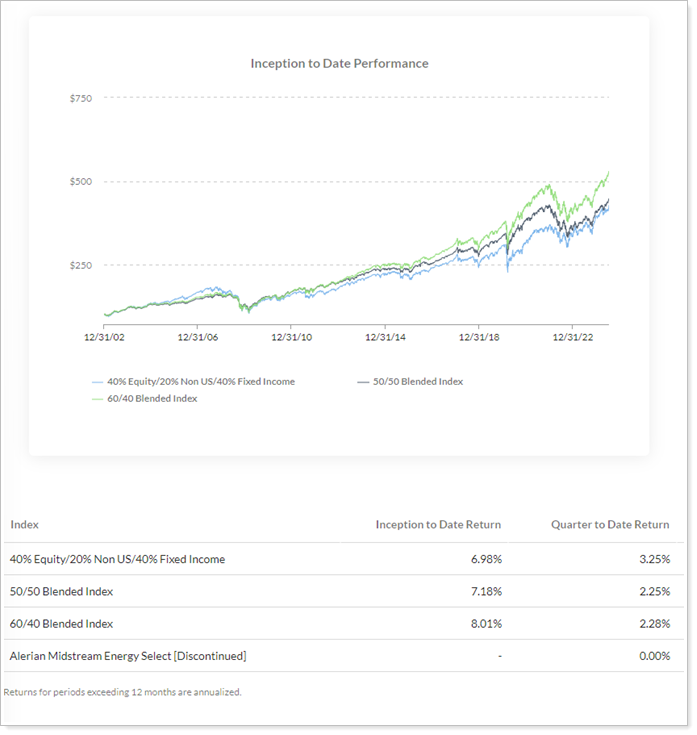
This report includes:
-
Dynamic Line Chart: The line chart gives your client a visual representation of the performance for the selected indexes over time.
-
Comprehensive Performance Table: The table layout mirrors the account performance table, offering a straightforward view of index statistics including annualized IRR percentages for various date periods.
-
Report Controls: The Show Data For Selector and group by options are disabled for this report type, making it more user friendly by eliminating controls you don’t need.
These improvements allow you to analyze index performance and compare results across multiple time periods.
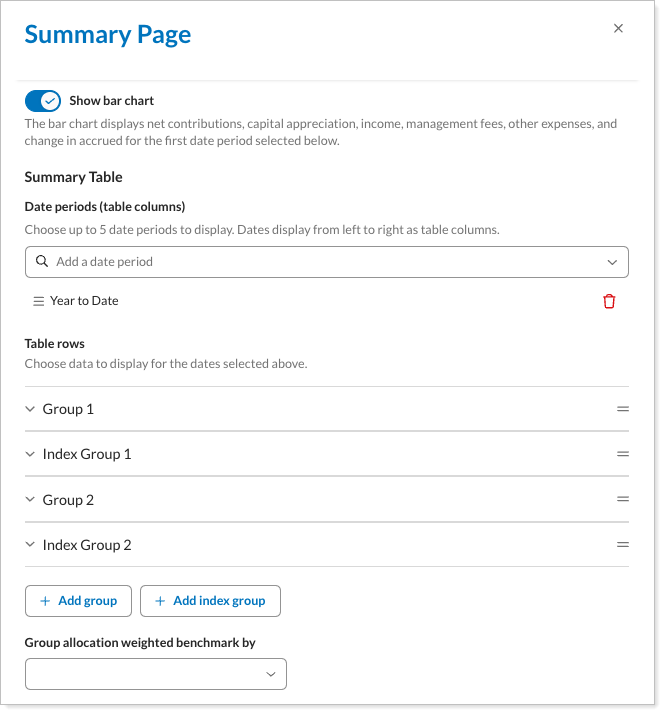
Add Indexes to the Summary Report in the Client Portal
We know how important the Summary report is to you and your clients. The Summary report offers flexible sorting and charting to address key questions about accounts and groups. In the past, you could only add an Allocation-weighted benchmark to the Summary report, and that limited the information that you could provide to your client. With this release, you can now add up to 10 indexes, providing better insights into your client’s investment performance compared to the broader market.