
Contents
|
Manage Orders More Efficiently on the Order Blotter Page |
Manage Orders More Efficiently on the Order Blotter Page
We’re making continued improvements to the Order Blotter so that you and fixed income traders can manage orders even more effectively.
Here’s what you can expect from our latest release.
See More Information on the Order Blotter Page
To give you the information you need, when and where you need it, the Order Blotter page now features the following changes:
-
See more decimal places in columns. For more precision on fractional share orders, you can now see up to six decimal places in columns like Order Value and Order Units.

-
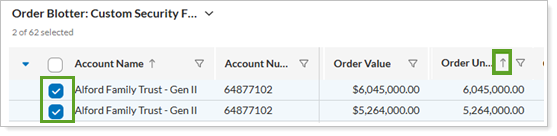
Retain your order selection on the page. When you’ve selected orders for action and then sort columns to organize information, Order Blotter keeps your order selections.
-
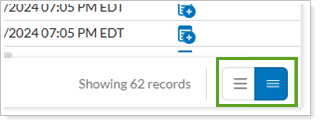
See more orders at once. When you have many orders to review and want to maximize the number of rows on the screen, select the condensed layout. Select the expanded layout to see more padding around each row for easier viewing.
-
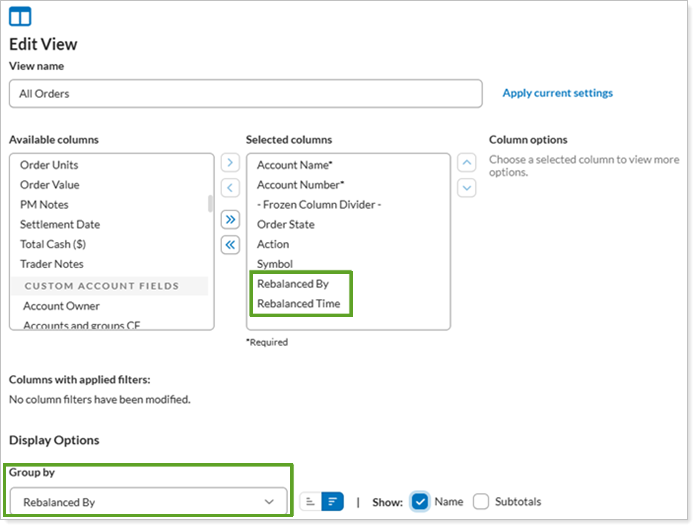
Add and group by more data points. Include the new Rebalanced By and Rebalanced Time columns to view, filter, and group orders by who completed the rebalance and when it occurred.
-
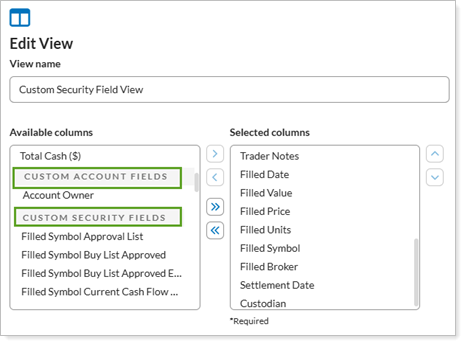
Clearer sections when adding columns. When you’re adding reference columns to your Order Blotter view, we’ve made it clear where you select account- and security-level custom fields.
Example
To see more information about the security that filled a generic order, you can update the Order Blotter page view to display Filled Symbol and other custom Filled Symbol fields along with the order Symbol.

Use Intuitive Order Settings
To make order execution more efficient, we’ve provided the following:
-
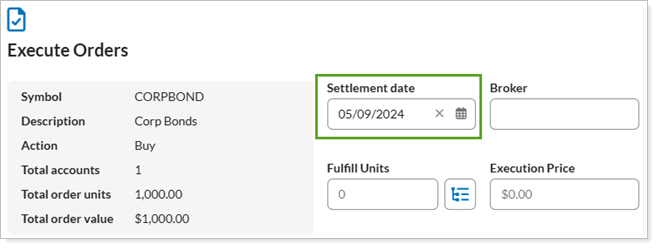
Default settlement date on order execution. When you execute an order, Settlement date displays T+1. Optionally, you can continue to use the calendar feature or type in a new date.
-
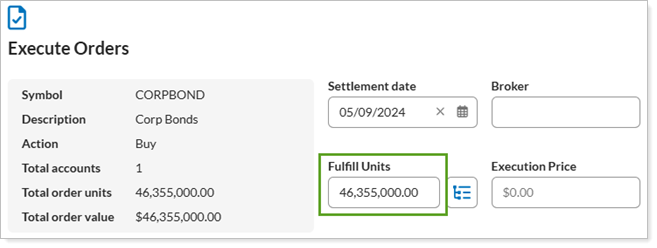
Automatic formatting for Fulfill Units. To make life just a little easier, when you enter Fulfill Units, commas automatically appear.
Better Split Order Tracking
To better follow progress and record Trader Notes on orders you split, we’ve added the following features:
-
Follow a split order when trade execution is pending. When you split an order in the Fill Pending state, the open order remains in that state. When the trader completes the execute action, Order Blotter records that date in Filled Date.
-
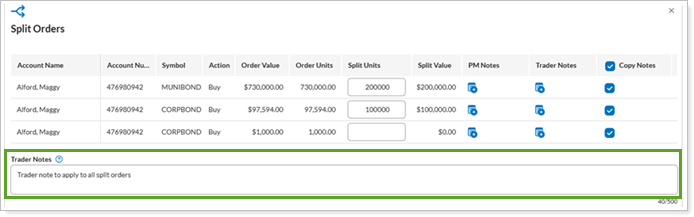
Add a Trader Note when you split orders. If you want to keep track of why you split the order or any notes specific to that split, you can add a Trader Note to a newly split order.
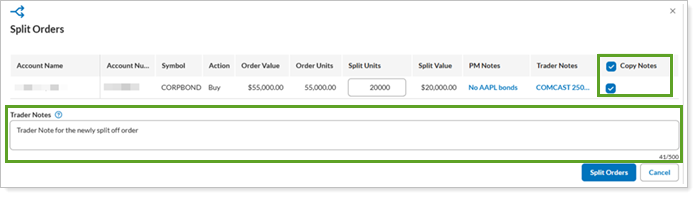
Optionally, when you copy notes, you can retain the original note history in both the original order and the newly split order.
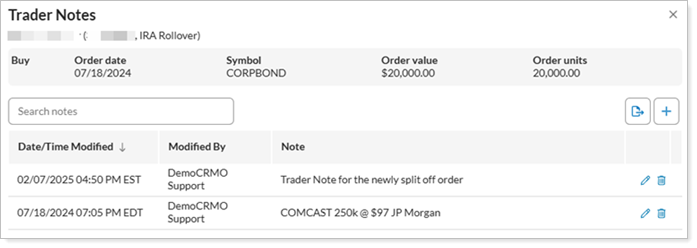
You can also add a trader note globally when you select multiple orders to split and optionally select per order to copy original note history to the newly split order.
See Trader Notes on Pages and Bulk Reports
To provide you with more fixed income trade order details across the platform, we’ve made the Order Blotter Trader Notes column available on the Orders page and in the Orders and Trade Reconciliation bulk reports.