
Contents
Introduction
The Arch integration connects the Tamarac platform with Arch, a provider of alternative investment data. This integration lets you see alternate holdings managed on the Arch platform and access critical tax documents like K-1s and 1099s without leaving the Tamarac platform. Holdings managed through Arch appear in Tamarac Reporting as automatically created manual security snapshots, which you can include in your standard reporting package.
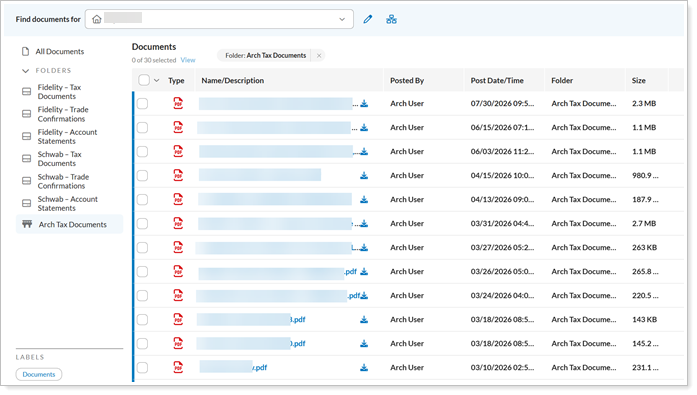
This article provides details about how to see Arch alternative investment data and tax documents in the Tamarac platform.
For more information about other alternative investment provider integrations, see Introduction to alternative investments.
Enablement
Your firm must have the Arch integration enabled. To turn it on, contact your Tamarac Service team. For more information about setting up the data feed, see Workflow: Set up data feed for alternative investments in Tamarac.
There is no cost to configure the data feed.
Use Arch data in Tamarac Reporting
When managing your clients’ assets, you need to see and report on all your clients’ accounts and holdings in Tamarac Reporting, regardless of where the assets are held.
To bring in data about the alternative investments from Arch, you can:
-
Export the data from Arch and upload it to create manual security snapshots in Tamarac each time something changes.
-
Use Tamarac’s direct data feed with Arch, which automatically creates and updates manual security snapshots.
Either method allows you to include Arch alternative investment data in your standard reporting package.
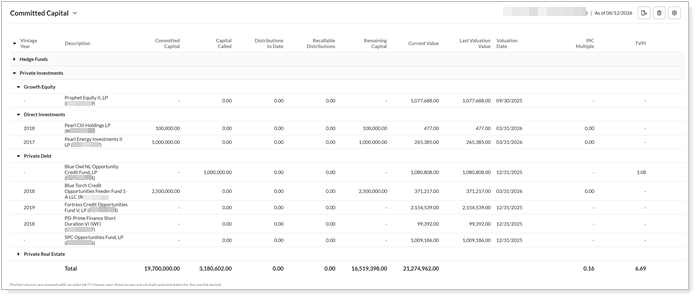
For more information, see:
See Arch tax files in the Tamarac document vault
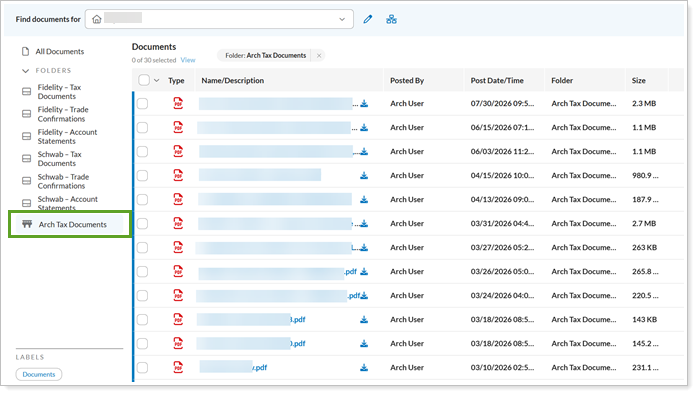
Once the integration is enabled, Arch tax documents automatically appear in the Tamarac document vault. For more information about the document vault, see Use the Document Vault.
To access Arch tax documents in the Tamarac document vault:
-
In the Tamarac platform, under Documents, select Vault.
-
In Find documents for, select the client who has alternative investments in Arch.
-
Select Arch Tax Documents to see the tax documents for that client's accounts.
-
Optionally, select one of the documents and choose Download.