
Contents
Introduction
The HubSpot and Microsoft Dynamics 365 integration for Tamarac CRM lets firms sync key CRM records, such as leads and contacts, between HubSpot and Dynamics 365. This helps your marketing and advisory teams work from consistent, up‑to‑date data across systems.
With this integration, your firm can reduce manual data entry, improve lead visibility in Tamarac CRM, and support more coordinated outreach and follow‑up workflows.

This article provides more information about enabling and using HubSpot in Dynamics 365.
Enrollment
To enable this integration, make sure you meet these requirements:
-
HubSpot permissions. You must have Super Admin or App Marketplace Access.
-
Microsoft Dynamics 365 subscriptions. You must have an active Sales Professional, Sales Enterprise, or Sales Premium subscription.
-
Microsoft Dynamics 365 permissions. You must have read and write access for each CRM record type you plan to sync.
How the integration works
Choose what data syncs between HubSpot and CRM
When you enable the HubSpot integration with Dynamics 365, you define exactly how lead and contact data syncs between HubSpot and Tamarac CRM.
When you configure the data sync, you can control:
-
Which CRM records and fields sync between systems. For example, sync CRM leads with HubSpot contacts and map first and last name, phone number, and other key contact information.
-
How records match between systems. For example, match records between systems based on email address and create guardrails by choosing how to treat duplicate matches.
-
Which records not to sync based on custom criteria. For example, add a filter to make sure only prospects that you've contacted within the last three years sync between systems to limit any stale leads.
-
Which HubSpot lifecycle stage CRM leads will be assigned when they first sync. For example, set the lifecycle to Marketing Qualified Lead to make sure it fits into your current HubSpot workflows.
Choose sync direction between HubSpot and CRM
The direction that the data flows between HubSpot and Tamarac CRM depends on how you configure the data sync. Based on your data management preferences, you can choose whether it syncs bi-directionally or one-directionally from your preferred source.
The following table outlines how you can configure data flow between systems.
| Tamarac CRM REcord | Direction | HubSpot record | Hubspot configuration | Data flow |
|---|---|---|---|---|
| Mapped field |

|
Mapped field | Data syncs between apps | All mapped fields sync in both directions between matched records. |
| Mapped field |

|
Mapped field | Data syncs only to HubSpot | Mapped fields only sync from the Tamarac CRM record to the matched HubSpot record. |
| Mapped field |

|
Mapped field | Data syncs only to Microsoft Dynamics 365 | Mapped fields only sync from the HubSpot record to the matched Tamarac CRM record. |
Best practices
To integrate HubSpot with CRM efficiently, follow these best practices:
-
Monitor data sync health regularly. Check for errors and diagnose issues in HubSpot.
-
Keep the authorized Microsoft Dynamics 365 connection active. Make sure the authorized connection remains valid in HubSpot.
-
Update field mappings and filters. Adjust mappings as HubSpot properties or Tamarac CRM fields change.
Enable the integration in HubSpot
A HubSpot Super Admin or a user with App Marketplace access installs and manages the integration in HubSpot.
All integration configurations take place in HubSpot. You don't have to set anything up in Tamarac CRM or Dynamics 365.
Note
HubSpot may update its integration, permissions, and configuration options over time. Always refer to the HubSpot Help Center for the most up-to-date instructions.
For more information, see Connect HubSpot and Microsoft Dynamics 365 (external link opens in a new tab).
To enable the HubSpot integration:
-
In HubSpot, install the Microsoft Dynamics 365 app.
-
Connect HubSpot to Microsoft Dynamics 365.
-
Configure the data sync.
-
Review the configurations and test the sync.
-
Turn on the data sync.
Install and connect Dynamics 365 in HubSpot
To install the Microsoft Dynamics 365 in HubSpot:
-
Sign in to HubSpot (external link opens in a new tab).
-
Search for Microsoft Dynamics 365 in the HubSpot Marketplace (external link opens in a new tab). It should appear as a HubSpot certified app.
-
Open the app and select Install.
-
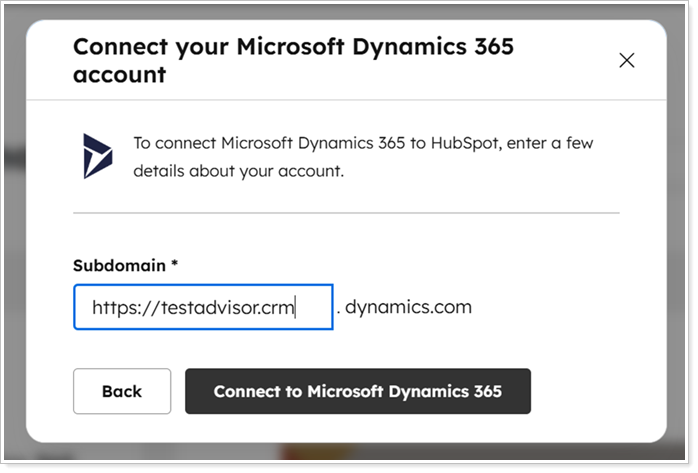
During installation, enter your organization’s Subdomain and select Connect to Microsoft Dynamics 365. Then sign in using the Dynamics 365 credentials associated with your organization's CRM environment.
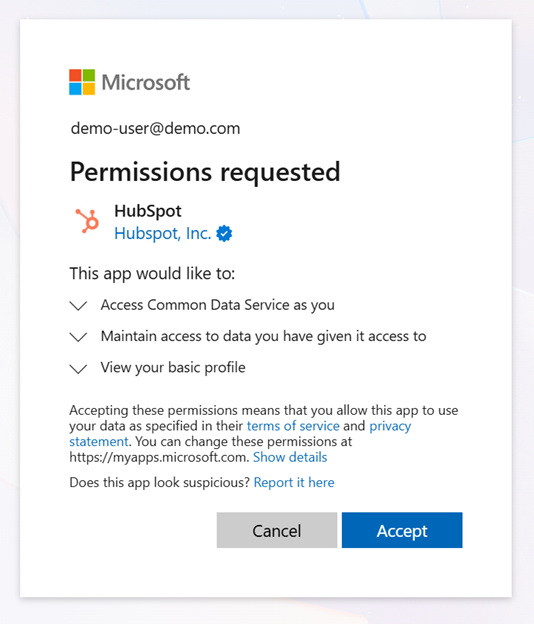
To integrate the platforms, you must Accept the requested permissions.
Configure the data sync in HubSpot
After you connect HubSpot to Microsoft Dynamics 365, configure and customize the data sync between HubSpot and Tamarac CRM.
Note
HubSpot's data sync settings include options that may not support your CRM workflows, and these settings may change over time. This section highlights recommended configuration points to help you set up relevant data syncs with Tamarac CRM.
For additional guidance, see Connect and use HubSpot data sync (external link opens in new tab).
To configure the data sync in HubSpot:
-
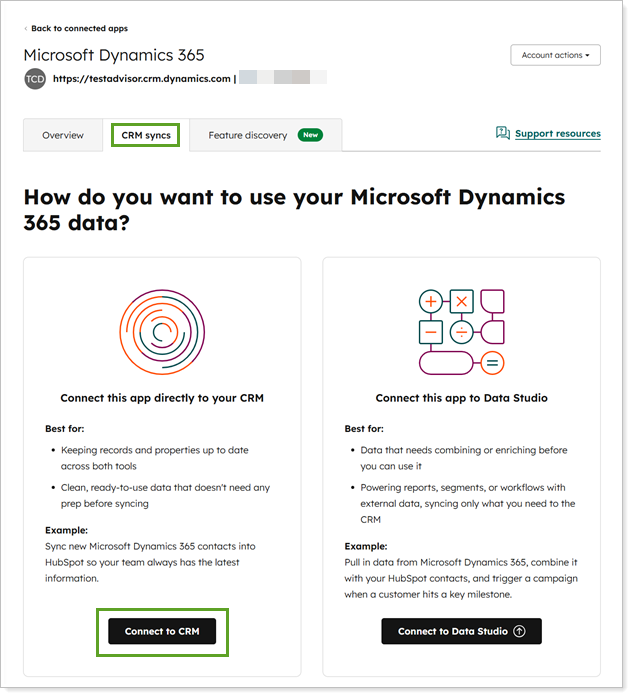
In the connected Microsoft Dynamics 365 app, under CRM syncs, select Connect to CRM.
-
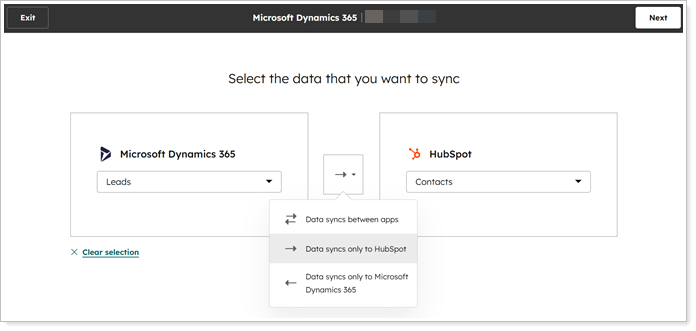
Select the records to sync between Microsoft Dynamics 365 and HubSpot and choose one of the following sync directions.
-
Data syncs between apps. All mapped fields for matched records sync in both directions.
-
Data syncs only to HubSpot. Mapped fields for matched records only sync from Tamarac CRM to HubSpot.
-
Data syncs only to Microsoft Dynamics 365. Mapped fields for matched records only sync from HubSpot to Tamarac CRM.
-
-
On the Configure page, under Record matching, choose how records match between systems. The default and most common option matches records based on email address.
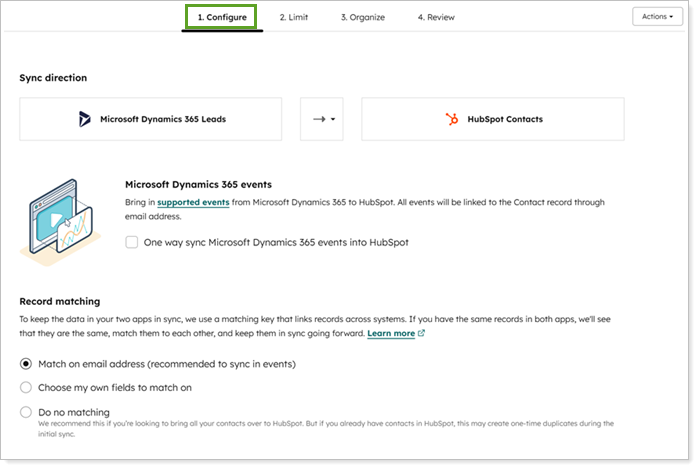
Optionally, select Choose my own fields to match on to customize the sync using your firm’s preferred fields. For example, you might use a unique external ID that remains consistent between systems, such as the Dynamics Lead ID.
-
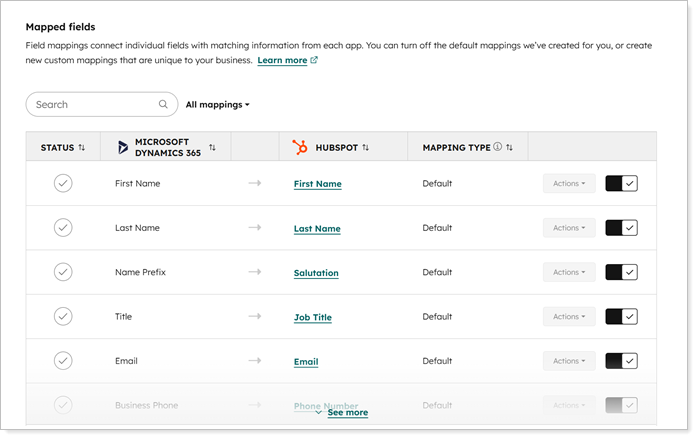
Under Mapped fields, view the fields that will sync between HubSpot and CRM based on the configured sync direction. You can disable optional fields that you don’t want to include in the sync.
-
On the Limit page, you can optionally add filters to define specific criteria that records must meet to sync between systems.
For example, to focus on relevant prospect relationships, you might use filters to sync only leads with a Last Appointment in the past two years.
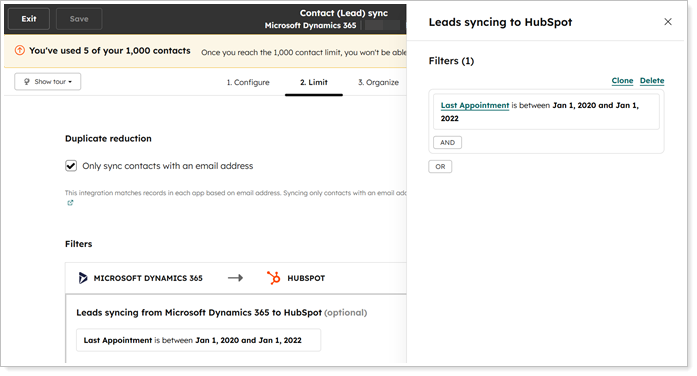
If you’re just getting started, filters help you pilot the integration safely and limit the records that sync.
-
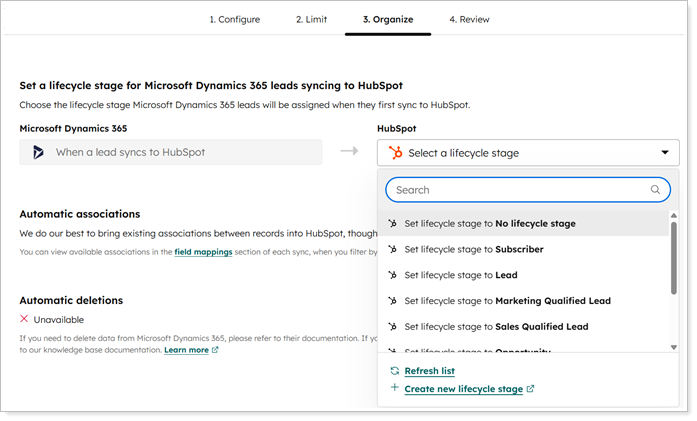
On the Organize page, choose the lifecycle stage that CRM leads receive when they first sync with HubSpot.
Review and test the data sync in HubSpot
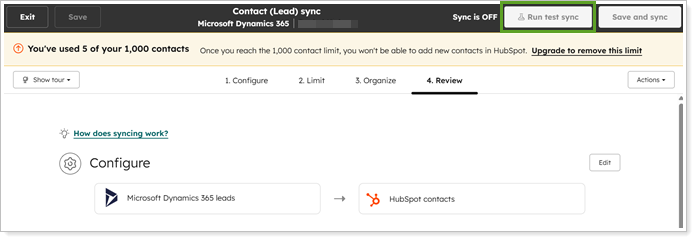
Use the Review page to validate and adjust all data sync settings before you enable the sync.
When you’re confident the information is correct, select Run test sync.
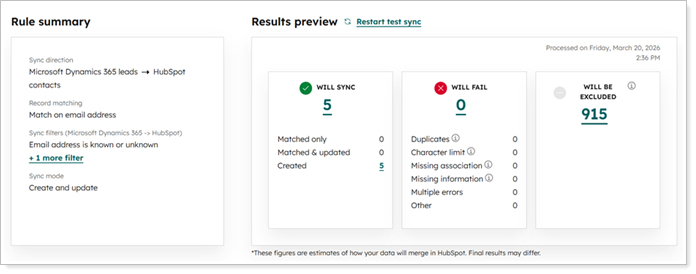
Review the test sync results and use them to troubleshoot any errors.
Turn on the data sync in HubSpot
After a successful test, select Start your sync.

HubSpot notifies you when the sync turns on and completes successfully.
Validate the data sync in CRM
After you turn on the data sync, HubSpot uses your integration settings to match records between systems and maps fields based on the configured sync direction.
In Tamarac CRM, spot-check lead or contact records to confirm that record matching works correctly, field mapping appears as expected, and updates flow in the intended sync direction.
Monitor the data sync in HubSpot
In HubSpot, use the Dynamics 365 sync card on contact records to view detailed sync information including:
-
Sync status. Whether the record is currently syncing with Tamarac CRM.
-
Last sync time. The most recent time the record synced.
-
Linked CRM record. The CRM record associated with the HubSpot record.
For more information, see Use the Microsoft Dynamics 365 integrations sync card (external link opens in new tab).
Troubleshoot the HubSpot integration
Because you configure the integration in HubSpot, perform all troubleshooting on the HubSpot platform.
Use the following resources for support:
-
HubSpot Support Team. Contact the HubSpot Support team for help troubleshooting the integration. For more information, see Contact Us (external link opens in new tab).
-
HubSpot Community Forums. Join the HubSpot forums for peer support. For more information, see Welcome to the HubSpot Community (external link opens in new tab).
-
HubSpot Help Center. Refer to the HubSpot Help Center for the latest integration guidance (external link opens in a new tab).