Contents
Introduction
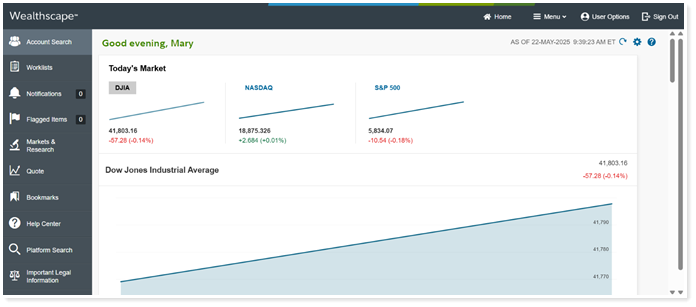
You can seamlessly move from Tamarac CRM to Fidelity Wealthscape to support your daily operations and custodial workflows using the Fidelity Single Sign-On integration.
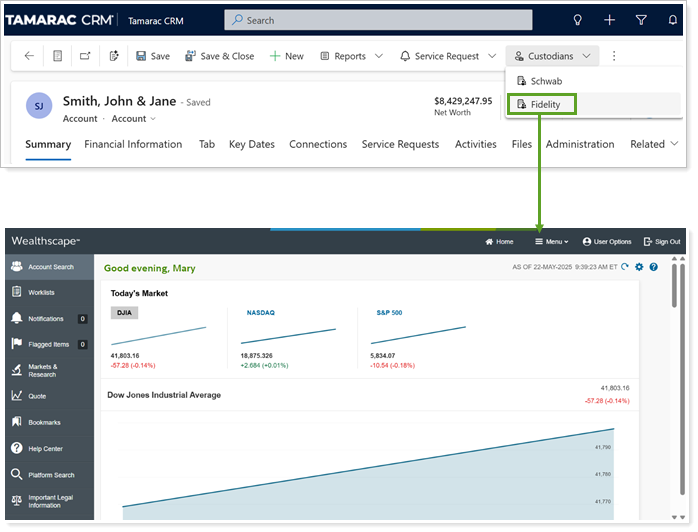
This page provides steps for how to enable and use the Fidelity SSO feature in Tamarac CRM.
Before You Start
To enable and use the Fidelity SSO feature:
-
In Tamarac CRM: A Tamarac Data Manager must enable the Fidelity integration for your firm. For steps, see Enable the Fidelity Integration.
-
In Fidelity Wealthscape: A Wealthscape or User Admin must add the WC SSO Tamarac Entitlement/User Group to your profile in Production.
Enable Fidelity Single Sign-On Access
To turn on the ability to launch directly into Fidelity Wealthscape from Tamarac CRM:
-
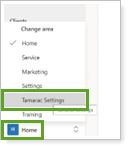
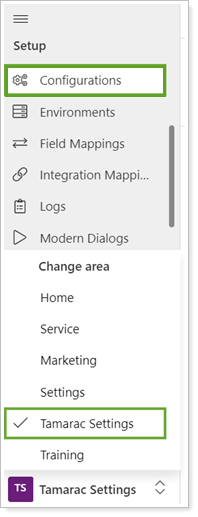
In Tamarac CRM, in the bottom left under Home, select Tamarac Settings.
-
Under Setup, select Configurations.
-
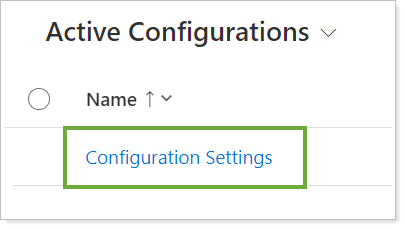
Select Configuration Settings.
-
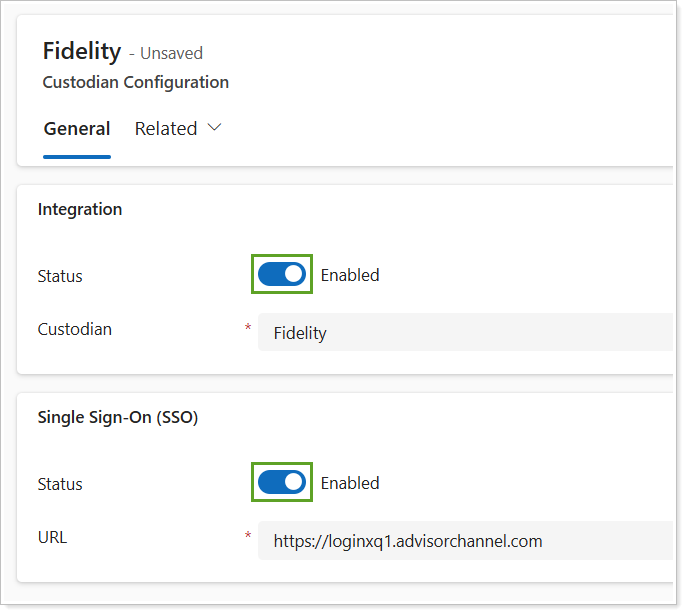
To open the configuration page, in Custodians, select Fidelity.

-
Turn on Single Sign-On (SSO) and, if it's not already enabled, turn on Integration.
Access Fidelity from Tamarac CRM
To access Fidelity Wealthscape from Tamarac CRM:
-
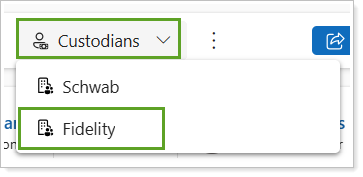
In the account command bar, select Custodians and then select Fidelity.
-
Select Single Sign-On.
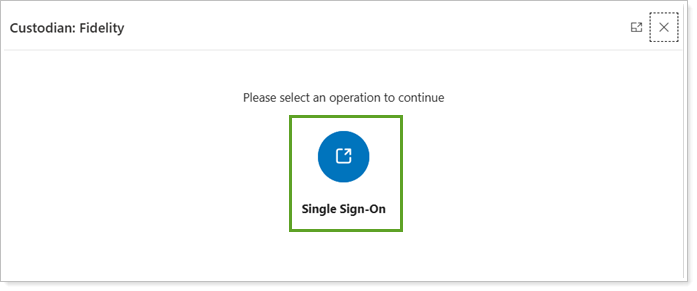
If you’re already signed in with Fidelity, Wealthscape will open in a new tab. If you’re not already signed in, you’ll have to enter your Fidelity credentials first.
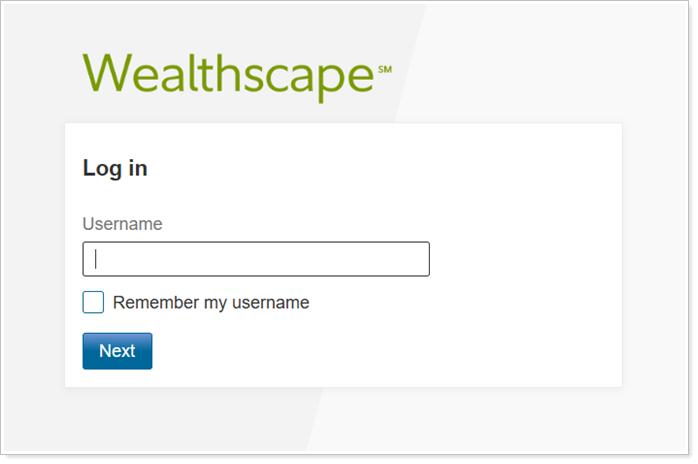
On subsequent logins, you should be redirected immediately to the landing page.