Contents
|
Generate PDF reports in the Client Portal Improved error messages for MoneyGuide in the Client Portal Schedule appointments directly in the Client Portal with Calendly |
Client Portal
Generate PDF reports in the Client Portal
What's changing
In the past, you could share PDF reports and files with clients through the Client Portal Document Vault, but clients couldn’t generate their own reports. With this release, we open the door for clients to generate their own PDFs directly on the Client Portal. you and your clients can create and download PDF reports from the new PDF Report Generator section in the Client Portal.
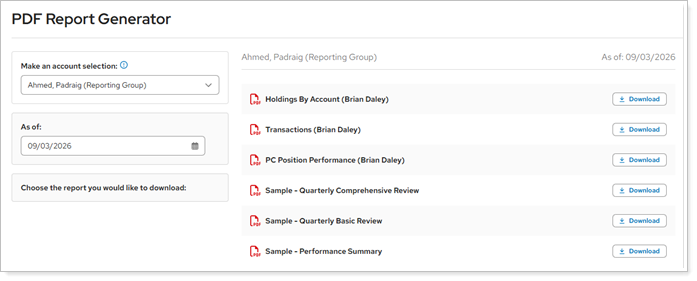
The feature uses your existing templates for households, reporting groups, and individual accounts.
You can organize templates into custom-named sections and manage disclosure language in the Configuration Manager. Reports download to your device automatically.
Why you'd use it
This highly anticipated feature lets you give clients control over report creation, without you having to manually prepare each report. Clients can choose specific reporting entities and time periods to create reports from your enterprise's existing PDF templates.
With this change, clients get the reports they need, while you retain control over which templates appear in the Client Portal and how they're organized.
How to get started
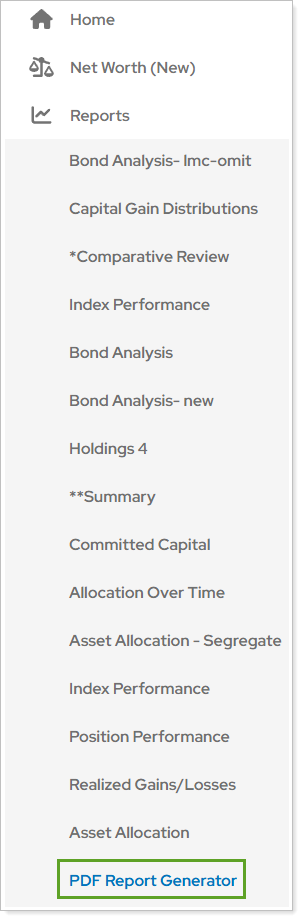
To use this feature, you must configure the PDF Report Generator page type in the Configuration Manager. Once enabled, find the PDF Report Generator page under Reports in the Client Portal.
Additional information
For more information, see Generate a PDF Report in the Client Portal.
Improved error messages for MoneyGuide in the Client Portal
What's changing
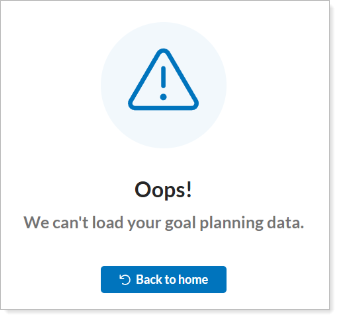
Tamarac now features improved error handling for MoneyGuide integrations within the Client Portal, giving you and your clients a more informative and transparent interface. Instead of a generic error message, you now see detailed messages that help you can understand and resolve plan-related issues quickly.
Why you'd use it
This enhancement makes it easier for you and your clients to understand what’s causing a problem and solve it more quickly. Specific error messages tell you exactly why—such as a missing plan or an action required in MoneyGuide.
How to get started
No action is needed. These changes will apply after the release.
Additional information
For more information, see Introduction to the MoneyGuide Integration.
Schedule appointments directly in the Client Portal with Calendly
What's changing
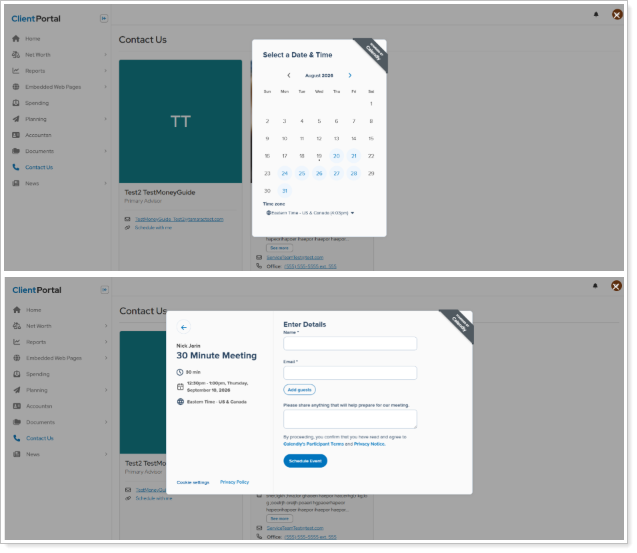
The Client Portal now lets clients book time with you by embedding your Calendly page directly on the Contact Us page. When a client selects your custom link, a modal window opens with your embedded Calendly interface, letting them view appointment types, pick a time, and book without leaving the client portal.
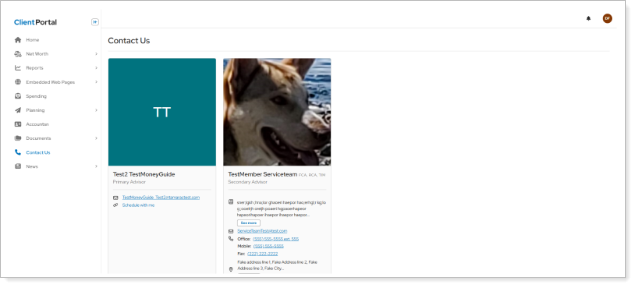
The platform validates the URL first to confirm it's compatible. If it isn't, the link is still embedded on the Contact Us page, and it opens your Calendly scheduler in a new browser tab as before.
Why you'd use it
This reduces friction for clients scheduling time with you through the Client Portal, while letting you manage your calendar through your existing Calendly setup. It's an efficient way for clients to book meetings without leaving their financial data to do it.
How to get started
To enable this feature, add your Calendly URL to the Custom Link field in your advisor profile. Clients will then see the scheduling option automatically on the Contact Us page.
Additional information
For more information, see:
Pershing document vault integration for Client Portal
What's changing
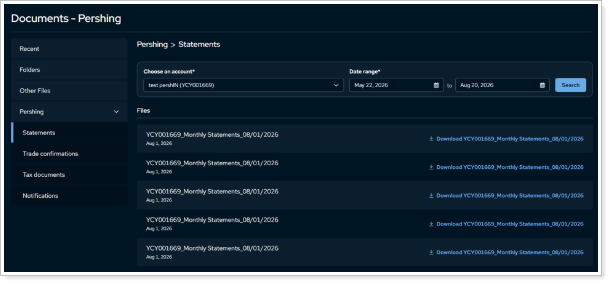
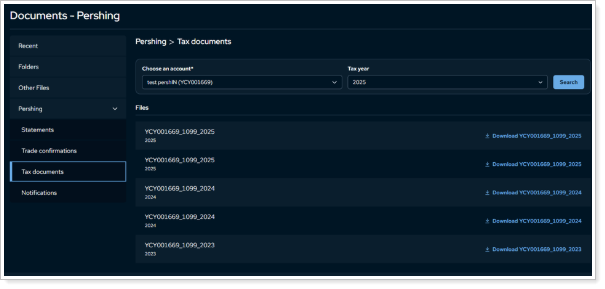
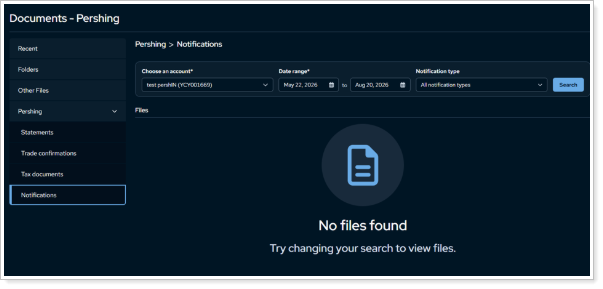
Clients that use Pershing as a custodian can now access your Pershing custodial documents directly in the Client Portal, without navigating to a separate site. You can configure clients to see a new Pershing section on the Documents page, with Statements, Trade confirmations, Tax documents, and Notifications. The Document lists populate automatically on page load, using smart defaults to reduce manual filtering.
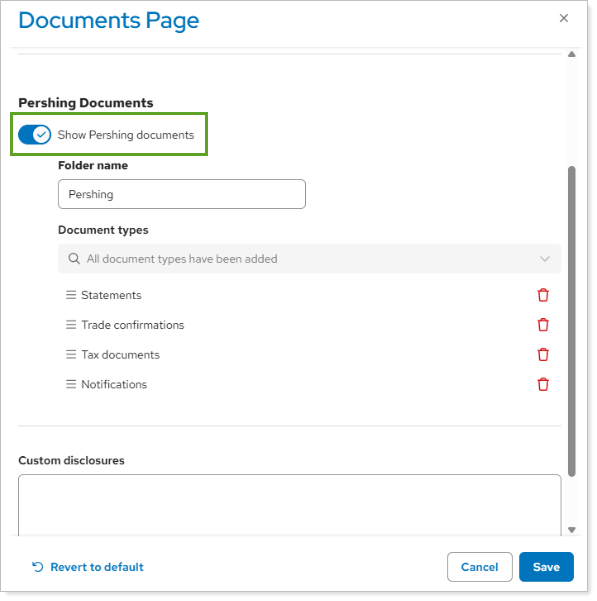
When configuring for your clients, you can rename the dedicated Pershing section in the document vault left navigation to match your firm's terminology.
In the Pershing document vault folders, clients can see the following file types:
-
Statements and trade confirmations. View statements and trade confirmations automatically retrieved for the first account in the list, covering the most recent three months by default.
-
Tax documents. Filter by account and tax year. The client portal uses the most recent tax year by default.
-
Notifications. Filter categorized views by account, date range, and notification type. All types display for the last three months by default.
Why you'd use it
Save clients time by letting them skip signing into a separate Pershing portal to retrieve custodial documents. Clients can view and manage those files directly in the Client Portal, alongside the rest of their dashboard. Centralized statements and tax documents, with automated default searches, help clients quickly find what you need for reporting or tax preparation — no manual filtering required.
How to get started
For firm-level configuration, select Show Pershing documents in the Configuration Manager and confirm your firm's PLINK ID.
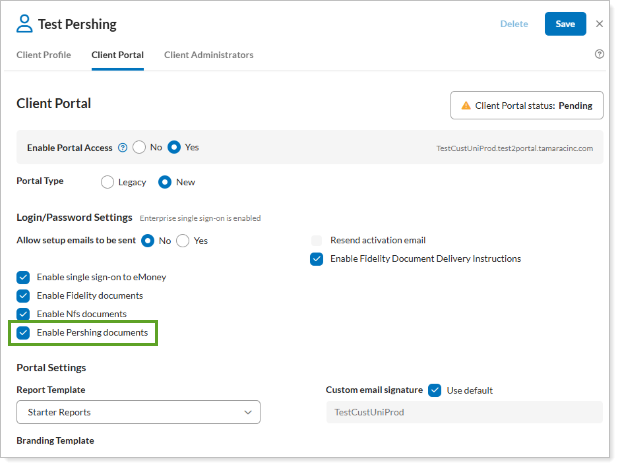
For client-level configuration, select the Enable Pershing documents checkbox on the Client Profile page.