
Contents
Introduction
If you create custom service requests for your firm, you must create modern dialogs to control where a service request appears and what information is included.
This is step 3 in the Workflow: Set Up Custom Service Requests in Tamarac CRM.

Before You Start
To customize service requests, you must be a System Customizer and complete the workflow steps to set up a custom service request.
Complete step 2 in the Workflow: Set Up Custom Service Requests in Tamarac CRM. For steps, see Create Business Rules for Service Requests.
Create a Modern Dialog
To create a modern dialog for your custom service request:
-
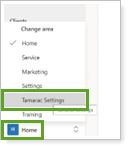
In Tamarac CRM, in the bottom left under Home, select Tamarac Settings.
-
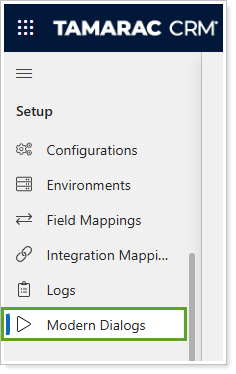
Select Modern Dialogs.
-
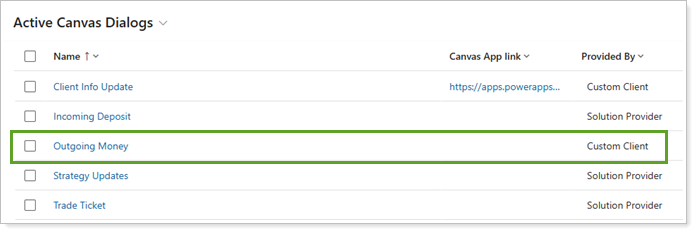
In Active Canvas Dialogs, select an existing modern dialog. If available, select a custom modern dialog that displays Custom Client under Provided By.
-
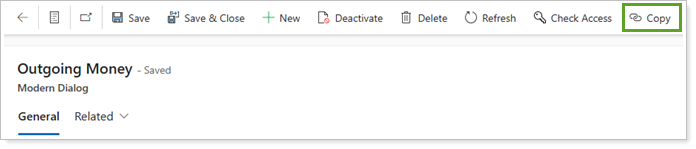
Select Copy.
-
Update the Dialog Name with your new service request name.
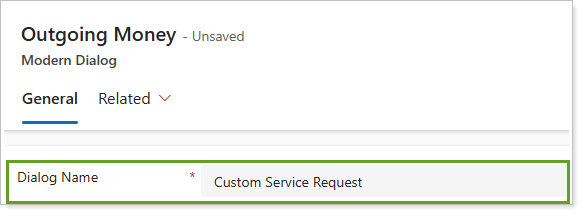
Note
We recommend adding Testing or Do Not Use to your new title so firm users know this isn’t ready yet and should not be used while going through the process. Once you have finalized and finished testing, you can remove that wording.
-
Under Show Tabs, type to enter the name that matches the Tab Name in your custom service request form. Do not enter spaces.

-
In Dialog Configuration Parameters, if there are no active parameters, select New Dialog Configuration Parameter.
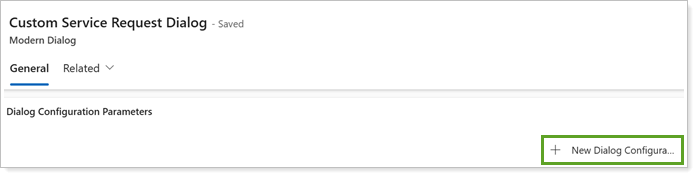
-
If you need to create new parameters, enter or select the required information and select Save & Create New to repeat the process for each parameter. Add new or update existing with the following information:
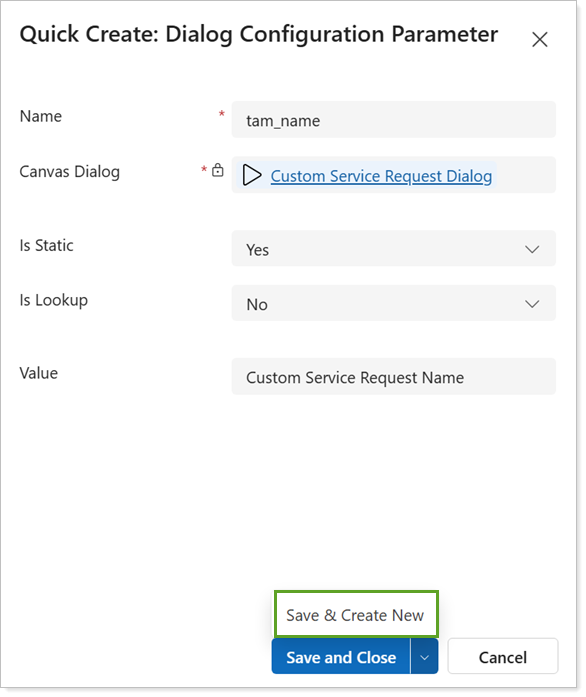
Dialog Configuration Parameter Field entry Parameter 1 Name
tam_name
Parameter 1 Is Static
Yes Parameter 1 Is Lookup
No Parameter 1 Value The name of your service request (e.g. Outgoing Money) Parameter 2 Name tam_openformid Parameter 2 Is Static Yes Parameter 2 Is Lookup No Parameter 2 Value GUID of the FORM and should match the FormID field on the Modern Dialog Parameter 3 Name tam_servicerequest_accountid (this may be different if it runs on a different record type) Parameter 3 Is Static No Parameter 3 Is Lookup Yes Parameter 3 Source Field Name accountid Parameter 3 LookupName Source Field Name name Parameter 4
Name tam_servicerequesttype Parameter 4 Is Static Yes Parameter 4 Is Lookup Yes Parameter 4 Value value from the Service Request Type Option set -
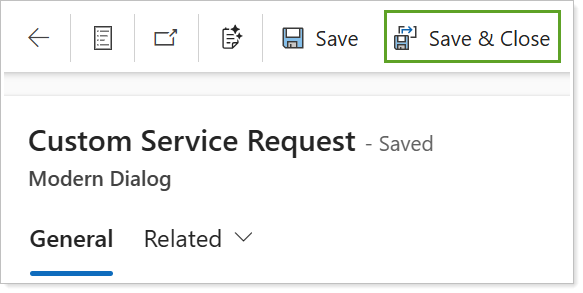
Select Save & Close.
Next Steps
After you’ve created a Modern Dialog for your service request, you must create a background workflow to automate the service request tasks and conditions.
To continue to the next step in the workflow, see Create Background Workflows for Service Requests.