
Contents
View Schwab Standing Authorizations directly in Tamarac CRM
Standing authorizations govern how you’re allowed to move money and client assets for an account on demand, so clear visibility into these instructions can be essential to your money movement workflows.
Previously, you could only see standing authorization details for Schwab accounts through Schwab Advisor Center. This required you to jump between systems to verify permissions or review transfer rules, creating extra steps and fragmenting compliance oversight.
With this enhancement, you can now see Schwab standing authorizations directly in CRM. On financial accounts records, the new Custodian Standing Authorizations tab allows you to view authorization details, sort key fields, and filter data across categories such as ACH Transfers, Checks, Internal Transfers, and Wires.
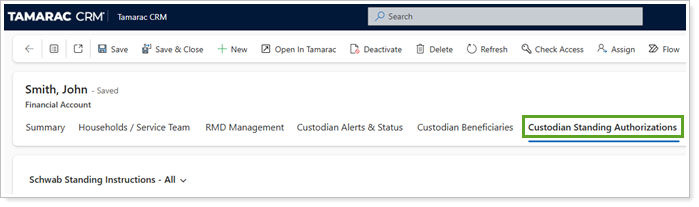
Once enabled, standing authorization records sync from Schwab Advisor Center to Tamarac CRM daily, ensuring updated visibility in CRM while maintaining view-only access to protect data integrity. You can manage your standing authorizations directly in Schwab Advisor Center.
To view Schwab standing authorization information on eligible financial accounts, a System Administrator or Data Manager must enable the Schwab and Standing Authorizations integrations in Configuration Settings.
For more information, see See Schwab Standing Authorizations in Tamarac CRM.
Streamline lead data transfer with Power Automate Flows
When you engage with prospects, you collect key information that you want to carry forward into client records during onboarding.
In the past, when you qualified a lead in Tamarac CRM, important data like contact history or details captured during the qualification process didn’t automatically flow to the resulting account or contact records. Advisors or support teams had to manually re‑enter the information, increasing the risk of errors or missed details.
To help automate this process, we’ve created the following Power Automate flow templates:
-
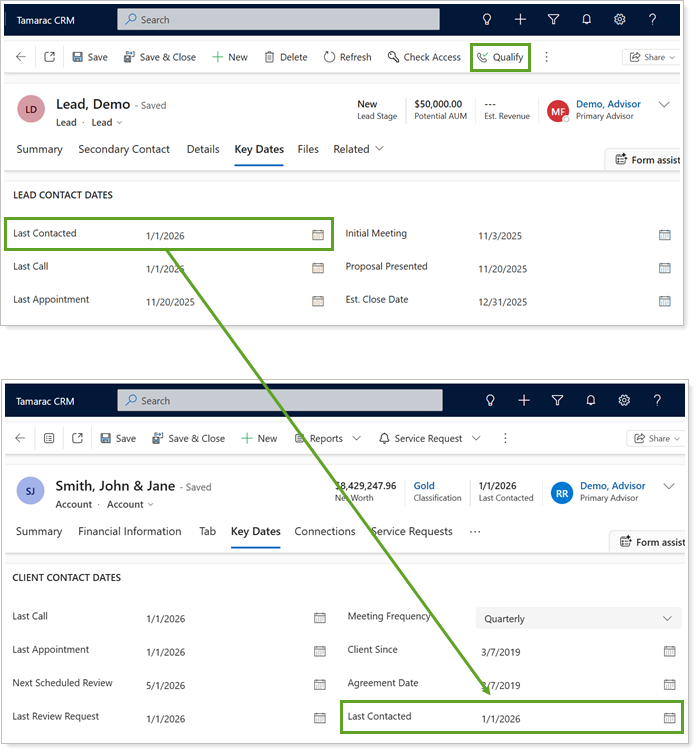
TamTemplate - Lead to Account Conversion. When you Qualify a lead, this flow transfers custom mapped fields from the originating lead record to the new account record. Your firm can choose which lead fields to map when enabling the flow.
-
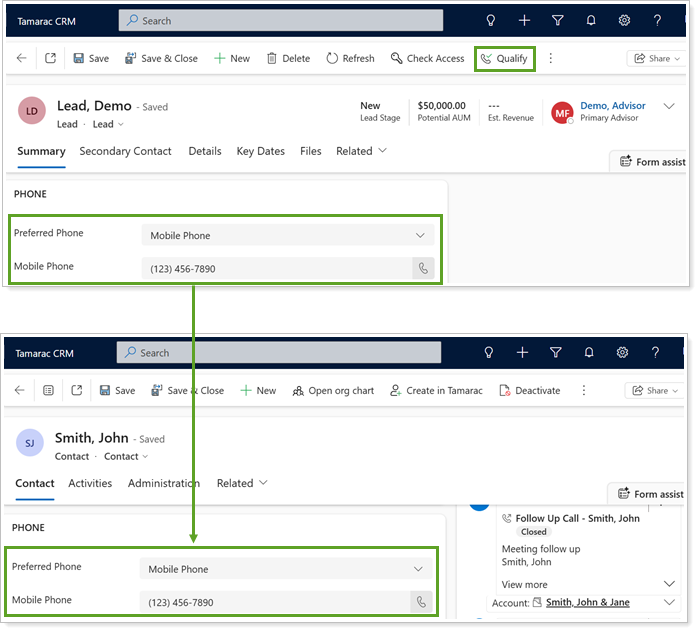
TamTemplate - Lead to Contact Conversion. When you Qualify a lead, this flow transfers custom mapped lead contact fields to the new primary and secondary contact records for the household. Your firm can choose which contact fields to map when enabling the flow.
These templates reduce manual effort, preserve valuable lead information, and offer the flexibility to customize field mappings for firm‑specific workflows.
To get started, CRM Administrators or the Tamarac Support team must enable and configure the flows.
For more information, see Automate lead data conversion with Power Automate.
Track client milestones with new Key Dates fields
Staying on top of important client milestones, reviews, and compliance activities helps you maintain oversight and deliver timely service. In Tamarac CRM, you can track these important dates directly on account records on the Key Dates tab.
To let you track additional review-related milestones, we’ve added the following new date fields to Key Dates:
-
Last Form CRS Sent
-
Last Beneficiary Review
-
Last Tax Review
-
Last Retirement Plan Review
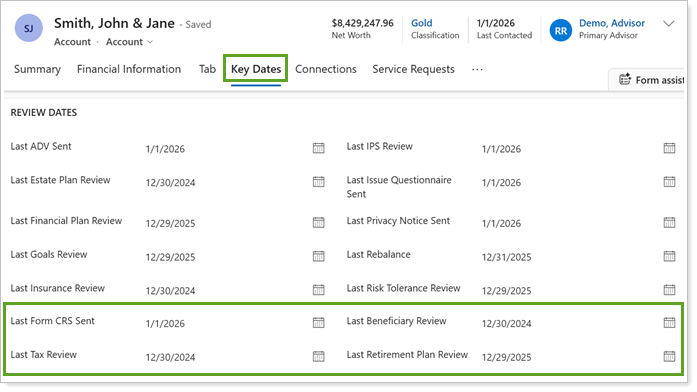
Each field is editable and supports standard date entry. Use these fields to record and monitor a broader range of client interactions, stay aligned with review schedules, and manage compliance‑related activities more effectively.
These new fields are available automatically to all users and require no additional configuration.
For more information, see Track client milestones with key dates.
Monitor the last reconciliation date for financial accounts
If your firm relies on integrated Tamarac and portfolio accounting systems in your operations, we understand how vital it is to have up-to-date and pertinent data unified across your platforms.
That’s why, with this release, we are integrating the Last Reconciliation Date from Tamarac Reporting into CRM, promoting better visibility into the account reconciliation information that updates during the daily sync with your portfolio accounting system.
Under Summary for a Financial Account record, this date will appear as read-only to ensure that you are monitoring data directly from the source.
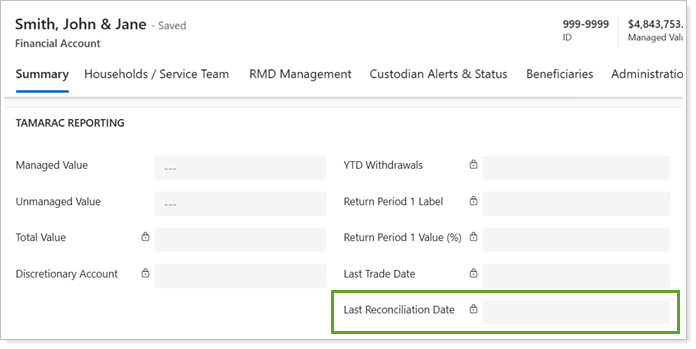
To see the Last Reconciliation Date, you must have Financial Account Data Integration enabled. This is typically done during the initial set up of your site. For more information, see Financial Accounts Integration.
Note
If data does not populate in this field, review the corresponding account in Tamarac Reporting to confirm what appears there. In the case that a date appears in Reporting but not in CRM and a daily sync has occurred since the field was updated, contact Support for further assistance.
Co-browse with Tamarac CRM Support using the Glia integration
In the past, Tamarac CRM Support couldn’t directly see your screen without scheduling a meeting, making it more difficult to diagnose issues and provide solutions in real time.
With this enhancement, Tamarac CRM now offers shared browsing functionality, also known as co-browsing, through the Glia integration. This secure, interactive screen sharing takes place in CRM, streamlining troubleshooting, enhancing onboarding experiences, and improving overall support.
Once enabled, users can initiate a co-browse session during a Support call by using the CTRL+Y hotkey and sharing the unique session code with the Support member.
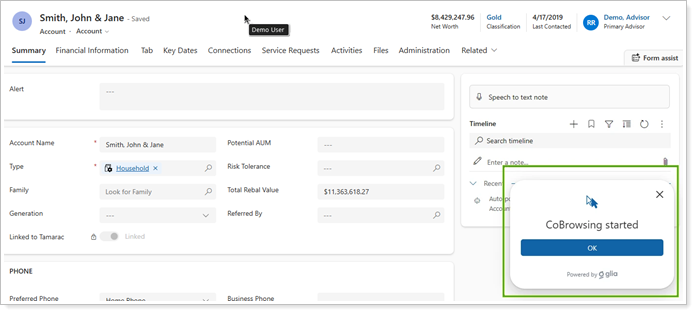
To enable co-browsing, a System Administrator or Data Manager must enable the Glia integration in Configuration Settings.
For more information, see Enable co-browsing with the Glia integration in Tamarac CRM.
Note
If you use the timestamp hotkey in CRM task records, it will change from CTRL+Y to CTRL+Q in this release to accommodate the new Glia integration.