
Contents
|
Enable or disable alerts and status integrations Enable alerts and status integrations Disable status and alerts integrations Re-enable status and alerts integrations |
Introduction
The alerts and status integration allows you to view critical information about your clients’ accounts in Tamarac CRM. Schwab uses alerts to keep you up to date on daily account activity, whether these notices are informational or require immediate action. These processes are essential to ensuring you’re able to support your clients in achieving their investing and financial goals.
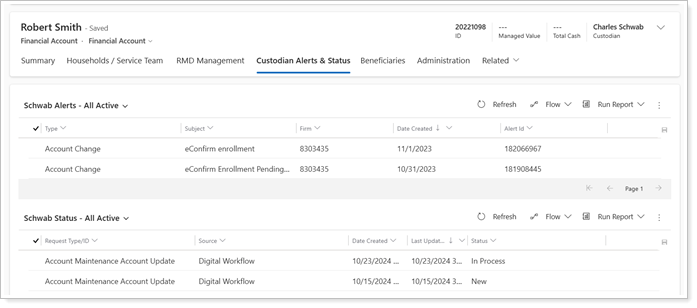
To streamline your process, you can see the following items from Schwab in Tamarac CRM:
|
Schwab Alerts |
Schwab Statuses |
|---|---|
|
Informational messages generated by Schwab to help you serve your clients, including:
|
The current state of requests you have submitted to Schwab, including:
|
This topic provides information about how to set up and see Schwab alerts and statuses in Tamarac CRM. For more information about Schwab’s alerts and statuses, in Schwab’s Help Center search for Introduction to Status Hub.
Before you start
Before you can enable and use this feature, you must:
-
Enable the Schwab integration. For steps, see Enable the Schwab Integration.
- Enable the Schwab SSO integration. For steps, see Schwab Single Sign-On (SSO) Integration.
Sync frequency
After enabling integrations and the first sync has occurred, you'll see alert and status records. Updates from Schwab Advisor Center will sync to Tamarac CRM multiple times daily.
To best align with Schwab Advisor Center, alerts and status records will appear and actively sync in Tamarac CRM for the following durations:
|
Schwab data |
retention period | Active sync period |
|---|---|---|
|
Statuses |
90 days after the request is resolved or canceled |
Until the request is resolved, canceled, or deleted |
| Alerts | 18 months after alert creation | 30 days after alert creation |
After the listed retention period, the record will be deleted from Tamarac CRM.
Enable or disable alerts and status integrations
To see alerts and statuses in Tamarac CRM, you must:
-
Have financial accounts actively custodied with Schwab.
-
Enable the Schwab, Alerts, and Status integrations in Tamarac CRM Configuration Settings.
-
To see the dashboard, you must also have the security role Tamarac Schwab Alerts & Status Dashboard User (Managed).
Once you’ve enabled the integration, you’ll see all the Alerts and Status records after the next automatic sync.
The following are steps to turn on or off the Schwab Alerts and Status integrations.
Enable alerts and status integrations
To set up the Schwab Alerts and Status integration:
-
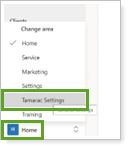
In Tamarac CRM, in the bottom left under Home, select Tamarac Settings.
-
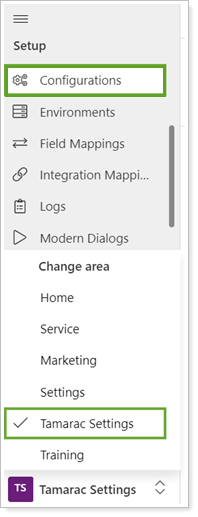
Under Setup, select Configurations.
-
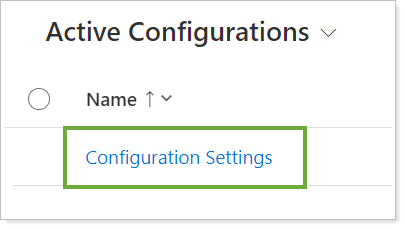
Select Configuration Settings.
-
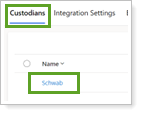
To open the configuration page, in Custodians, select Schwab.
-
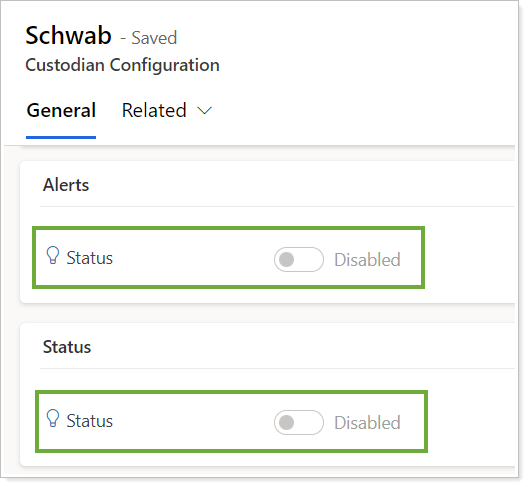
The Alerts and Status integrations are turned off by default.
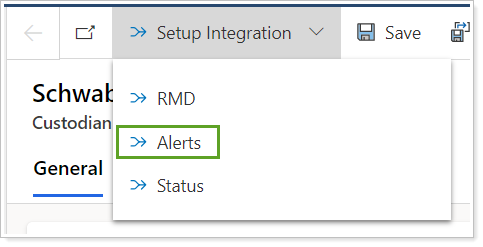
To enable Alerts, in the command bar, select Setup Integration and select Alerts.
-
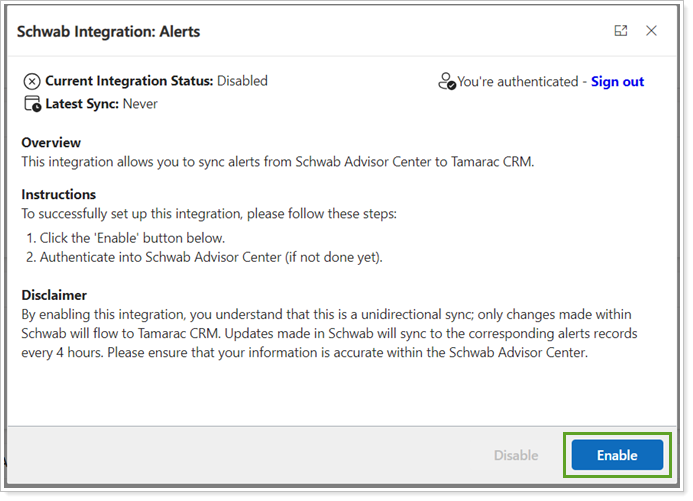
In Schwab Integration: Alerts, select Enable.
-
You may be prompted to sign in to Schwab if you aren’t already authenticated.
-
Select Close. The Alerts integration is enabled.
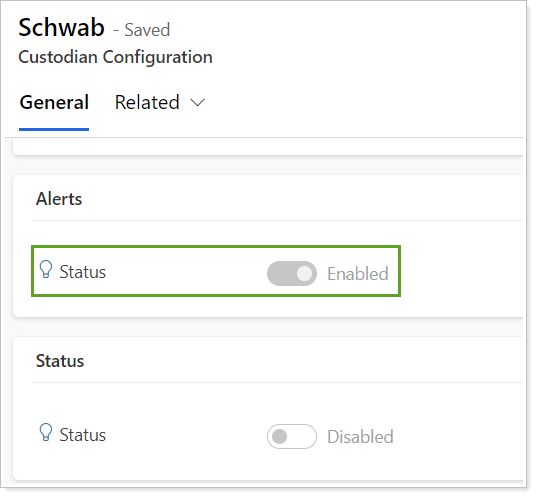
-
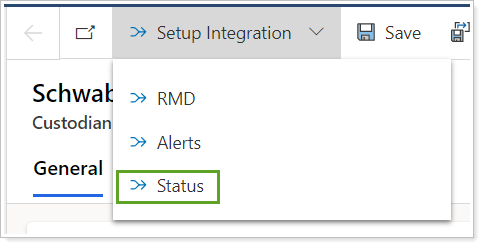
To enable Status, in the command bar, select Setup Integration and select Status. Repeat the same steps as for Alerts.
Disable status and alerts integrations
To disable the Alerts or Status integration:
-
In Tamarac CRM, in the bottom left under Home, select Tamarac Settings.
-
Under Setup, select Configurations.
-
Select Configuration Settings.
-
To open the configuration page, in Custodians, select Schwab.
-
In the command bar, select Setup Integration and select Alerts or Status, whichever you want to disable.
-
In Schwab Integration: Alerts, select Disable.
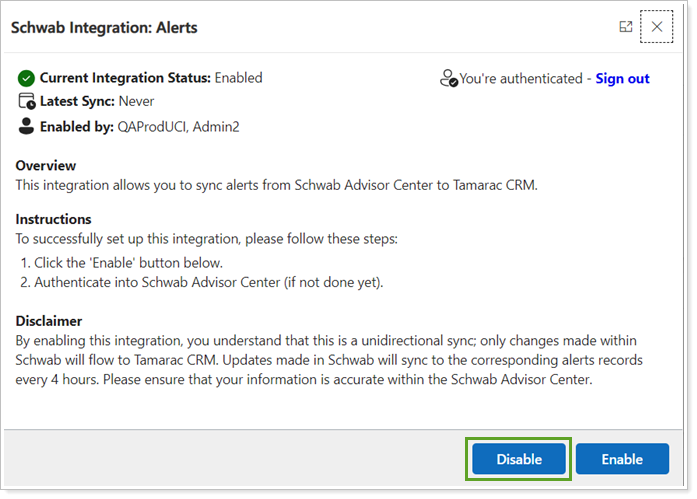
-
Select Close.
Re-enable status and alerts integrations
If you want to change the Schwab credentials associated with this integration, you can re-enable it for a different set of Schwab credentials.
To re-enable the integration with different Schwab credentials:
-
In Tamarac CRM, in the bottom left under Home, select Tamarac Settings.
-
Under Setup, select Configurations.
-
Select Configuration Settings.
-
To open the configuration page, in Custodians, select Schwab.
-
In the command bar, select Setup Integration and select Alerts or Status, whichever you want to re-enable.
-
In Schwab Integration: Alerts, select Enable.
-
Sign in with your Schwab credentials, and then select Re-Enable.
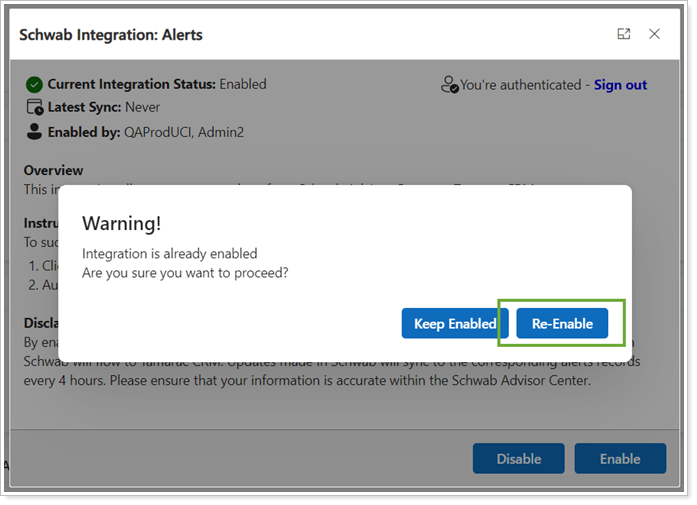
-
Select Close.
See alerts and statuses on a financial account
Alerts and statuses appear on financial accounts records on the Custodian Alerts & Status tab and sub-grids.
Use the following system views in these grids:
| Schwab Alerts | Schwab Status |
|---|---|
|
|
See alerts and statuses on the dashboard
Note
If you don't see the Alerts tab in Schwab, your FSA needs to add the security function Access Alert Search to the user group that you are a member of.
If you have the Tamarac Schwab Alerts & Status Dashboard User (Managed) security role, you can see the Schwab Alerts & Status dashboard with this integration.
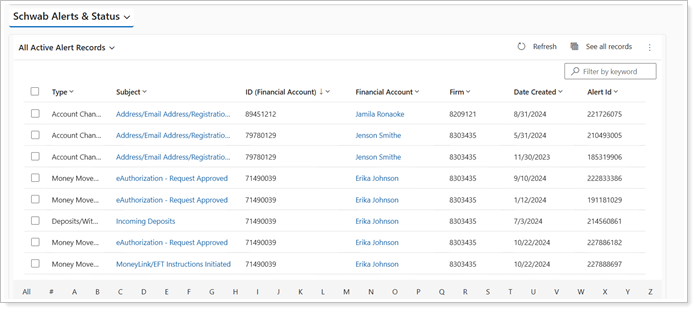
Use the following system views in these grids:
| Schwab Alerts | Schwab Status |
|---|---|
|
|