
Contents
|
Navigate the Global Search Bar |
Introduction
Global Search is a versatile search method that allows users to query record data across Tamarac CRM. It is ideal for promptly finding matching records, returning results based on a broad set of criteria, and finding data without knowing exactly where it resides.
This article covers best practices to globally search in Tamarac CRM.
For more information on alternative search methods, see Search Functionality in Tamarac CRM.
Perform a Global Search
The Global Search bar is located at the top of Tamarac CRM and allows users to search for criteria that matches record data on the platform.

Eligible Record Types
| record types | ||
|---|---|---|
|
|
|
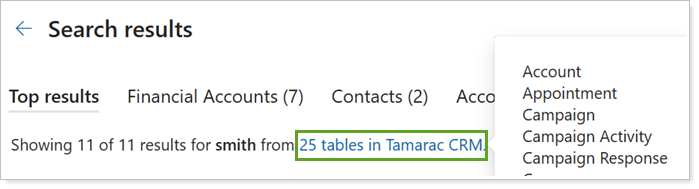
When you access the Search results page, you can select to see and review the list of the eligible record types, referred to as tables, that were included in the search.
Navigate the Global Search Bar
The global search bar can help you more promptly access records from anywhere, instead of navigating through the platform to find them. It can be particularly useful in daily operations, as it often provides immediate results without requiring you to expand your search to the Search results page.
When you navigate the Search in Tamarac CRM, you can:
-
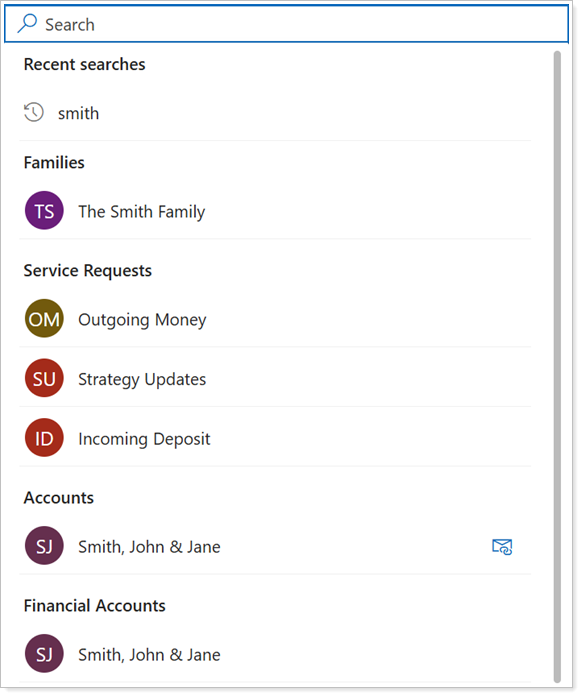
Review and select recently searched terms and records. Select a recent search to re-query it in the Search results page or select a record to re-open it.
-
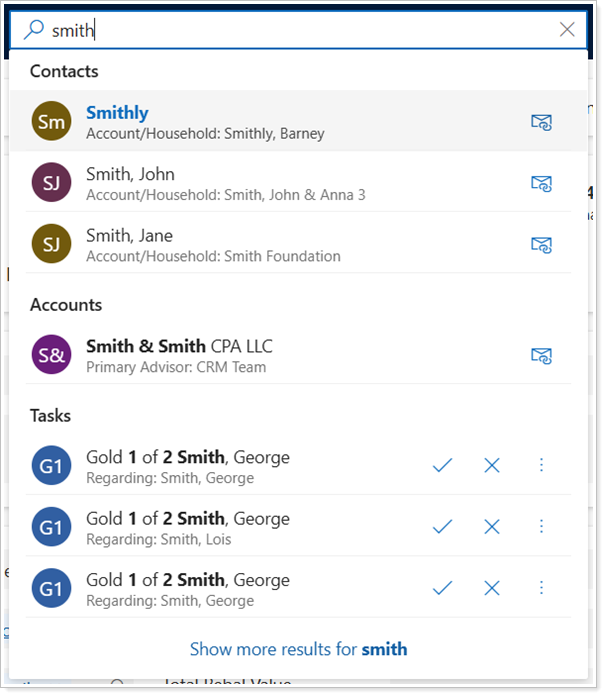
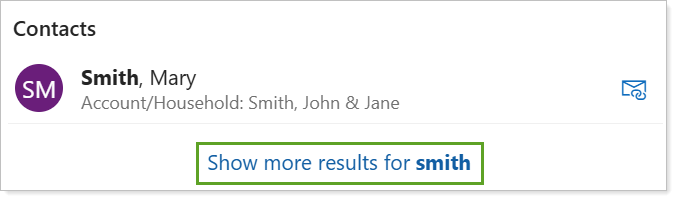
Type in search terms to view results. As you type in the global search, it will immediately perform a query and show a consolidated list of matching records for view. Select to access a record or select Show more results or enter on your keyboard to open the Results page.
Note
The record types that appear in the dropdown when searching cannot be configured. Every search, you’ll see different record types in the results.
Navigate the Search Record Page
If you can't find the record you are looking for in the consolidated search bar view, you can select Show more results or enter on your keyboard to open the Search results page.
The Search Results page organizes information into tabs that prioritize Top results and consolidates the pertinent record types for review based on what the search returns.
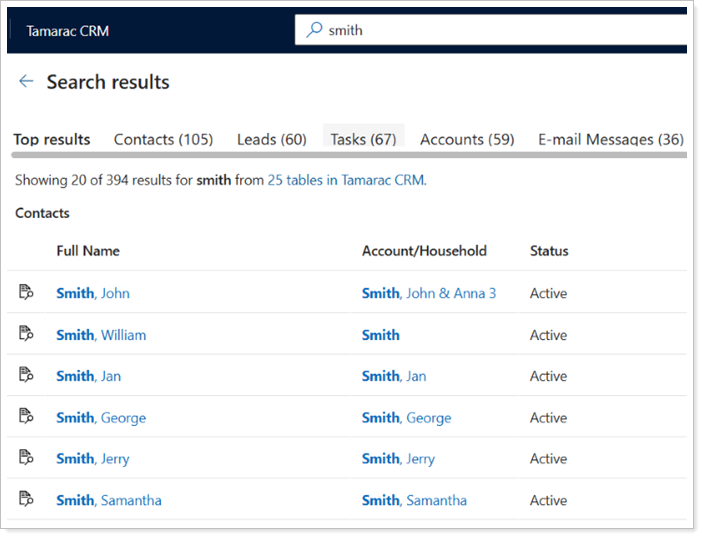
When you navigate the Search results page in Tamarac CRM, you can:
-
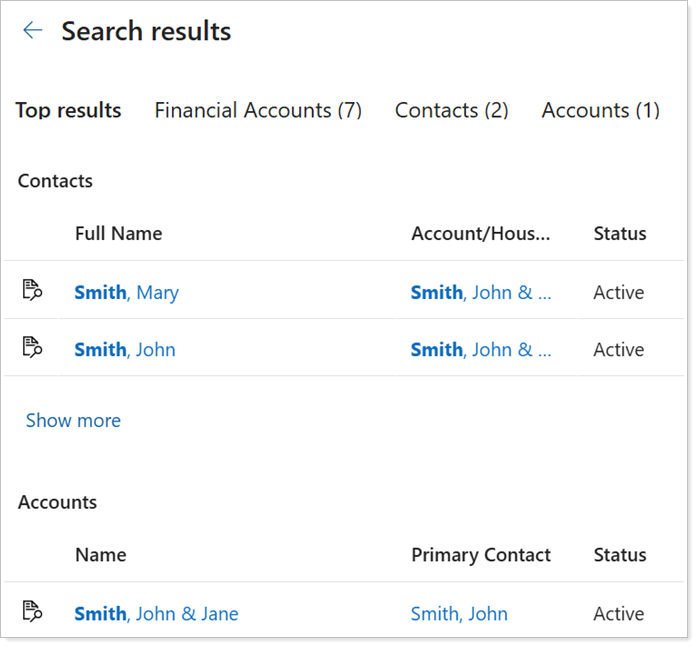
Review top results that display the closest matches across records. Top results will automatically display when you perform a search, including up to 20 results from at least the top two returned record types.
-
Review individual records in order of the most returned matches to the least. After Top results, the tabs display in order of the most results to the least. Select a record tab to review an isolated list of the relevant matches for that record type.
-
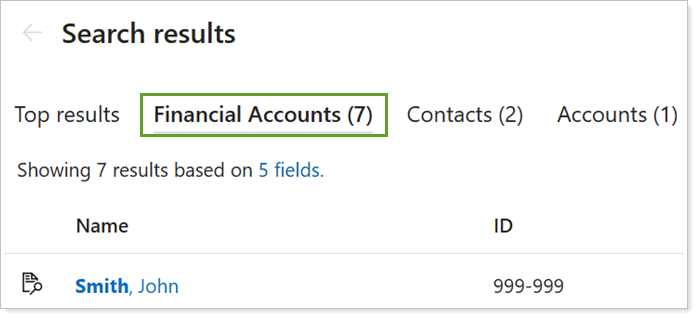
Review the types of record fields included in the search results. If multiple record fields match your search, you can select fields to review all the field types that contain matching data on each individual record tab.
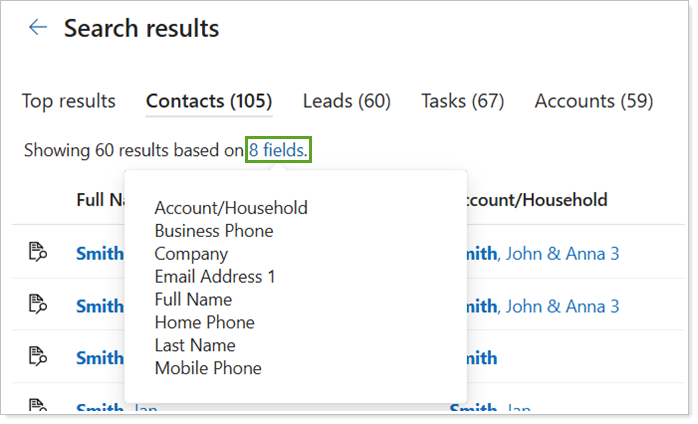
-
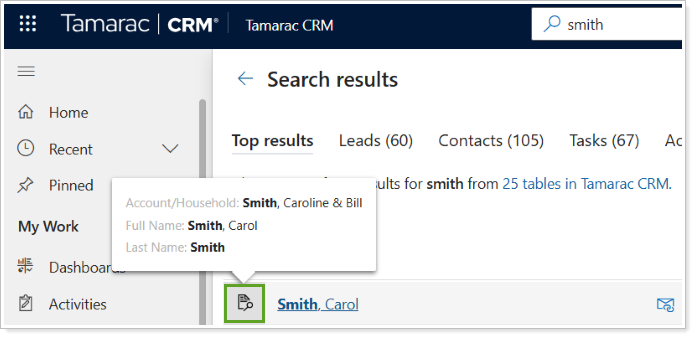
Review the specific field data with text matching your search. To understand why a record appears in your search results, you can hover over the record icon to see the specific field text that matched your search.
Additional Considerations
When navigating the Search results page, consider the following:
-
The number of record types in Top results varies with the total matches. More record types display with fewer matches, and fewer record types display with more matches. At least two record types will show if multiple types match the search.
-
Since record tabs display in an order of most results to least, a record tab will only show if the record has matching results. You can’t rearrange the tab order.
-
Each record tab will display 30 records by default. To view more records, continue down the page and it will automatically load the subsequent records in sets of 30 until all records display.