
Contents
Introduction
Service requests in Tamarac CRM create workflows that can help standardize and automate your administrative processes.
When users across your firm submit service requests, they trigger the appropriate follow-up activities that are assigned to service team members for efficient tracking and completion.
This article provides links to more information about service requests.
To enroll in the Tamarac University course, see Service Requests in Tamarac CRM.
Before you start
All Tamarac CRM users are eligible to submit service requests on the platform, but only firm users with the appropriate permissions can customize service requests.
For more information, see Customize service requests in Tamarac CRM.
Available service requests
If your firm does not customize service requests, default options are available in Tamarac CRM.
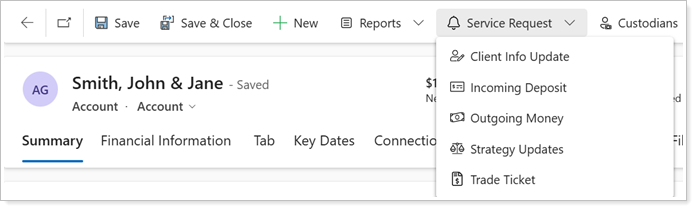
The following system default service requests are available for submission:
| service request | when to use |
|---|---|
| Client Info Update |
Initiate and delegate administrative tasks for updating client information such as address, email, or phone number. |
| Incoming Deposit |
Initiate and delegate trading and administrative tasks for a one-time deposit. |
| Outgoing Money | Initiate and delegate trading and administrative tasks for one-time or recurring withdrawal requests. |
| Strategy Updates | Initiate and delegate trading and administrative tasks for overall account strategy changes such as model, cash reserve, or restriction updates. |
| Trade Ticket | Initiate and delegate tasks for a directed trade request or any trade request outside of your firm’s typical rebalancing process. |
Submit a service request
You can submit standard service requests on the platform from Account records. If your firm customizes service requests, you can configure other desired record types.
To submit a service request:
-
From the command bar of a record that is configured for service requests, select Service Request.

-
Select the desired service request.

-
Optionally, in New Service Request, select Enter full screen mode to expand your view.

-
For applicable service request types, select the appropriate Financial Account record in the household for the request.

-
Complete the required * and optional fields to provide as much detail as necessary for the request.

Note
Some fields in the form may only appear when you select or enter a specific answer in other fields. For example, in the Outgoing Money service request, answering Yes to Free up Cash causes the Free Up Cash Task Owner to appear as another required field.
-
If necessary, enter Additional Instructions for the request.

-
Enter the Service Request Task Owner. Type to search or select Enter to browse and select from the list of service team members. If there are additional tasks in the service request, assign them to the appropriate service team members.

-
Optionally, enter Send Notification to. Type to search or select Enter to browse and select from a list of service team members who should be notified whether you assign any tasks to them or not.

-
After you enter all necessary service request information, select Save and Close to submit the service request or Save and New to submit and begin another.

Next steps
After you submit a service request, you and any delegated firm users can monitor or manage the service request and associated tasks.
For more information, see Access and manage service requests.