
Contents
Introduction
When a client relationship ends, completing offboarding steps consistently is critical for compliance, data integrity, and operational continuity. Power Automate can help streamline your operations and support your team in the termination process in Tamarac CRM.
With Power Automate, you can take advantage of the Tamarac flow template, TamTemplate – Client Termination, and maintain all the components or further customize it to meet your firm’s needs.
For more information on alternative flow templates, see Use Power Automate Flow Templates.
This template automates common termination tasks on account records, helping ensure required actions are completed while reducing manual effort for advisors and operations teams.
This article covers details on the Tamarac Client Termination flow template.
Before you start
You must have appropriate permissions to use and enable Power Automate flows.
The following are the roles and permissions available:
| user | permissions |
|---|---|
| Any User with Dynamics 365 License |
|
| CRM System Administrator or Global Admin for Microsoft 365 |
|
Client Termination flow
The Power Automate flow triggers a task with the recommended steps to take during the offboarding process. Depending on your firm’s administrative preferences, you can set whether the task assigns to the CSA or Primary Advisor.
Once the flow is enabled, it triggers the task in CRM when you update the Termination Date on the Administration tab of an account.
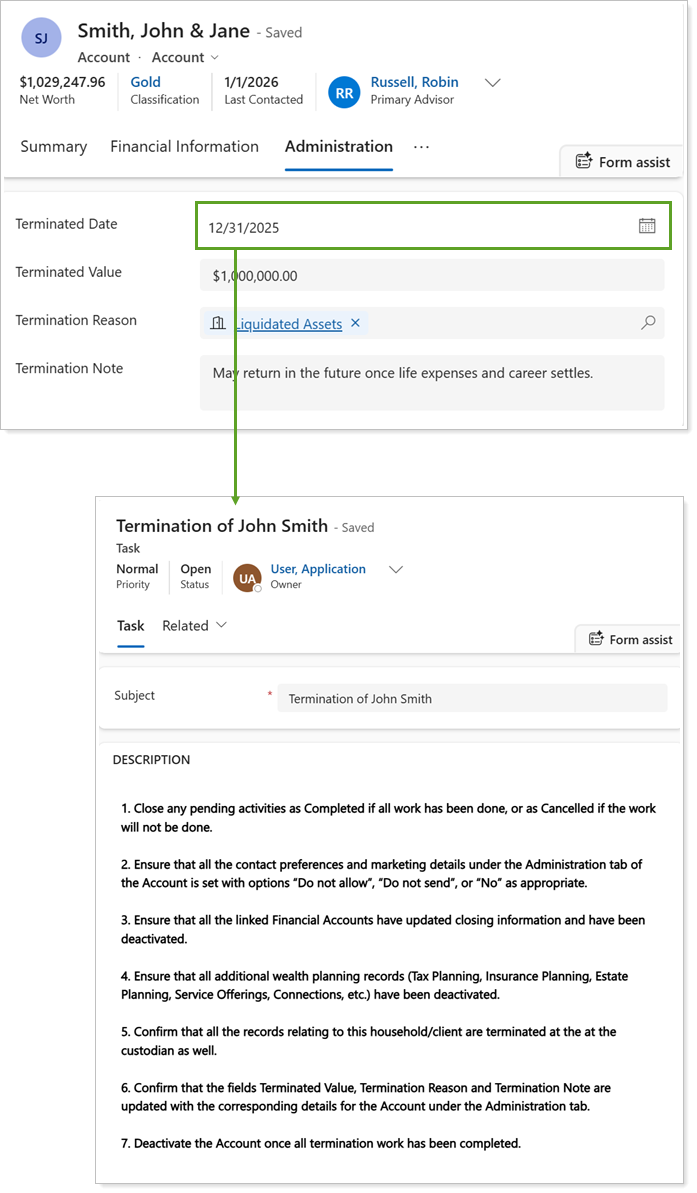
The following table outlines the conditional actions for the Client Termination flow in Tamarac CRM:
| flow step | action | conditions |
|---|---|---|
| 1 | An account record is eligible for the Client Termination flow. |
|
| 2 | The Client Termination Power Automate flow triggers. |
A CRM user enters a date in the Termination Date field on the account record. |
| 3 | The flow triggers a task to assign to the configured user. |
When enabling the flow, the Global 365 admin can:
|
| 3.1 | The flow triggers a task assigned to the CSA with the recommended next steps. |
The Global 365 admin set the task to assign to the CSA in the flow settings. |
| 3.2 | The flow triggers a task assigned to the Primary Advisor with the recommended next steps. |
The Global 365 admin set the task to assign to the Primary Advisor in the flow settings. |
For more information about recommended next steps and tasks, see Managing Terminated Clients.
Enable the Client Termination flow
To implement this flow, we recommend you create a copy of the TamTemplate – Client Termination template instead of turning on the template flow directly.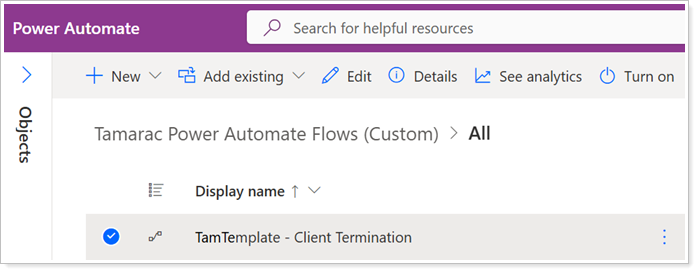
With a copy of the template, you can choose to maintain all the components or further customize it to meet your firm’s needs.
To enable the Client Termination Power Automate flow, a Global Admin user must:
-
Add the template to the Tamarac Power Automate (Custom) Solution.
-
Create a copy of the flow template.
-
Optionally, make changes to your copied flow, including the user that is assigned the task.
-
Turn on the flow.
For steps, see Enable Power Automate Flows.