
Contents
Introduction
Mailchimp allows you to automate your email marketing activities, including the delivery of marketing emails, automated messages, and targeted campaigns.
With the Mailchimp integration and Tamarac Power Automate flow templates, you can sync your marketing lists between Tamarac CRM and Mailchimp. This helps to eliminate the need to manually maintain separate lists in each application and to ensure that your contact information remains up to date across both platforms.
This topic covers more information about enabling and using the Mailchimp Power Automate flow templates.
Enablement
To use this integration, you must set up at least one of the Power Automate flows and enable the integration in Tamarac CRM.
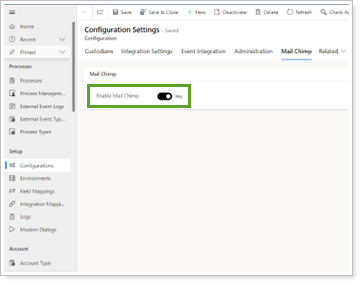
For more information, see Enable and set up the Mailchimp integration.
Use available Mailchimp Power Automate flow templates
You can take advantage of Tamarac flow templates to share key contact information between CRM and Mailchimp to streamline your marketing workflows and minimize data entry.
If you turn on a Tamarac template directly and update it, your changes may be overwritten in future releases since it is part of the managed solution. To customize the flow, you can make a copy of the template. For more information, see Enable Power Automate Flows.
You can use the following Tamarac templates for Mailchimp:
| Power Automate Flow Name | When to use | power Automate Flow Automation | Help center Page |
|---|---|---|---|
| TamTemplate - Mailchimp New Marketing List Created In Dynamics Flow |
Use this flow when you want to create a Mailchimp audience record that links to your new CRM marketing list. This prepares the list for contact syncing in the next step using the TamTemplate - Mailchimp Link and Sync Marketing List Members to Audience flow. |
When you trigger the flow, it creates and links an empty Mailchimp audience with the same sender details and list information from CRM.
If you trigger this flow for existing marketing lists in CRM, it will review Mailchimp to create and link empty audience records if they don’t already exist. |
Sync new CRM marketing lists to Mailchimp with Power Automate |
| TamTemplate - Mailchimp Link and Sync Marketing List Members to Audience |
Use this flow when you need to sync contacts from a CRM marketing list to members from a Mailchimp audience in the following scenarios:
|
When you trigger the flow, it will review CRM and Mailchimp and take action accordingly:
|
Link and sync existing marketing lists to Mailchimp with Power Automate |
| TamTemplate - Mailchimp Initial Sync List and Members to Dynamics Marketing Lists |
Use this flow when you have multiple audiences in Mailchimp and want to have CRM create identical marketing lists. |
When you trigger the flow, it syncs existing Mailchimp audiences to CRM and creates new identical marketing lists. | Sync Mailchimp audiences to CRM marketing lists with Power Automate |
Sync data between Mailchimp and CRM
The flows will push or pull contact data to or from CRM to Mailchimp. Tamarac CRM only shares contact data with Mailchimp and does not include any account or lead data in the sync.
Once the desired flows are enabled, to sync data between CRM and Mailchimp, you must manually trigger each flow with the following actions:
| Power Automate Flow | Action | Tamarac CRM | Direction | Mailchimp |
|---|---|---|---|---|
| TamTemplate - Mailchimp New Marketing List Created In Dynamics Flow |
Set Synchronize to Mail Chimp option to Yes for a new marketing list in CRM. |
The flow pushes the following CRM fields from the existing marketing list to Mailchimp:
|
|
The flow creates a new audience with the following identical CRM fields:
|
| TamTemplate - Mailchimp Link and Sync Marketing List Members to Audience |
Select Sync Members from an existing marketing list in CRM that is either:
|
The flow pushes the following CRM contact fields from the existing members of the marketing list to Mailchimp:
|

|
The flow creates new or updates existing contacts with the following identical contact fields from the CRM marketing list:
|
| TamTemplate - Mailchimp Initial Sync List and Members to Dynamics Marketing Lists |
An Administrator runs the flow in Power Automate. |
The flow reviews CRM contact information and syncs data accordingly:
|

|
The flow pushes the following Mailchimp fields to a new marketing list in CRM:
|
Note
Consider the following whenever you update contact information in Tamarac CRM:
-
If you update a contact record in CRM and a matching contact exists in Mailchimp, you must manually trigger the data sync from the marketing list.
-
If you remove a contact in CRM that was synced to a Mailchimp audience, you must remove the contact directly from Mailchimp.