
Contents
|
Organize the Comparative Review report with grouping options |
Organize the Comparative Review report with grouping options
What's changing
The Comparative Review report presents account-level performance and account data for one specific date period. You can use it help clients compare how one account or group performed. This release, you can further organize the Comparative Review reports for clients using new grouping options:
-
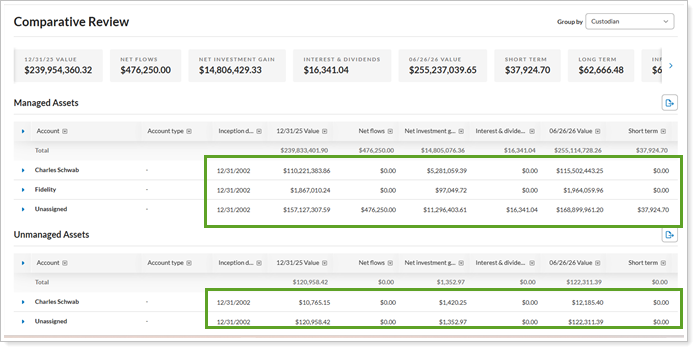
Group by: Organize the report by account type, custodian, objective, tax status, and custom field types including accounts, groups, and accounts and groups. You can choose one or more grouping options, depending on what you'd like the report to communicate.
-
Default group by: Set the grouping you want the Comparative Review report to start with each time a client views it. Clients can still customize the grouping themselves for each session.
-
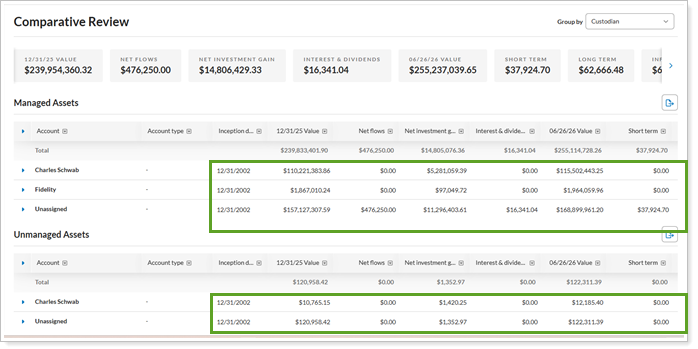
Show subtotals: Include subtotals for each grouping option, or choose to show only the overall totals.
Why you'd use it
Grouping the data on the Comparative Review report creates a clear view of a client's total assets across multiple accounts, custodians, objectives, and other characteristics. This feature lets you show clients exactly where their money is, organized in the way that makes the most sense for their situation. Subtotals can help highlight the total value for each grouping option.
How to get started
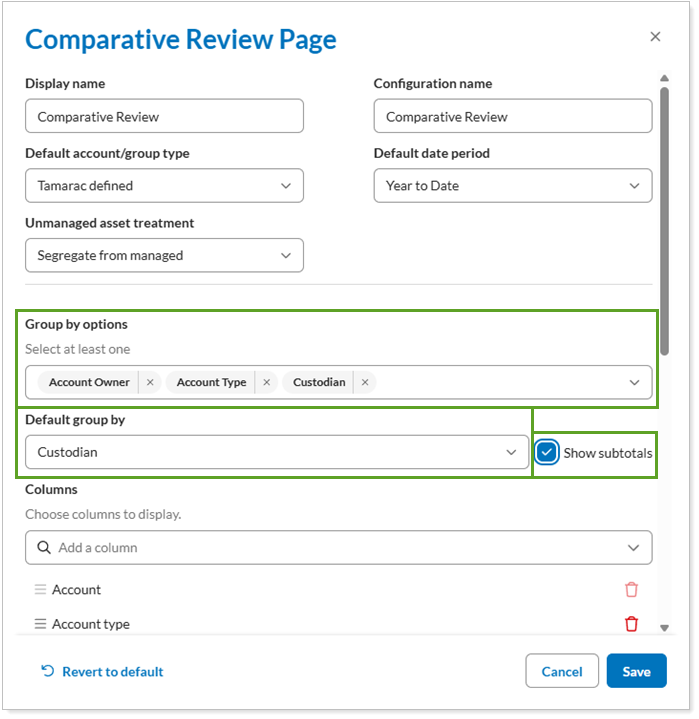
In the configuration tool, open the Comparative Review report settings. Configure Group by options, Default group by, and Show subtotals as desired.
Additional information
For more information about editing reports in the Client Portal, see Customize a Reports Template.
For more information about Client Portal reports, see Reports Available in the New Client Portal.
Enhanced pagination on the Document Vault
What's changing
Previously, documents in the client portal appeared as a complete list on the Other Files section or in folders. For clients with many documents, file lists could become overwhelming and hard to navigate. Now, the Other Files section and specific folder displays a shorter file list on each page, with pagination to allow clients to navigate smoothly between pages.
Single column sorting and filtering works with pagination and applies to the entire list of files, not only the files visible on the current page.
Why you'd use it
This enhancement allows clients to more smoothly navigate their list of documents.
How to get started
This feature is enabled by default. No action is necessary.
In the client portal Document Vault, on the Other Files page, look for the new navigation features at the bottom of the page.
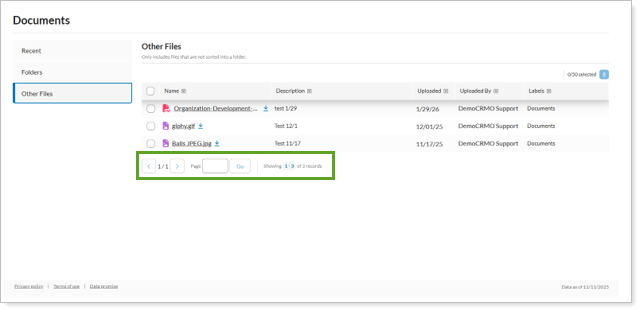
By default, pages show a maximum of 50 files on a single page. Clients can adjust how many files to see on the page.
To navigate through the pages, select the forward and backward arrow or enter a specific page number and select Go.
Additional information
For more information about the client portal Document Vault, see Introduction to the New Client Portal Documents Page.