
Contents
|
Customize the Client Portal Profile page name Clients control light and dark mode from the Profile menu in Client Portal |
Client Portal
Customize the Client Portal Profile page name
What's changing
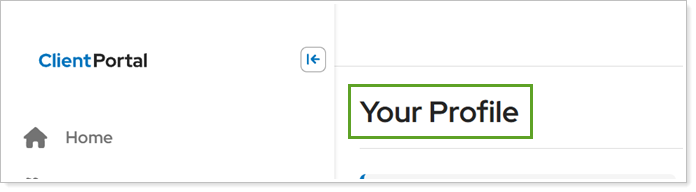
Customizing your Client Portal lets you show clients meaningful information that reflects your firm’s branding and makes information familiar to clients. With this release, you can now rename the Profile & Settings page to better align with your organization’s terminology and branding.
Why you'd use it
Give the Profile & Settings page a name that reflects its purpose and fits with your firm’s branding, creating a more consistent experience throughout Client Portal.
How to get started
The Profile & Settings page is included in the Client Portal template by default.
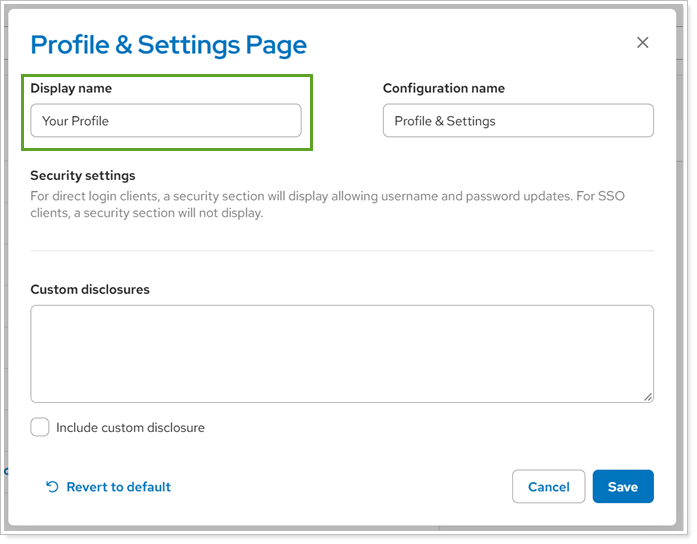
To customize the Profile & Settings page name, in the Configuration Tool, open the Profile & Settings page and edit Display name as desired:
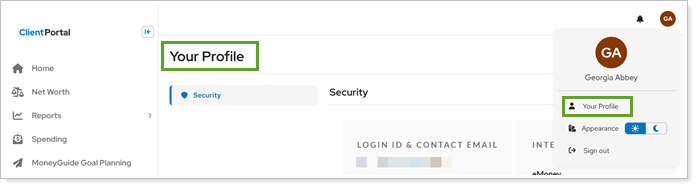
When clients sign in to the Client Portal, they see the updated name in the link and page title.
Additional Information
For information about customizing pages and widgets in the Client Portal, see Customize New Client Portal Pages and Reports.
Clients control light and dark mode from the Profile menu in Client Portal
What's changing
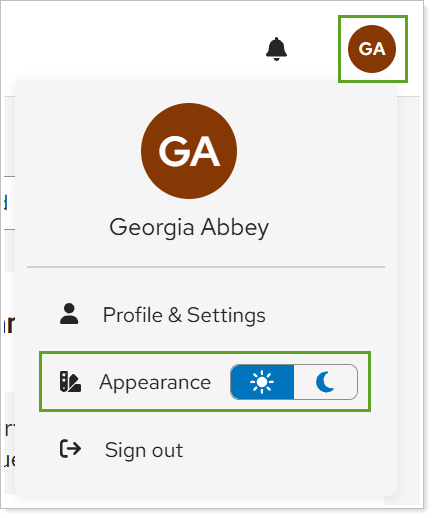
Switching between light and dark mode helps clients customize their Client Portal experience to suit their preferences. In the past, clients had to navigate to the Profile & Settings page to change their theme. With this release, clients can switch between light and dark mode without leaving the current page.
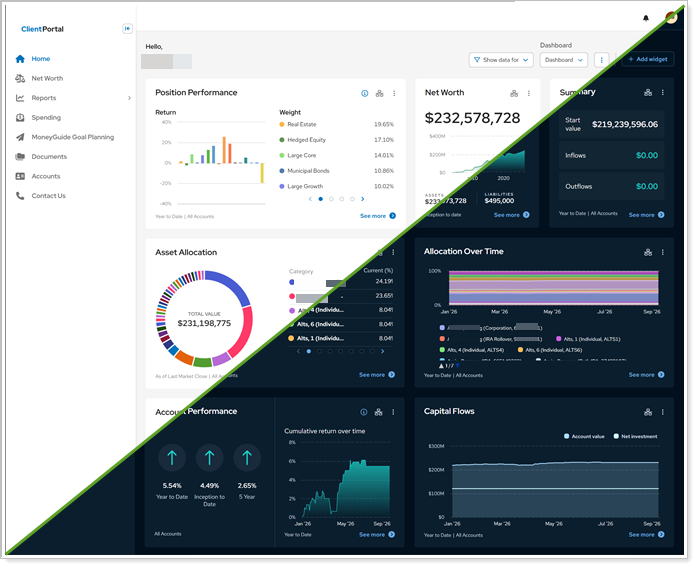
When clients select the light or dark mode icon in the menu, the change takes effect immediately. A highlighted icon shows which mode is active.
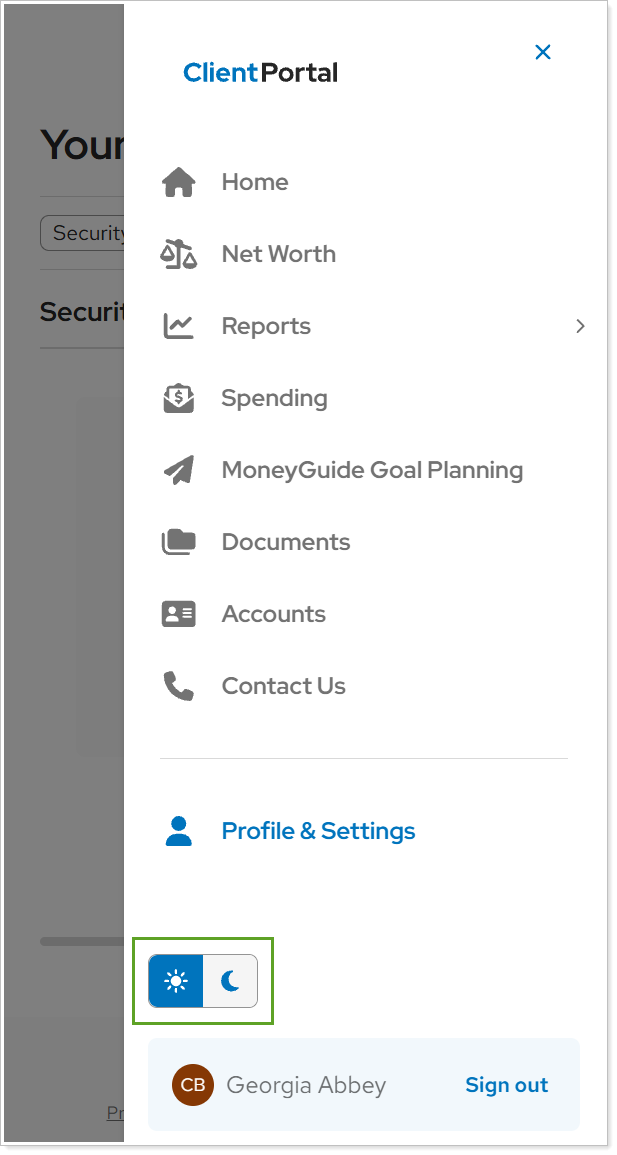
On mobile devices, the toggle appears as a single icon that changes to match your selection.
Why you'd use it
Clients can quickly adjust the Client Portal’s appearance to suit their lighting conditions or personal preferences. Whether they prefer dark mode in the evening or light mode during the day, they can switch themes without interrupting their work or navigating away from the current page.
How to get started
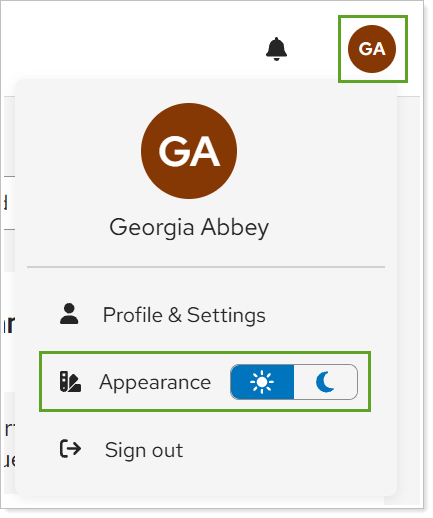
In the top navigation bar, select the Profile icon. In the Appearance section, select theme icon to change your theme.
Additional Information
The Branding template controls what light and dark mode look like. For more information, see Customize a Branding Template and Customize Branding Template Colors.