
Contents
Introduction
When you split or merge a trade order as you work on it in the Order Blotter, you end up with multiple downstream orders. To ensure you’re in line with the original intended order, you can track the original order’s overall progress with the page column Original Order Blotter ID.
The platform retains the Original Order Blotter ID on downstream orders when they’re partially filled, fully filled, and reconciled, even if the original order is deleted.
Help Video: Track multiple split or merged orders by the Original Order ID
In this short video, you'll learn about how to track split and merged orders in Tamarac.
Track an Order's Progress After You Split or Merge It
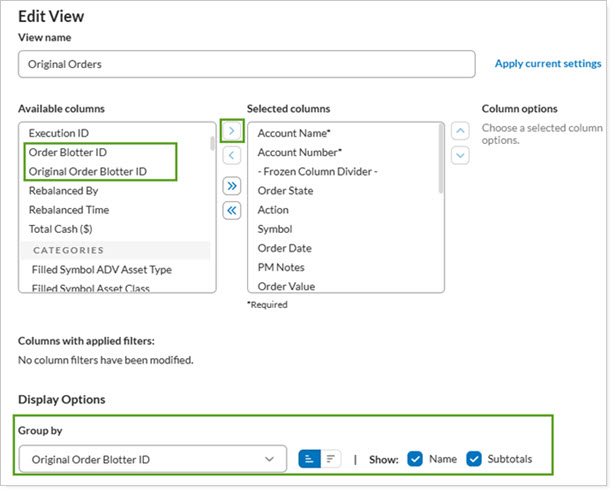
To see orders associated with their original orders, in Order Blotter, create a view to group by Original Order Blotter ID.
Example
Order ID 903 for 11 units came from the original order ID 901.

You can further narrow your selection by filtering for specific order IDs.

When you export your Order Blotter view, you see Original Order Blotter ID in the CSV.

For more about working with Views in Tamarac, see Custom Views.
For more about trading in the Order Blotter, see Manage Fixed Income Orders on the Order Blotter.