
Contents
|
See Portfolio Manager (PM) Notes on an Order Track an Order After You Split or Merge It |
Introduction
Portfolio managers can send generic fixed income trades to the Order Blotter page for execution in the marketplace and allocation to client accounts.
The Order Blotter consolidates generic fixed income orders for client accounts custodied at various custodians, allowing bond traders to centrally manage the fixed income order fulfillment process.
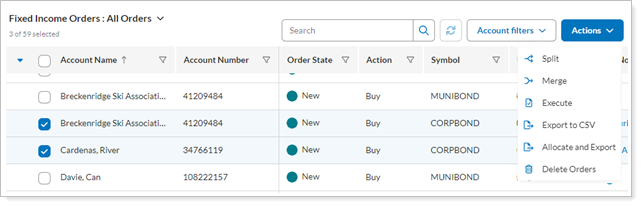
This article is about Order Blotter workflow and managing bond orders in Order Blotter. To see more information about the actions, views, and filters you can use on the Order Blotter page, see Order Blotter Page Actions, Views, and Filters.
Help Video: Manage Fixed Income Orders on the Order Blotter
In this short video, you'll learn about how to use the Order Blotter in Tamarac.
Before You Start
This feature is not enabled by default. To enable your firm for this feature, contact the Tamarac Account Management team at TamaracAM@envestnet.com.
Order Blotter Workflow

Approved fixed income orders flow into Order Blotter when portfolio managers send the trades to the Order Blotter from the Trade List page. What you do with the page depends on your role.
Bond Traders
If you're a bond trader, you can centrally manage and fulfill orders with the following actions:
-
Apply views to organize and subtotal orders by Order State, Symbol, and more.
-
See portfolio manager (PM) notes on order, and add your own Trader notes.
-
Enter execution details for one or more orders after you’ve traded bonds.
-
Allocate bond units to one or more client accounts and produce an allocation CSV.
-
Split or merge orders.
-
Export the records from the Order Blotter page to a CSV file.
-
Remove unwanted orders by deleting them.
Portfolio Managers
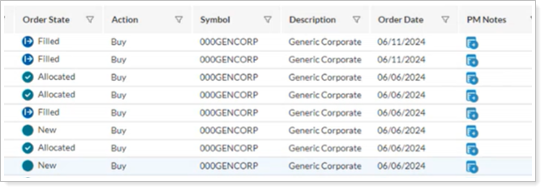
If you're a portfolio manager, you can see order status updates when they go to Order Blotter.
Access the Order Blotter
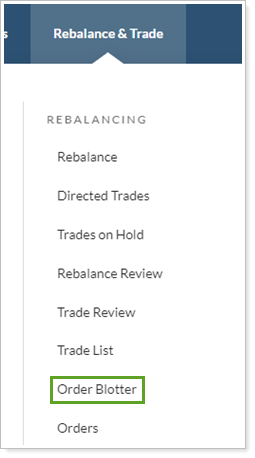
To access the Order Blotter, from Rebalance & Trade, select Order Blotter.
Organize Orders With Views
As a bond trader, you may need a subtotal of the value of all orders for a specific symbol. Or you may want to summarize new, filled, or allocated orders. Views let you tailor your page display for maximum efficiency and data insight.
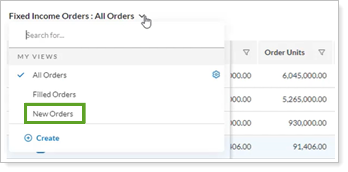
For more information on using views on the Order Blotter page, see Apply Views to Organize Orders in Order Blotter.
See Portfolio Manager (PM) Notes on an Order
You can access a portfolio manager’s individual account Order Notes from the PM Notes column.
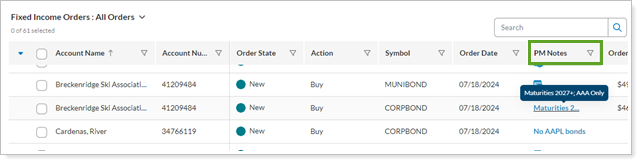
For more information on viewing PM Notes on an order, see See PM Notes on an Order in Order Blotter.
For more information on using and viewing notes throughout Tamarac Trading, see Overview of Notes in Tamarac Trading.
Add a Trader Note
As a bond trader, you can keep Trader Notes, a place for running notes on fixed income trades as you’re working them. Trader Notes that you enter here only appear on the Order Blotter page. Think of them as a notepad you can use while working the orders.
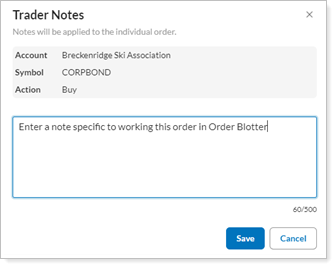
For more information, see Add a Trader Note on an Order in Order Blotter.
Split or Merge Orders
To help you work with orders on the Order Blotter, you can split or merge them before you enter execution details:
-
Split Orders. You may want to break up a large order to create a more manageable number of units.
-
Merge Orders. Suppose after the portfolio manager sends an order to Order Blotter, the client account receives a cash deposit. If the portfolio manager sends another order for the same ticker in the same client account, you can optionally merge the previous and current order into one.
For steps to split or merge individual client orders in Order Blotter, see Split or Merge Orders on the Order Blotter.
Track an Order After You Split or Merge It
When you split or merge a trade order as you work on it, you end up with multiple downstream orders. To ensure you’re in line with the original intended order, you can track the original order’s overall progress with the page column Original Order Blotter ID.
For more information, see Track an Order After You Split or Merge It.
Enter Execution Details
As a bond trader, after you’ve traded bonds, you can enter the order execution details against one or more generic fixed income orders.
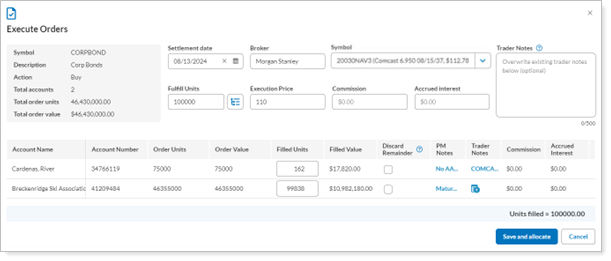
When you execute the order:
-
Holdings automatically update when orders are put on Order Blotter, and when executions are entered into Order Blotter.
-
Next-day reconciliation automatically matches executed orders against transactions received from the custodian.
For steps to enter execution details, see Enter order execution details in Order Blotter.
Facilitate Bond Unit Allocations at the Custodian
As a bond trader, Order Blotter lets you automatically allocate the units from filled bond orders to the client accounts in Tamarac. You still need to handle the actual allocation of bond units to client accounts at the custodian, and you can use the Export CSV to help facilitate this.
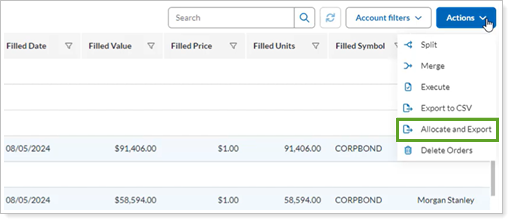
For steps to allocate filled bond orders to accounts, see Facilitate bond unit allocations at the custodian.
Export Order Blotter to .CSV
At any time, you can export the data you see on the screen to a .CSV file for further analysis.
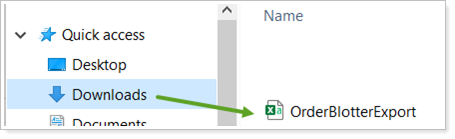
For steps to export Order Blotter data to a .CSV file, see Export Page Data.
Remove Unwanted Orders
As a bond trader, if you and the portfolio manager decide not to execute an order you can remove it from the Order Blotter page. The order will be permanently deleted and will not return to the Trade List page.
For more about how to permanently delete orders, see Delete Orders from the Order Blotter.