
Contents
Introduction
The Order Blotter consolidates generic fixed income orders for client accounts custodied at various custodians, allowing bond traders to centrally manage the fixed income order fulfillment process.
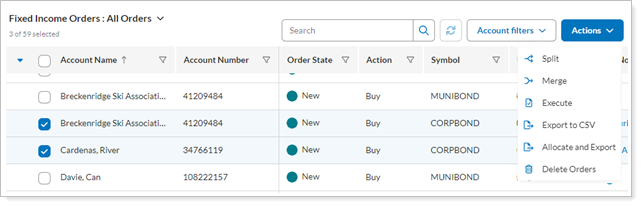
This article is about setting data views, filtering, and all actions that you can perform on the Order Blotter page.
For more information on the Order Blotter workflow and managing bond orders on the Order Blotter page, see Manage Fixed Income Orders on the Order Blotter.
Before You Start
This feature is not enabled by default. To enable your firm for this feature, contact the Tamarac Account Management team at TamaracAM@envestnet.com.
Who Uses the Order Blotter Page
If you're a portfolio manager or a bond trader, you'll use the Order Blotter page for the following actions:
Bond Traders
If you're a bond trader, you can take the following trade actions in the Order Blotter:
-
Apply views to organize and subtotal orders.
-
See Portfolio Manager notes on orders.
-
Add Trader notes to an order.
-
Split or merge orders.
-
Enter execution details for one or more orders after trading bonds.
-
To complete the process with the custodian, generate an export of bond unit allocations to client accounts.
-
Export the Order Blotter to CSV.
-
Remove unwanted orders by deleting them.
Portfolio Managers
If you're a portfolio manager, you can take the following actions on the Order Blotter page:
-
Send generic fixed income orders to the Order Blotter.
-
Access the Order Blotter to view the Order State on orders you sent.
Access the Order Blotter Page
Portfolio managers can send generic fixed income trades to the Order Blotter page for execution in the marketplace and allocation to client accounts.
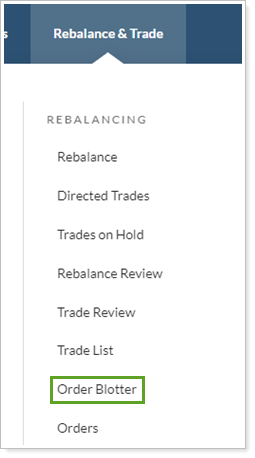
To access the Order Blotter, from Rebalance & Trade, select Order Blotter.
Apply Views to Organize Orders in Order Blotter
As a bond trader, you may need a subtotal of the value of all orders for a specific symbol. Or you may want to summarize new, filled, or allocated orders. Views let you tailor your page display for maximum efficiency and data insight.
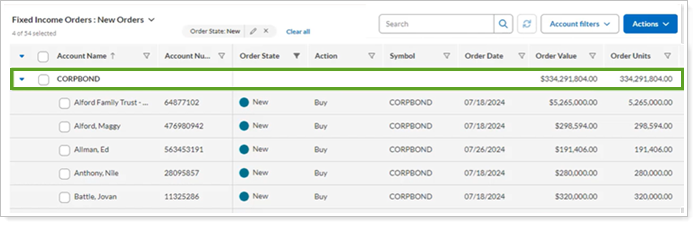
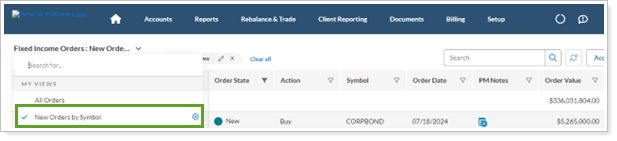
For example, when you use a view that filters orders with an Order State of New and group by Symbol:
Your Order Blotter page is filtered to show only orders that match the view's criteria. In this example, you can see the value or units of bonds that you need to trade.
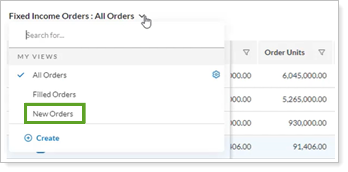
You can add more views or change saved views and apply them as needed.
Add a View
To add a new View:
-
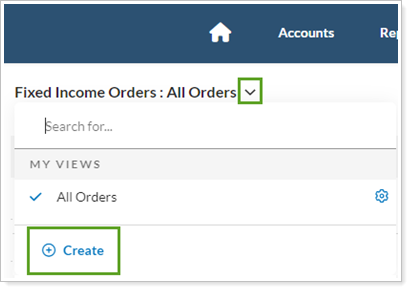
From Order Blotter, select the Views list then select Create.
-
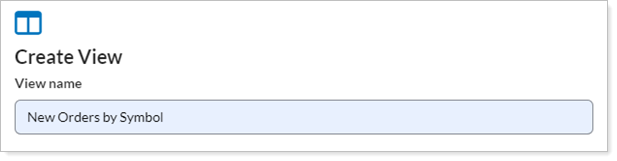
In View name, type a unique name for your view.
-
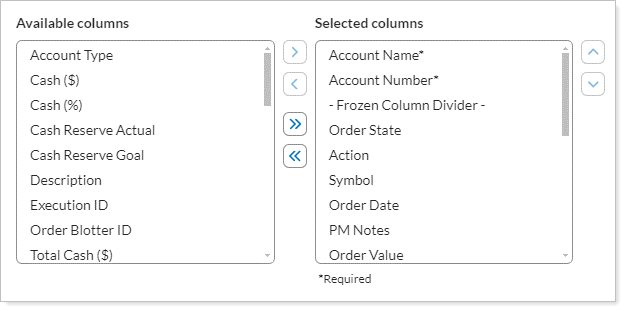
Select the columns you want to add to the view.
-
Select
 to add a column to the Selected list.
 -
To add all of the columns listed, select
 .
. -
Remove columns from Selected and return them to Available using
 .
. -
To remove all of the columns listed, select
 .
.
-
-
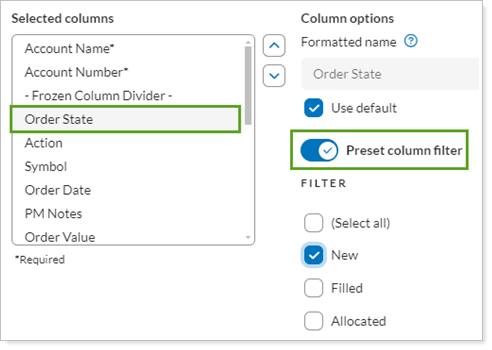
To save a filter for a column, select the column name from the Selected list, then set the option for Preset column filter. In the Filter list, select the values that Order Blotter will filter for the selected column.
-
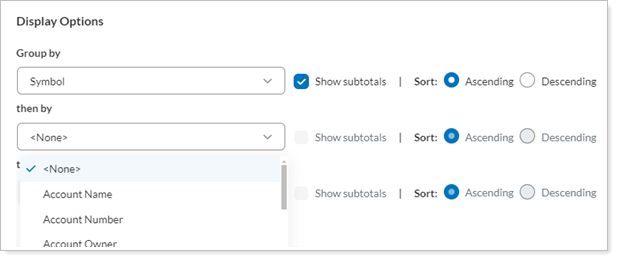
To add grouping, in Group by select the data elements where Order Blotter will summarize in this view. You can select up to three levels of grouping.
Optionally:
-
To display aggregate information for a group, select Show subtotals.
-
Specify the sort order for items in a group by setting Sort to Ascending or Descending.
-
-
Select Create. The Order Blotter page automatically applies your new view and saves it to the Views list.
Change a View
You can change a View when it's the current view. To change a View:
-
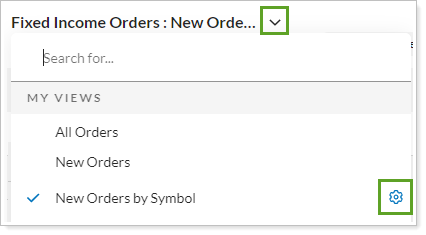
From Order Blotter, select the Views list. If the view you want to change is not currently applied, select its name.
-
In the current view, select Edit
 .
.
-
In Edit View, select the new values. For more about how to set the columns, filters, and groupings, see the Add a View.
-
Optionally, to share this view with others in your firm, select Mark as publicly accessible.

-
To update your changes to the existing view, select Save. To save your changes as a new View, type a new unique name in View name and select Save As New.
Apply a View
To apply a saved View on the Order Blotter page:
-
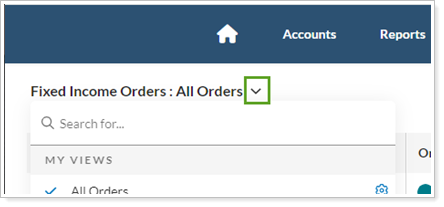
From Order Blotter, access the Views list.
-
The Views list indicates your current view with
 . Select the name of another view to apply.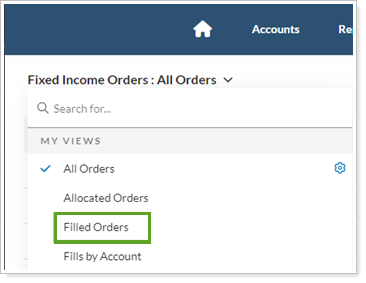
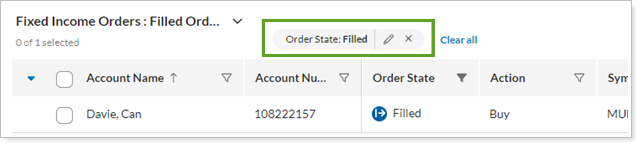
Your Order Blotter page displays the view. The filter indicator lets you know at a glance which filter this view uses.
-
Optionally, to change the existing filter for your current display, in the filter indicator select Edit
 . Select from the available values and select Done.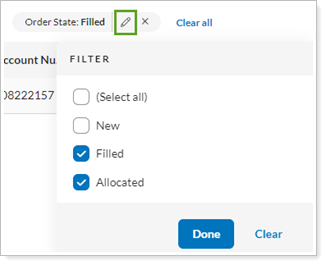
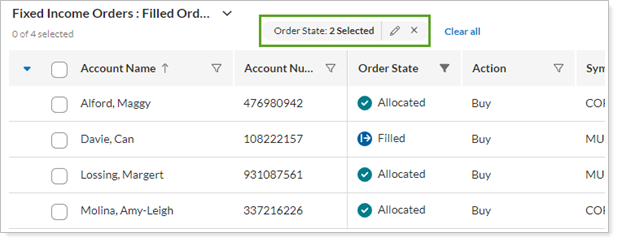
The Order Blotter page filters the new values for the current display only. The saved view won’t change.
See Portfolio Manager (PM) Notes on an Order in Order Blotter
A portfolio manager can add notes on the Rebalance Summary under Order Notes. For more information, see Orders Page Actions, Views, and Filters.
A bond trader can access a portfolio manager’s individual account Order Notes from the PM Notes column.
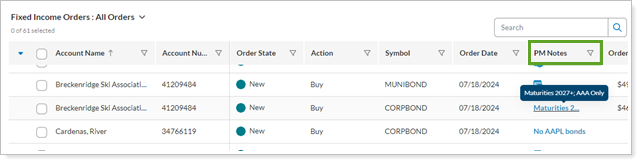
To read the full note, select the note link.
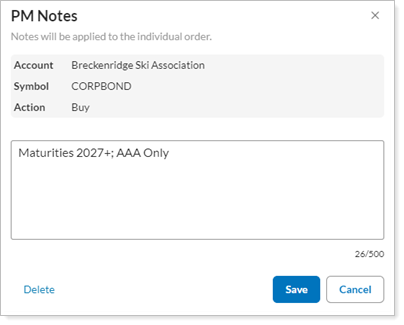
For more information on using and viewing notes throughout Tamarac Trading, see Overview of Notes in Tamarac Trading.
Manage Trader Notes in Order Blotter
As a bond trader, you can keep Trader Notes, a place for running notes on fixed income trades as you’re working on them. Think of them as a notepad you can use while working the orders. You can enter multiple Trader Notes for a trade order as you work it.
You can add Trader Notes in the following locations:
-
On the Order Blotter page for new, filled, or allocated orders.
-
When you enter execution details to fill an order. For more information, see Enter Order Execution Details in Order Blotter.
-
When you split an order or when you merge orders. For more information, see Split or Merge Orders on the Order Blotter.
Add a Trader Note from the Order Blotter Page
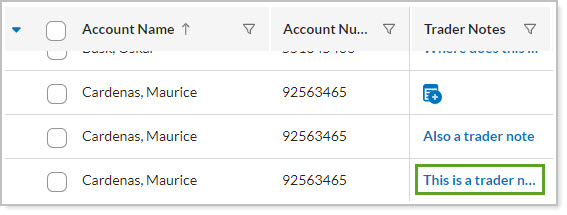
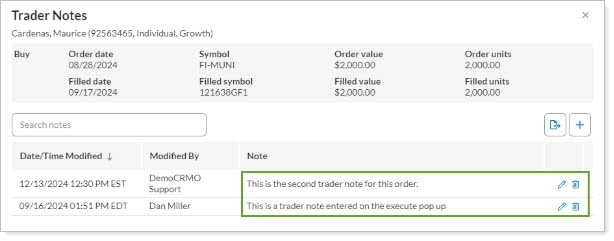
You can add a Trader Note to an order at any time. The Order Blotter saves all of your notes and displays the most recent note in the Trader Notes column.
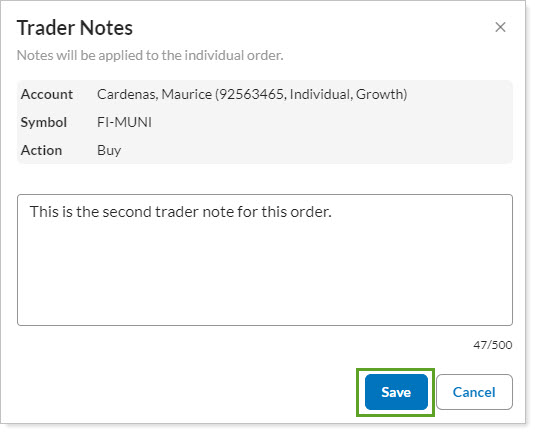
To add a Trader Note for an individual order from the Order Blotter page:
-
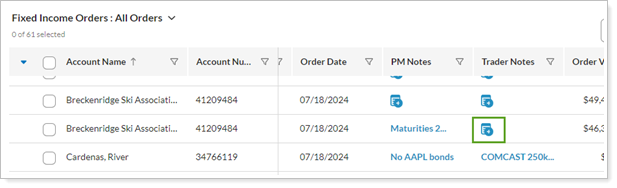
From Order Blotter, in the Trader Notes column for the appropriate order, select
 .
.
-
Enter your text note related to this individual order and select Save.
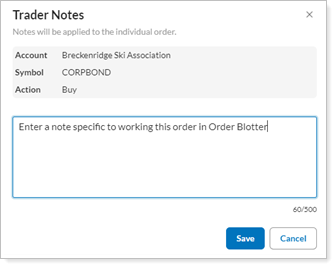
Select a Trader Note for Action
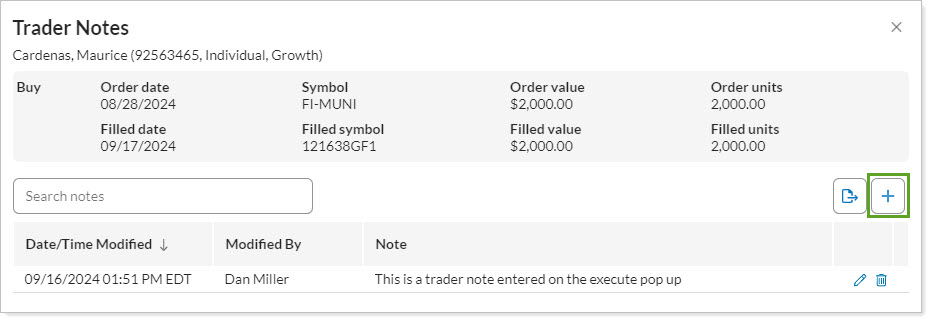
Once you enter a Trader Note, you can select it to open the Trader Note list and perform the following actions:
-
Enter additional notes.
-
Use the search function to filter by text in the notes.
-
Make changes to or delete existing notes.
-
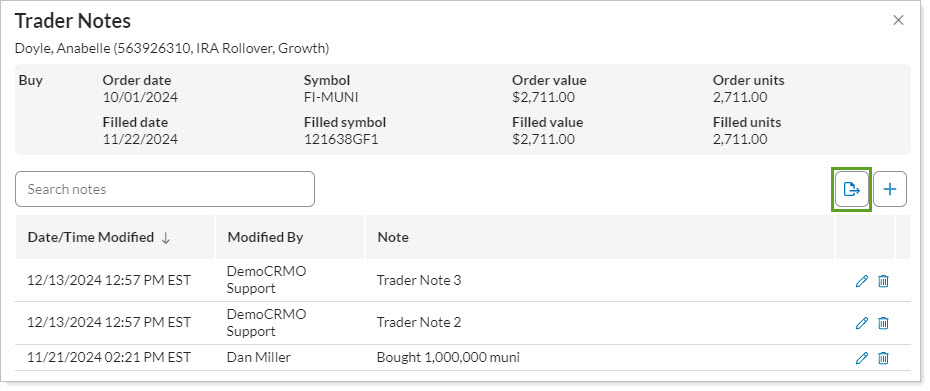
Export the bond order and all of its trader notes to CSV.
To select a Trader note for action, from Order Blotter, in the Trader Notes column for the appropriate order, select the note link.
Enter Additional Trader Notes
You can enter multiple notes as you work the order.
To enter additional notes:
-
In the Trader Notes column, select the note link.
-
Select Add.
-
Enter your text note related to this individual order and select Save.
The Order Blotter page saves your note to the Trader Notes list and displays the most recent note first.
Search Trader Notes
You can search to locate Trader Notes when the list is long.
To search Trader Notes:
-
In the Trader Notes column, select the note link.
-
In Search notes, type the text that you want to find in the Trader Notes list.
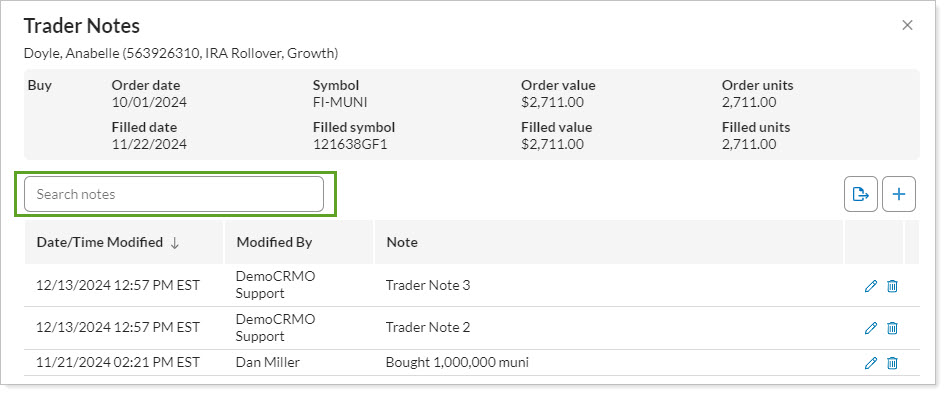
The Trader Notes list displays notes containing your search text.

Update a Trader Note from the Order Blotter Page
When you want to change a Trader Note you’ve already entered, you can edit it from the Trader Note list.
To change a Trader Note:
-
In the Trader Notes column, select the note link.
-
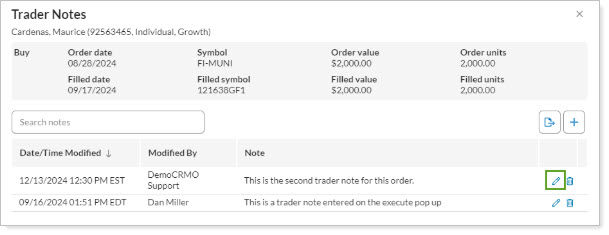
For the note you want to change, select Edit.
-
Enter your text changes and select Save.
Delete Trader Notes on the Order Blotter Page
When a Trader Note no longer applies, you can remove it from the Trader note list.
To delete a Trader Note:
-
In the Trader Notes column, select the note link.
-
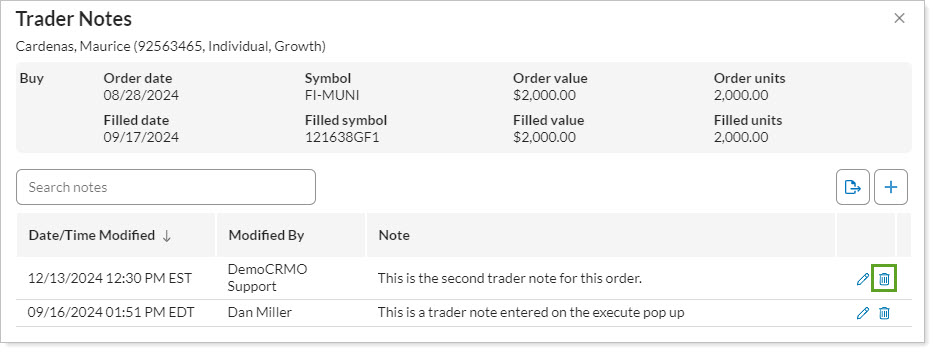
Select Delete for the note you want to remove.
-
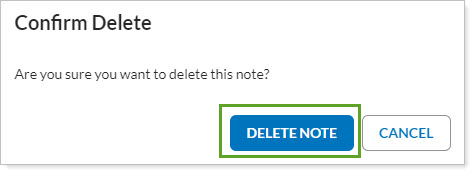
Select Delete note.
Export a Bond Order and its Trader Notes
To keep a record of your orders along with Trader Notes, you can export them to CSV.
To export an order with its Trader Notes:
-
In the Trader Notes column, select the note link.
-
Select Export.
-
In the CSV, expand the Trader Notes column to see the notes for an order. The notes have vertical lines separating them, in other words they are pipe-delimited.

Split or Merge Orders on the Order Blotter
To help you work with orders on the Order Blotter, you can split or merge them before you enter execution details:
-
Split Orders. You may want to break up a large order to create a more manageable number of units.
-
Merge Orders. Suppose after the portfolio manager sends an order to Order Blotter, the client account receives a cash deposit. If the portfolio manager sends another order for the same ticker in the same client account, you can optionally merge the previous and current order into one.
Note
You can only split or merge fixed income orders for the same ticker and the same client account when the order state is New.
Split Orders
To split an account’s fixed income order:
-
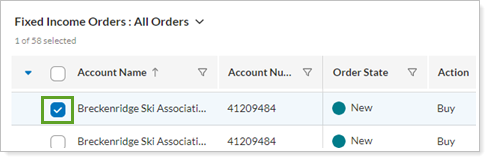
In Order Blotter, select a new order for an account.
-
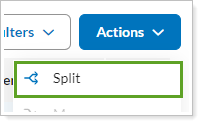
From Actions, select Split.
-
Enter the values to split the order.
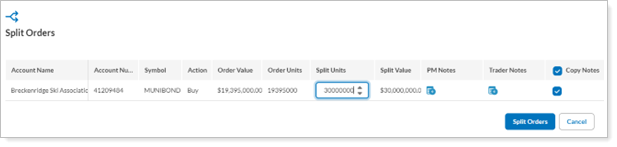
Complete the following fields:
Option Details Split Units Enter the number of bond units to split off from the total Order Units. You’ll see the total Order Units and Order Value decrease while the Split Value increases. PM Notes If the PM entered a note for this Order, it appears here. For more information on viewing PM Notes, see See Portfolio Manager (PM) Notes on an Order in Order Blotter. Trader Notes Optionally, you can enter your own notes that apply to this Order on the Order Blotter page only. Notes that you enter here will override any Trader Notes you may have entered previously for this order. For more information on adding Trader Notes, see Manage Trader Notes in Order Blotter. Copy Notes Optionally, you can select Copy Notes to keep existing PM and Trader Notes on the Order. -
Select Split Orders. You’ll now see two orders in Order Blotter. The combined Order Values match the original order value. The order that you split off has the original Order Date.
Merge Orders
To combine two or more fixed income orders for the same ticker in the same client account:
-
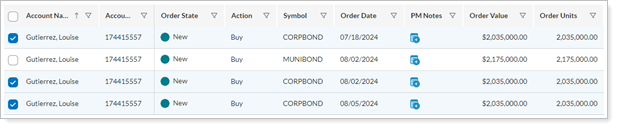
In Order Blotter, select two or more new orders for the same ticker in the same client account.
-
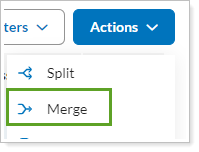
From Actions, select Merge.
-
In Merged orders, enter the values to merge the order.
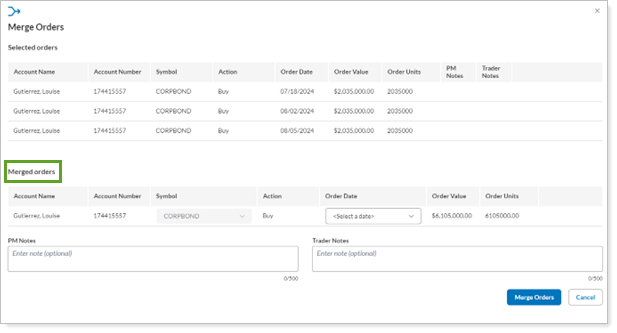
Complete the following fields:
Option Details Order Date Select the date from the list of available order dates. PM Notes If the PM entered a note for this Order, it appears here. For more information on viewing PM Notes, see See Portfolio Manager (PM) Notes on an Order in Order Blotter. Trader Notes Optionally, you can enter your own notes for the merged Order. Your Trader Notes will apply on the Order Blotter page only. Notes that you enter here will override any Trader Notes you may have entered previously for these orders. For more information on adding Trader Notes, see Manage Trader Notes in Order Blotter. -
Select Merge Orders. You’ll now see one combined order in Order Blotter with the Order Date that you specified.

Enter Order Execution Details in Order Blotter
As a bond trader, after you’ve traded bonds, you can enter the order execution details against one or more generic fixed income orders.
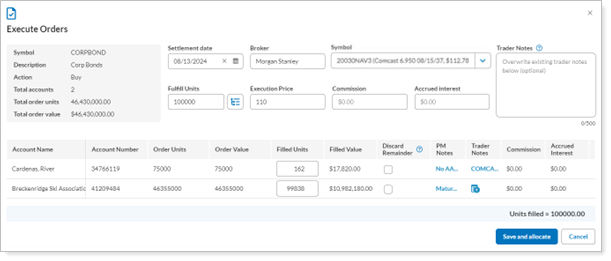
When you execute the order:
-
Holdings automatically update when orders are put on Order Blotter, and when executions are entered into Order Blotter.
-
Next-day reconciliation automatically matches executed orders against transactions received from the custodian.
To enter execution details for one or more orders:
-
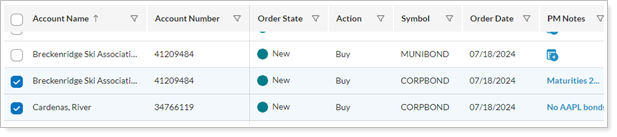
In Order Blotter, select one or more individual account orders to fill.
-
Enter the execution details for the selected orders.
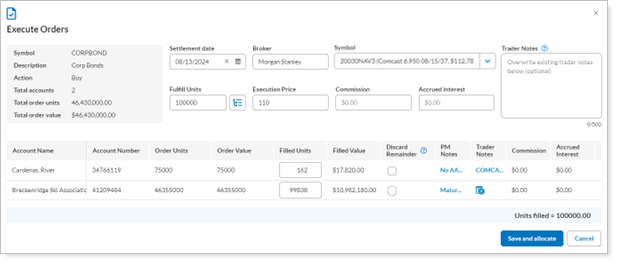
Complete the following fields:
Location Option Details Order Settlement Date Enter the settlement date for this bond order. For more information, see Settlement Date. Order Symbol Enter the security ticker symbol for the individual bond. Order Fulfill Units Enter the number of bond units executed at the given execution price.
Optionally, select Allocate fulfilled units to selected orders
 to prorate fulfilled units proportionally to the individual account orders below.
 Order Execution Price Enter the execution price for the number of bond units fulfilled. Order Commission Optionally, enter the dollar amount that the executing broker earned on this execution. For more information, see Commission. Order Accrued Interest Optionally, enter the dollar amount of accrued interest on this bond order. Order Trader Notes Optionally, enter your Trader notes here. Upon saving, your Trader Notes overwrite existing Trader Notes on all individual account orders. Trader Notes stay in the Order Blotter page. For more information on adding Trader Notes, see Manage Trader Notes in Order Blotter. Account Filled Units If you didn’t prorate the filled units, then manually enter the number of bond units to apply to each individual account order. The total Filled Units for all account orders should equal the Fulfill Units. Account Discard Remainder Optionally, select this option for partial executions where you don’t need to complete the original order. Otherwise, Order Blotter creates a New order with the remaining units so that you can continue to work towards the original units ordered. Account Trader Notes Optionally, enter your Trader notes here for an individual account order. Trader Notes stay in the Order Blotter page. For more information about Trader Notes, see Manage Trader Notes in Order Blotter. -
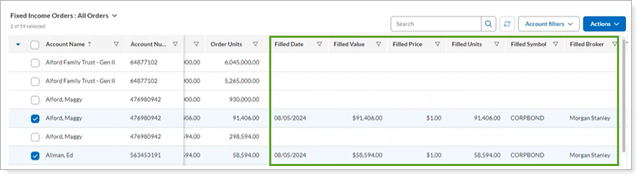
When you’re ready to allocate the filled bond units to the orders, select Save and Allocate. You’ll find your executed bond order details in Order Blotter. Executed orders have an Order State of Filled.
Facilitate Bond Unit Allocations at the Custodian
As a bond trader, Order Blotter lets you automatically allocate the units from filled bond orders to the client accounts in Tamarac. You still need to handle the actual allocation of bond units to client accounts at the custodian, and you can use the Export CSV to help facilitate this.
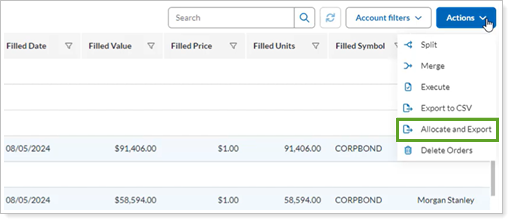
To generate a .CSV export for filled orders in Order Blotter:
-
In Order Blotter, select one or more individual filled orders.
-
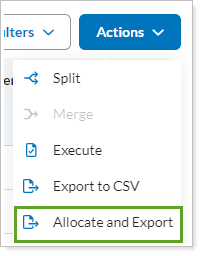
From Actions, select Allocate and Export.
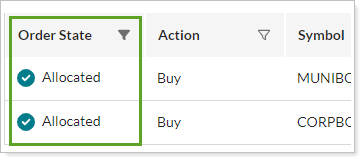
The Order State changes to Allocated.
-
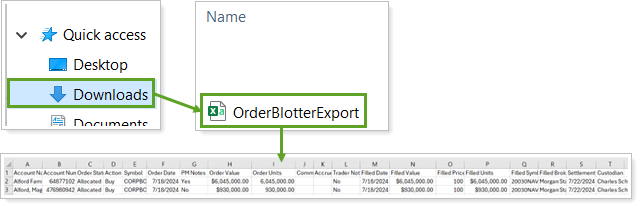
You will need to handle the actual allocation of the bonds to client accounts at the custodian or with the executing entity as needed. On your computer, in Downloads, find the Order Blotter Export CSV. You can use the information in this file to communicate client account allocation details to participating parties.
Export the Order Blotter to CSV
At any time, you can export the data you see on the screen to a .CSV file for further analysis.
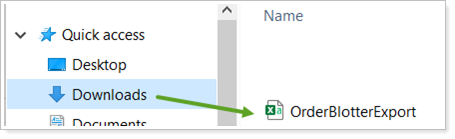
For steps to export Order Blotter data to a .CSV file, see Export Page Data.
Delete Orders from the Order Blotter
As a bond trader, if you and the portfolio manager decide not to execute an order you can remove it from the Order Blotter. The order will be permanently deleted and will not return to Trade List.
To delete an order from the Order Blotter:
-
In Order Blotter, select one or more individual filled orders.
-
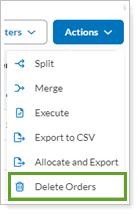
From Actions, select Delete Orders.
-
In the confirmation, select Delete.