
Contents
|
Standardize client offboarding with Power Automate Flows Identify uploaded portal documents more easily in external event logs Track client reviews more efficiently with Key Dates enhancements |
Standardize client offboarding with Power Automate Flows
When a client relationship ends, completing offboarding steps consistently is critical for compliance, data integrity, and operational continuity. Previously, these client termination tasks were often handled manually, which could increase administrative effort and the risk of missed or incomplete steps.
To support a more consistent process, we’ve introduced the TamTemplate - Client Termination Power Automate flow template for Tamarac CRM.
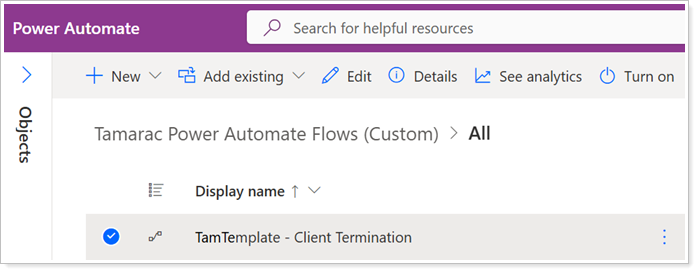
When you update the Termination Date for an account, this flow automatically triggers a task with recommended offboarding steps. This helps ensure required actions are completed while reducing manual effort for advisors and operations teams.
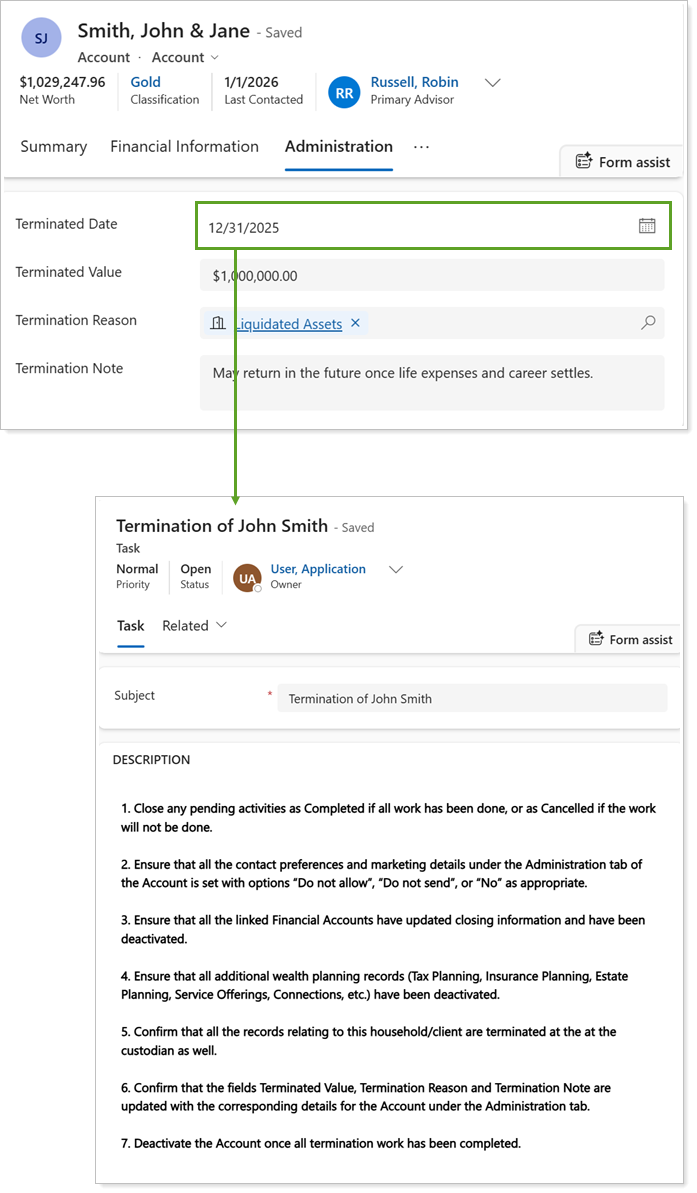
This template is disabled by default. A CRM System Administrator or Microsoft Global Administrator at your firm can enable and customize it to align with your firm’s offboarding workflows.
For more information, see Automate client offboarding with Power Automate.
Identify uploaded portal documents more easily in external event logs
When reviewing portal activity, it’s important to know which document was uploaded to support audits and compliance reviews. Previously, external event logs in Tamarac CRM showed when a document was posted by a client or advisor, but did not display the document name.
With this enhancement, a new Document Name field is available on relevant External Event Log records. This read‑only field automatically displays the name of the document uploaded through the Tamarac portal, making it easier to trace activity back to specific files during reviews or audits.
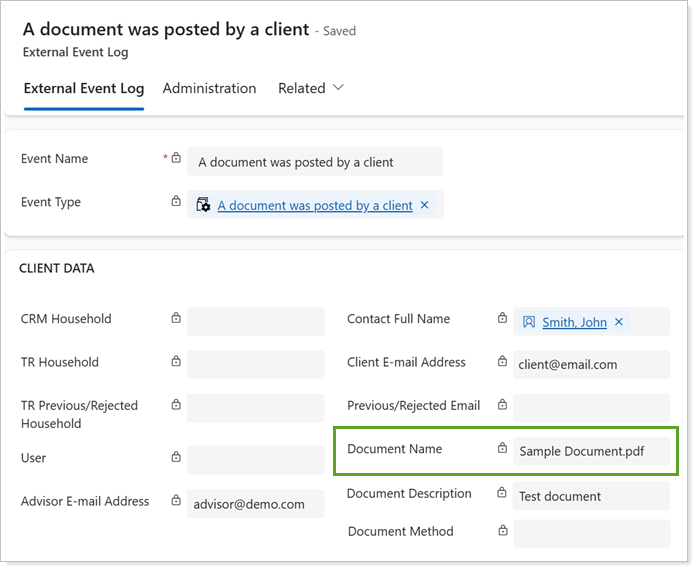
To view the name of a posted document, navigate to Tamarac Settings, select External Event Logs, and open an individual event log record. The document name field appears automatically under Client Data and requires no additional configuration.
For more information, see Event Integration.
Track client reviews more efficiently with Key Dates enhancements
Planning review meetings and tracking client and compliance communications depends on having the right dates organized and easy to access. To support this, we’ve enhanced the Key Dates layout on account records to make review planning and compliance tracking clearer and more intuitive.
With this release, the Key Dates tab on accounts includes the following enhancements:
- Improved meeting planning. A new Meeting Planning section groups fields used to plan and schedule review meetings, including Meeting Frequency, Next Scheduled Review, and Last Review Request.
- New review-tracking fields.
Two new date‑only, time zone–independent fields are now available:
Last Review Meeting, available in the Review Dates section.
Next Review Meeting Target, available in the Meeting Planning section and automatically calculated based on Meeting Frequency and Last Review Meeting.
- Reorganized compliance tracking. Compliance-related fields, such as Last ADV Sent, Last Privacy Notice Sent, and Last Form CRS Sent, have been moved into the Client Contact Dates section. This groups them more appropriately alongside existing contact date fields in the section, including Last Contacted, Last Call, and Last Appointment.
- Simplified dates layout.
Several fields have been reorganized for clarity, and less frequently used fields have been hidden to reduce clutter and keep the focus on the most relevant information.
The Client Since and Agreement Date fields have been moved from Key Dates to the account's Summary tab, providing greater visibility of these foundational relationship dates within the client summary.
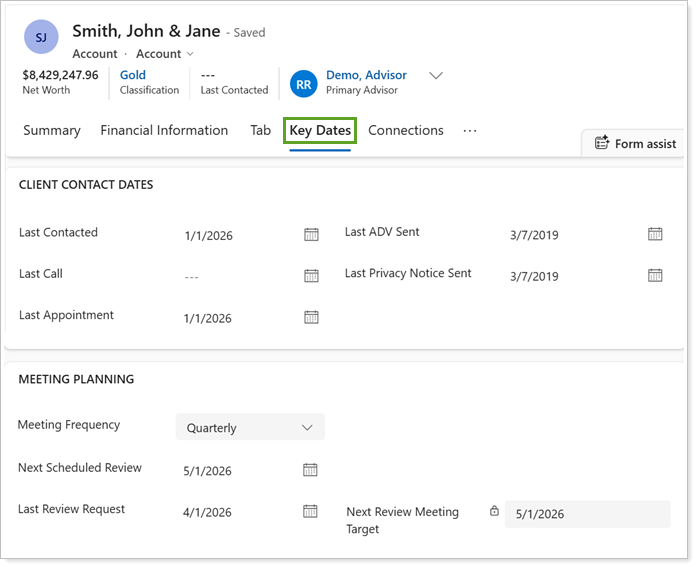
These enhancements help you plan review meetings, track compliance communications, and manage client relationships more efficiently using a more organized Key Dates layout.
These new fields are available automatically to all users and require no additional configuration. For more information, see Track client milestones with key dates.
View full Schwab alert details directly in Tamarac CRM
If you integrate Schwab alerts into Tamarac CRM, synced alerts previously included only high-level information, but you often needed to open Schwab Advisor Center to view the full alert message and understand its context.
With this release, Tamarac CRM now captures and displays the full alert message for Schwab alerts synced from Schwab Advisor Center. This provides more complete, actionable information and reduces the need to switch between systems.
To view alert details, open an alert record from the Custodian Alerts & Status tab on eligible financial accounts. Review the Alert Details section to see the full message content alongside existing alert information.
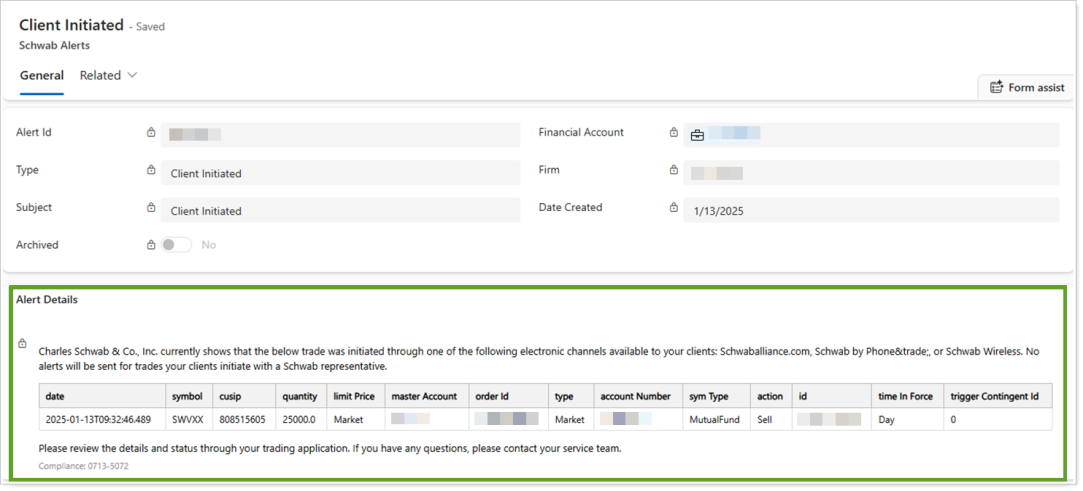
Formatting may vary slightly by alert type to display the most relevant information.
Note
Schwab alert records now sync every 4 hours instead of every 2 hours to support the additional detail and ensure data accuracy.
To use this feature, a System Administrator or Data Manager must enable the Schwab and Alerts integrations in Configuration Settings. No additional setup is required to view the enhanced alert details. For more information, see See Schwab Alerts and Statuses in Tamarac CRM.
Explore new and expanded Help Center content
With this release, we’ve added and expanded Tamarac CRM Help Center content in the following areas:
-
HubSpot integration with Tamarac CRM. Learn how to connect HubSpot with Tamarac CRM using the Microsoft Dynamics 365 integration. This content covers setup considerations, sync behavior, and best practices for aligning marketing and CRM data.

For more information, see Use the HubSpot integration in Tamarac CRM.
-
Tamarac CRM (Dynamics 365) access, permissions, and tenant consent. Learn how the Microsoft Dynamics 365 and Azure AD integration works, why tenant consent is required, what permissions Tamarac services use, and how application‑based authentication supports secure, least‑privilege access.
For more information, see Tamarac CRM (Dynamics 365) access, permissions & tenant consent.