
Contents
View cash and security reserves synced from Tamarac Trading
What's changing
With this release, Cash Reserves and Security Reserves flow directly from Tamarac Trading into CRM, so you no longer have to switch between systems to check reserve details.
This information now lives on financial account records under a new Tamarac Trading tab, with Cash Reserves and Security Reserves organized in separate grids.

From the grid view or an individual cash or security reserve record, you can review key details, including amounts, thresholds, effective dates, symbols, categories, notes, and recurrence indicators.
Note
This information syncs one-way from Tamarac Trading into CRM. To update reserve details, you must edit them directly in Tamarac Trading.
Why you'd use it
If your firm uses both Tamarac CRM and Tamarac Trading, use this sync to improve account oversight and operational efficiency. Cash and security reserves play an important role in rebalancing activity. You save time by accessing that information directly from CRM and reducing the need to switch between applications.
How to get started
Firms that use Tamarac Trading will automatically see cash and security reserves in CRM.
On a financial account record, select the Tamarac Trading tab to review Cash Reserves and Security Reserves.

Note
If your firm doesn’t use Tamarac Trading and is interested in adding it, contact Account Management.
Additional Information
For more information, see Financial Accounts Integration.
Monitor the performance inception date for financial accounts
What's changing
With this release, CRM directly shows the Performance Inception Date from Tamarac Reporting, so you always know exactly which date drives a financial account's performance calculations. Tamarac Reporting calculates this date based on an account's first transaction, keeping performance reporting aligned with the source system.
This date appears alongside key Tamarac Reporting data on the Summary tab of a financial account record.

Why you'd use it
It’s important to know when you start measuring performance. If your firm relies on Tamarac Reporting performance data to understand the history and growth of client accounts, use this field to view the date used for account performance calculations directly in CRM.
How to get started
Firms that use Tamarac Reporting will automatically see the Performance Inception Date sourced from Reporting in CRM.
On a financial account record, select Summary. Performance Inception Date appears under the Tamarac Reporting section.
Note
If your firm doesn’t use Tamarac Reporting and is interested in adding it, contact Account Management.
Additional Information
For more information, see Financial Accounts Integration.
View additional Schwab beneficiary roles in Tamarac CRM
What's changing
With this release, the Schwab Beneficiaries integration expands beyond Primary and Contingent roles, syncing the full range of beneficiary designations that Schwab supports into Tamarac CRM.
Now, all beneficiary roles provided by Schwab Advisor Center sync to eligible financial account records, including roles such as Trust, Estate, Organization, and more.

Note
Beneficiary information flows in a one-way daily sync from Schwab Advisor Center. To update beneficiaries for an account, you must update them directly in Schwab Advisor Center.
Why you'd use it
Keeping beneficiary information current supports your clients' estate planning objectives. It’s important for you to see up-to-date beneficiary information so you can help clients ensure their estate plan aligns with their desires.
This enhancement gives you a more complete view of beneficiary data from Schwab, so you can see all beneficiary relationships available through the integration directly in CRM.
How to get started
To view Schwab beneficiaries on your financial accounts, you must:
-
Enable the Schwab and Beneficiaries integrations in Tamarac CRM Configuration Settings.
-
Have active accounts custodied with Schwab.
-
Assign beneficiary records to accounts in Schwab Advisor Center.
To see beneficiary information for a Schwab account, in the financial account record, select Custodian Beneficiaries.
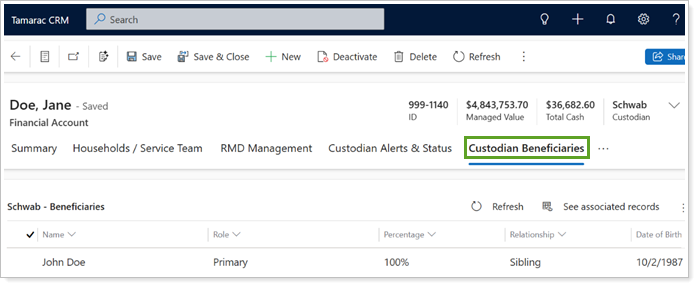
The beneficiaries from the Schwab integration appear under Schwab - Beneficiaries.
Additional information
For more information, see Schwab Beneficiaries Integration.
Export client profile information with Word templates
What's changing
Word templates let you turn CRM data into polished, ready-to-use documents with minimal effort. By pulling dynamic values directly from CRM records into standardized Word documents, these templates help your firm produce consistent, professional client-facing materials for internal filing, client review, or distribution.
With this release, we're introducing the Client Profile Word Template, a standardized account-level template that provides a comprehensive snapshot of client information in an editable Word document.

The template is based on the existing Client Profile output, while letting you modify the document as needed.
Why you'd use it
Use the Client Profile Word Template to quickly generate professional, editable client documentation. These exports help you prepare for client meetings and reviews with prefilled information that saves time and requires minimal changes.
How to get started
In an account record, on the command bar, select Reports and Word Templates.

Under Word Templates, choose Client Profile.

Additional information
For more information, see Word templates.
Track additional client and prospect relationship statuses
What's changing
With this release, the Marital Status field on contact and lead records now includes a Separated option, so you can track relationship statuses more accurately.

Why you'd use it
Legal separation entails different financial responsibilities and benefits than other marital statuses. Understanding where clients and prospects are in their personal journeys helps you maintain accurate records and have more informed conversations.
How to get started
This value is available automatically to all users and requires no additional configuration.
On a contact or lead record, under Marital Status, select Separated.

Additional information
For more information, see:
Automate service request workflows with Power Automate flows
What's changing
With this release, we're introducing new Power Automate flow templates for Tamarac CRM service requests. These templates help you automate common service request workflows and provide a starting point for building workflow automation around your existing CRM processes.
Each default service request has a corresponding base and multi-business unit (MBU) flow template. You can pick the version that matches your firm's structure.

Flow templates are available for the following Tamarac service requests:
-
Client Information Update
-
Incoming Deposit
-
Strategy Updates
The templates are available to add to the Tamarac Power Automate Flows Custom solution so you can create customized flows that meet your firm's operational needs.
Why you'd use it
Service requests can streamline operational processes and route work to the right team members. Automating these processes helps reduce manual effort and creates a more consistent experience for users.
How to get started
Your firm must use Microsoft Power Automate.
A CRM System Administrator or Global Admin for Microsoft 365 must:
-
Disable your original service request workflows to avoid creating duplicate tasks.
-
Enable the new Power Automate flows.
Additional information
For more information, see Automate service requests with Power Automate.
Explore new and expanded Help Center content
With this release, we’ve added and expanded Tamarac CRM Help Center content in the following areas:
Microsoft Teams phone and conversation intelligence integration
Learn how to integrate Microsoft Teams Phone and Dynamics 365 Sales Conversation Intelligence with Tamarac CRM to automatically capture call recordings, transcripts, AI-generated summaries, and meeting notes.
The new content covers licensing and setup requirements, call and meeting data capture, troubleshooting guidance, and best practices for improving advisor productivity.

For more information, see Automatically capture call notes from Microsoft Teams in CRM.
Microsoft Power Automate connectors in Tamarac CRM
Power Automate connectors let flows work with Microsoft and third-party services like Adobe Acrobat Sign, Dropbox, Microsoft Bookings, Microsoft Forms, and Microsoft OneNote.
The new content includes examples of connectors you can incorporate into flows that support your Tamarac CRM processes, along with links to external provider resources.

For more information, see Use Power Automate connectors with Tamarac CRM.