Contents
Reporting
Tamarac Makeover updates
We’re excited to announce look and feel updates to all the Billing pages. Although the pages look slightly different, all your normal billing workflows remain available. With this change, you may notice slight changes to where you access certain tasks. On these pages, you’ll see that the grid has a new look. We've refreshed the header, color scheme, search bar, and icons. As always, the core functionality remains the same. The changes focus on how the page looks, aiming to improve your experience and visual consistency.
New look and feel for Billing pages
The following billing pages feature updated look and feel:
-
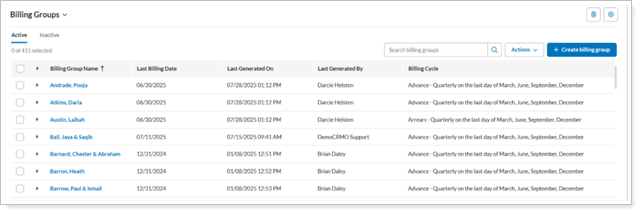
A new grid now displays all billing groups.
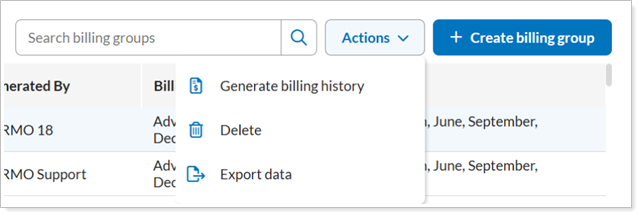
Generate billing history, delete, and export billing groups from the Actions list and select Create billing groups from the upper right corner of the grid.
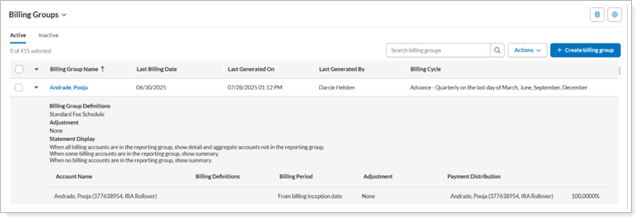
Expand and collapse billing group rows using the grid column.
To edit, select the billing group name in a grid row to open the new editing module.
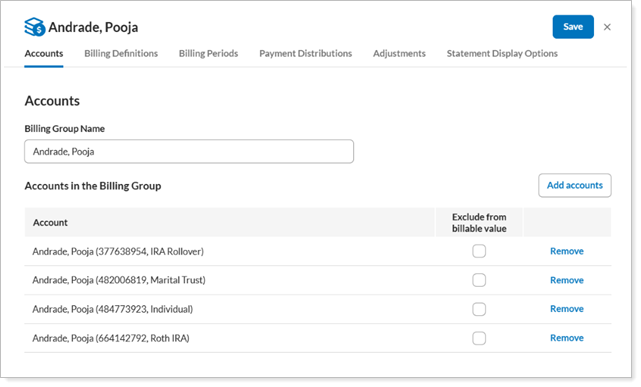
-
A new grid now displays all billing definitions, removing the need to select one each time.
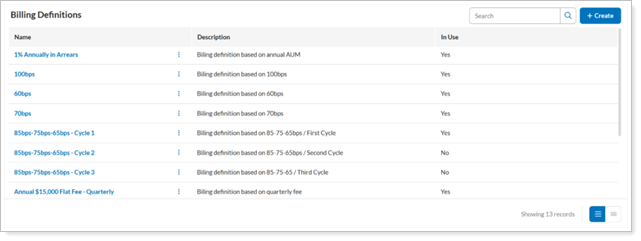
To create billing definitions, select Create in the upper right corner of the grid.

The new billing definition module opens.
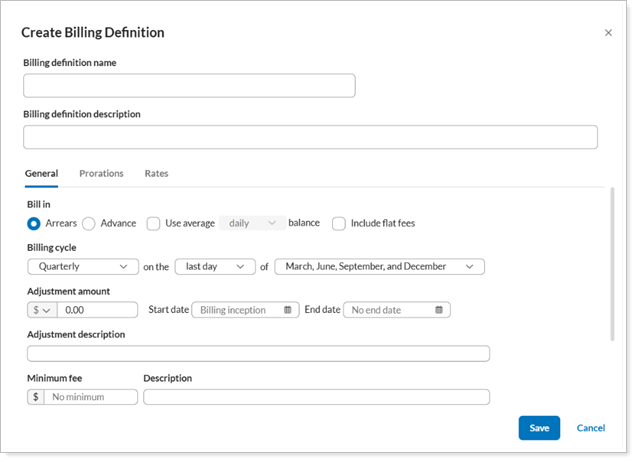
-
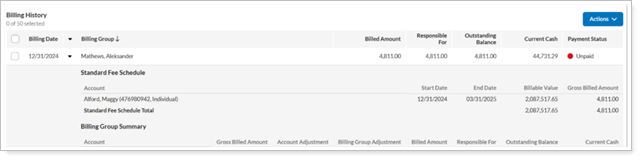
A new grid now displays all billing history records.
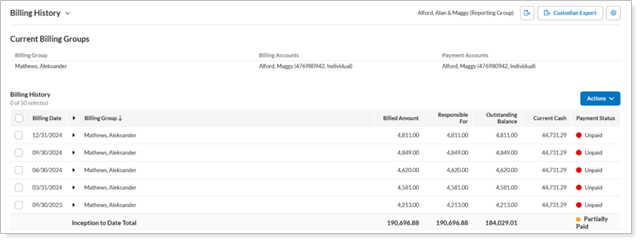
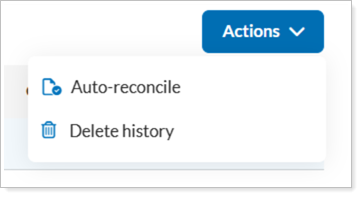
Access auto-reconcile and delete functionality from Actions in the upper right corner of the grid.
Expand and collapse history rows using the grid column.
-
Billing History Status
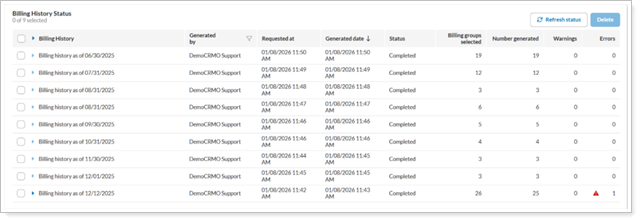
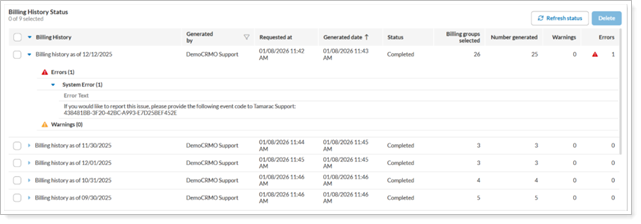
The new grid displays all billing history job statuses, and new grid columns now show details that previously appeared in expanded rows, including Requested at, Billing groups selected, Warnings, and Errors.
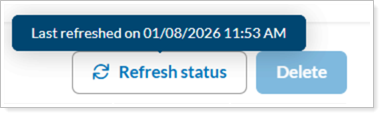
To see details of when the status last refreshed, hover over Refresh status.
Expand and collapse billing history status rows using the grid column.
-
The new grid now shows all auto-reconciliation billing history.
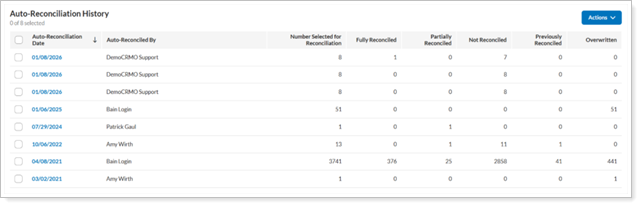
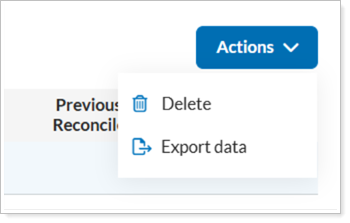
Delete and export data from Actions in the upper right corner of the grid.
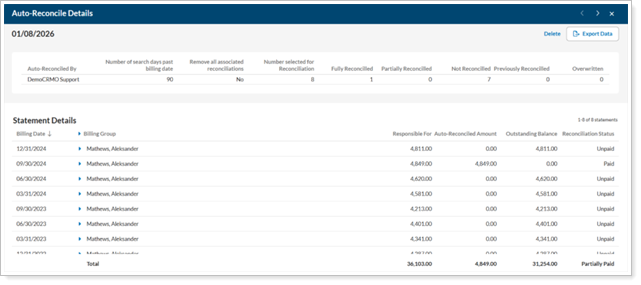
Access auto-reconciliation details by selecting the date in a grid row, which then opens an expanded page view.
-
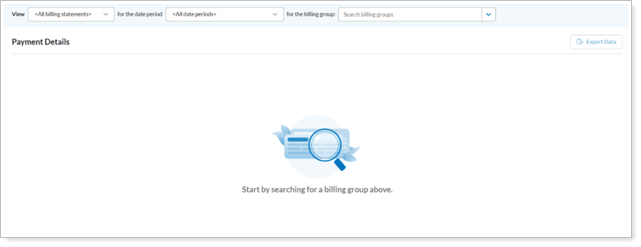
Before you select a billing group to view, you see a default empty state.
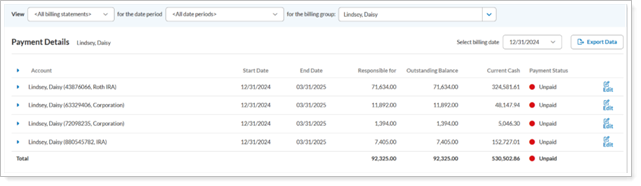
After you select a billing group, you see relevant results.
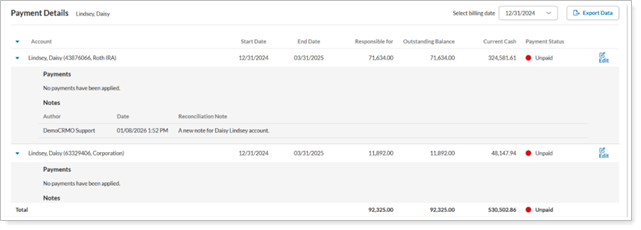
Expand and collapse payment detail rows using the grid column.
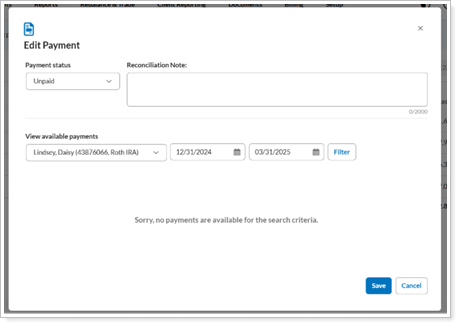
Edit payment details by selecting Edit in a grid row, then complete the Edit Payment window.