
Contents
|
See the MoneyGuide Overview page in the Client Portal Use MoneyGuide Wealth Studios data in the Success MoneyGuide Plan widget |
Client Portal
See the MoneyGuide Overview page in the Client Portal
What's changing
As an advisor, it's important that you clients have central location where they can see a summary of their financial planning details. With this release, Client Portal now includes a native MoneyGuide Overview page. It brings key financial planning data into one place so clients can review plan information without leaving the portal.
The page includes these components and options:
-
Success Meter: Compare current and recommended plan success rates in one widget.
-
Net Worth widgets: View net worth, ownership details, and assets and liabilities from MoneyGuide.
-
Goal Planning: Review upcoming financial goals.
-
See more links: Open related Goal Planning, Plan Summary, or Net Worth pages when those pages are enabled.
-
Configuration options: Rename components, change widget order, and add optional disclosures.
Why you'd use it
The new MoneyGuide Overview page enhances the client experience giving clients a single view of their financial planning information in Client Portal. It helps you keep planning data in context during reviews and makes it easier for clients to move from a high-level summary to detailed planning pages. You can also configure the page so the most relevant planning information appears first.
How to get started
If you have access to MoneyGuide, you can add the MoneyGuide Overview page to your a reports template.
Additional information
For more information, see:
Use MoneyGuide Wealth Studios data in the Success MoneyGuide Plan widget
What's changing
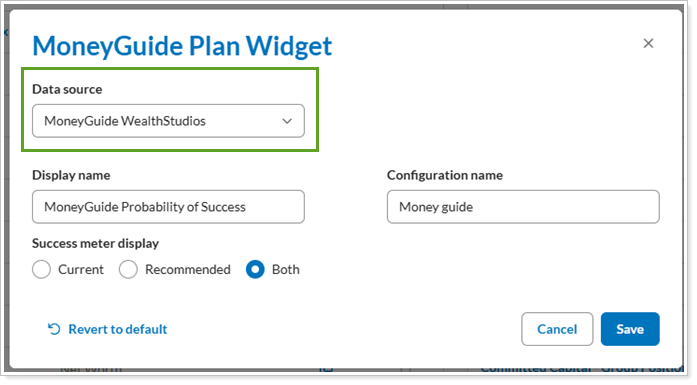
In the past, the MoneyGuide Plan widget, which displays the probability of success, always used only data from MoneyGuide. But with this release, Tamarac now supports MoneyGuide Wealth Studios as a data source for the MoneyGuide Plan widget in Client Portal. This update helps firms show clients success results from either MoneyGuide or MoneyGuide Wealth Studios, depending on how the widget is configured.
Why you'd use it
Use this feature if your firm relies on MoneyGuide Wealth Studios for financial planning and wants clients to see those results in Client Portal. It helps keep the Success widget aligned with the planning experience you deliver and gives clients a clearer view of their probability of success.
How to get started
To get started, go to the Configuration Tool and open the Success widget settings. In the Data source menu, select MoneyGuide WealthStudios.
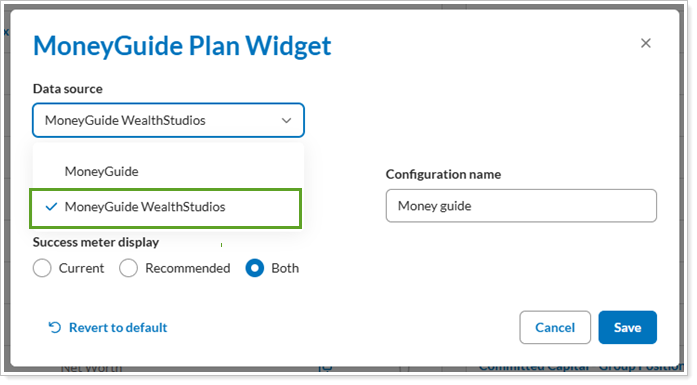
After you save your changes, the widget uses the new data source for assigned clients.
Additional information
For more information, see Use MoneyGuide Data in Tamarac.
SSO to eMoney from the Client Portal
What's changing
In the past, if you wanted to navigate between eMoney and the client portal, you had to sign out of one platform and into the other. With this release, the Tamarac platform now supports single sign-on (SSO) from Client Portal to eMoney for Tamarac clients. This feature lets clients open eMoney from Client Portal without signing in again, creating a smoother experience across both platforms.
This update adds controls that let you manage access to the integration:
-
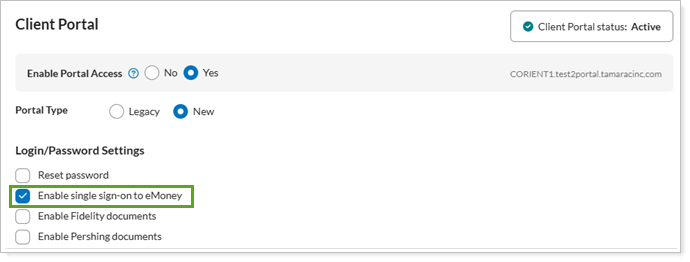
Tamarac client settings. A new Enable single sign-on to eMoney checkbox appears in the client settings flyout below the login and password section.
-
Bulk management tools. The Enable single sign-on to eMoney field is now available in bulk upload and bulk report tools for new portal users.
-
Dynamic SSO visibility. The SSO option appears in Client Portal only when you enable the feature at the client or template level.
Why you'd use it
Use this feature to give clients faster access to eMoney and reduce sign-in friction. You can enable SSO for individual Tamarac clients or use bulk tools to turn it on for multiple users at once. For Envestnet platform clients, you can use template-level controls to apply the setting more consistently across client groups.
How to get started
To enable SSO from client portal into eMoney, in the client record under the Client Portal tab, select Enable single sign-on to eMoney.
You can also configure this in bulk for multiple clients at once using Client Information bulk upload or by selecting multiple clients on the Clients page.
Notes
If you have not already established the eMoney SSO, contact your service team.
Additional information
For more information, see:
SSO to Schwab from the Client Portal
What's changing
If your firm has given your clients access to Schwab accounts through the Client Portal, your clients can now save time when they want to sign into Schwab. You can now use Single Sign-On (SSO) from the Client Portal to Schwab for Tamarac platform clients. This integration lets clients move between platforms without signing in again.
This feature includes the following controls and interface updates:
-
Bulk management tools. The Enable single sign-on to Schwab field is now available in bulk upload and bulk report tools for new portal users.
-
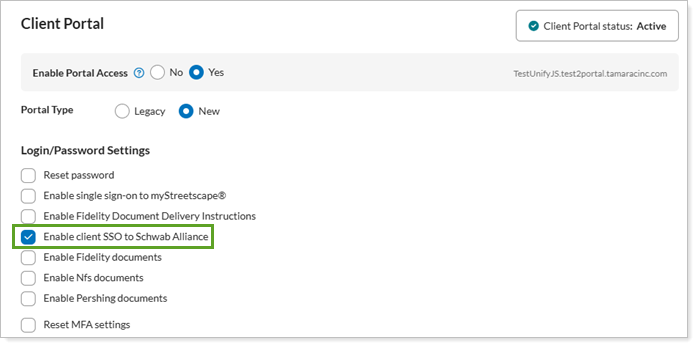
Dynamic SSO visibility. The SSO option appears in the client portal only when it is enabled at the client level.
Why you'd use it
Use this feature to give clients faster access to Schwab from the Client Portal. Clients can open Schwab directly from the Client Portal, reducing friction and simplifying access to custodial information.
How to get started
To enable SSO from client portal into Schwab, in the client record under the Client Portal tab, select Enable client SSO to Schwab Alliance.
You can also configure this in bulk for multiple clients at once using Client Information bulk upload or by selecting multiple clients on the Clients page.
Notes
If you have not already established the Schwab SSO, contact your service team.
Additional information
For more information, see: