
Contents
Searching for accounts just got easier in Tamarac Trading
Custodian account numbers often include hyphens. Previously, you had to enter an exact account number with or without its hyphen and ensure there were no trailing spaces. If not, the platform couldn’t find the account, and you had to restart the search.
To help you find an account on the first try, Tamarac’s account search on the Rebalance and Trade Review pages now ignore hyphens and any extra spaces after the account number.


This update is especially useful when you’re unsure if an account number includes a hyphen, or when you paste an account number from your CRM or custodial screen into account search.
For more information about account searches, see Learn More About Searching For Accounts.
Locate and assign models more easily
You can change the model assigned to an account or group right from the account record on the Rebalance page. In the past, when you wanted to assign models, you had to manually locate models in a dropdown list. This could be cumbersome for firms with many models.
Now, you can use a model search in the account flyout. This lets you more quickly find and assign models by typing their name, improving speed and usability during rebalancing or account setup.
To search for a model, on the Rebalance page, open the account. On the Rebalancing tab, under Assigned model, begin typing the model name. Models matching your entry will appear in the list.
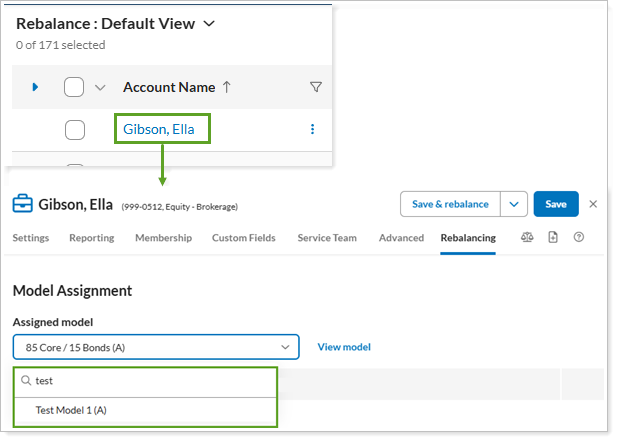
For more information on this setting, see Assigned Model Settings (Accounts).
See custodial trading restrictions before you rebalance
Custodians may place trading restrictions on accounts for reasons like pending documentation, suspicious activity, client‑requested limitations, and more. In the past, when you were running a rebalance, you couldn’t see if an account had active custodial trading restrictions. This could cause errors and result in unnecessary work duplication.
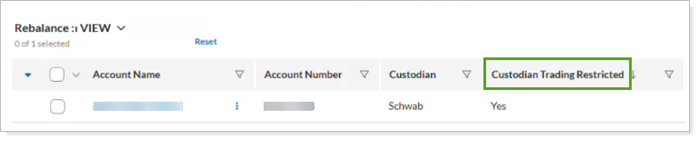
To help improve accuracy, save time, and reduce trading errors, you can now see whether an account has an active custodial trading restriction before you run a rebalance. We’re adding a Custodian Trading Restricted field to the Rebalance page so you can quickly identify accounts that require you to follow up with the custodian.
This feature is currently available for Schwab accounts. Possible values include:
-
Yes. The custodian integration has returned one or more active trading restrictions on the account.
-
No. The custodian integration has not returned trading restrictions on the account.
-
(Blank). The custodian has not provided restriction information for the account.
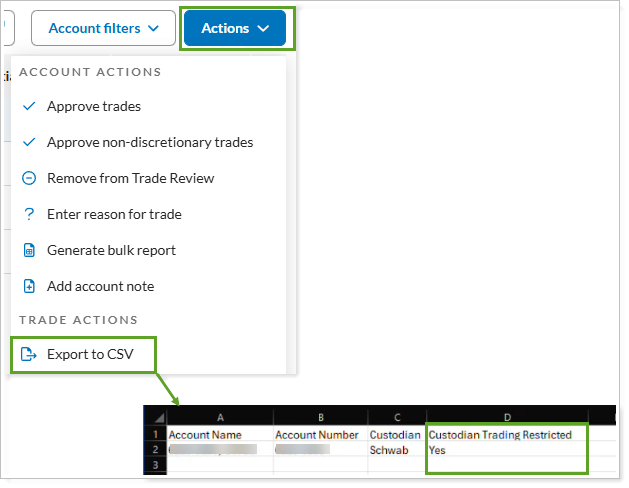
You’ll also see the Custodian Trading Restricted value when you export data from the Rebalance page.
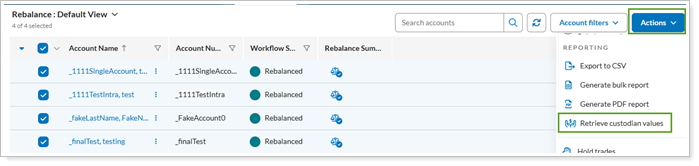
To retrieve or refresh values for the Custodian Trading Restricted field, on the Rebalance page, select the desired accounts, select Actions, and choose Retrieve custodian values.
For more information on the Rebalance page, see Rebalance Page Actions, Views, and Filters.
Boost Trade Review load speed with account filters
Reviewing proposed trades for thousands of accounts at once can slow things down. To improve performance when you’re working with more than 50,000 accounts, Trade Review will require you to filter the account list first. This helps the page load more quickly and allows you to work through trades with better focus.
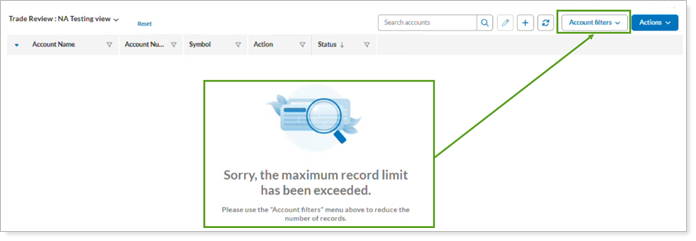
You’ll apply saved searches, account sets, or working lists through Account filters to reduce the number of accounts you need to review at once.
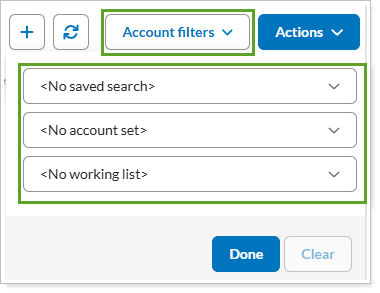
For more information on filtering accounts in Tamarac Trading, see Available Page View Filters.
For more information on the Trade Review page, see Trade Review Page Actions, Views, and Filters.
See detailed statuses for proposed trades in Trade Review
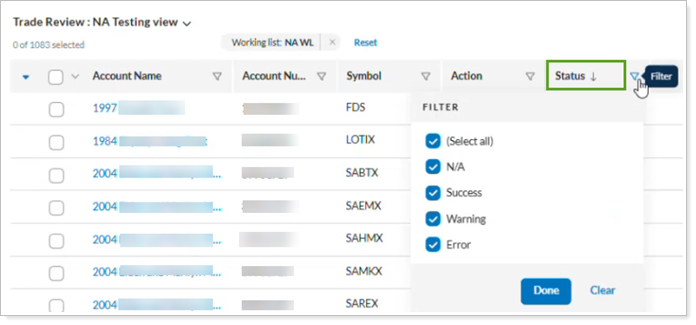
With this release, you can save time by viewing the status of each proposed trade right on the new Trade Review page. This lets you scan the page to distinguish successful trades from those needing further review and helps you quickly identify errors and warnings.
Use the Status column to filter trades by their current state. This lets you, for instance, review successful trades first and keep the workflow moving.
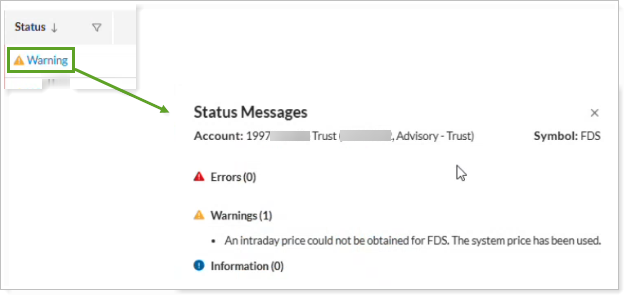
To help you investigate issues in greater detail, select a proposed trade’s status to view additional information about any errors or warnings associated with that trade.
For more information on Trade Review and filtering its columns, see Trade Review Page Actions, Views, and Filters.
See trade commission and fees in Spreadsheet View
To let you review proposed trades with more transparency, you will see the following cost details as columns in the Rebalance Summary Spreadsheet View:
-
Commission
-
Redemption Fee
-
Custodian Transaction Fee
Seeing these data points alongside proposed trades helps you make informed decisions throughout the trading workflow. For more information about Spreadsheet View, see Spreadsheet View.
Additional Order Blotter columns available in bulk reports
The Order Blotter centralizes fixed income orders for multiple custodians, allowing bond traders to review, work, and execute trades in one place.
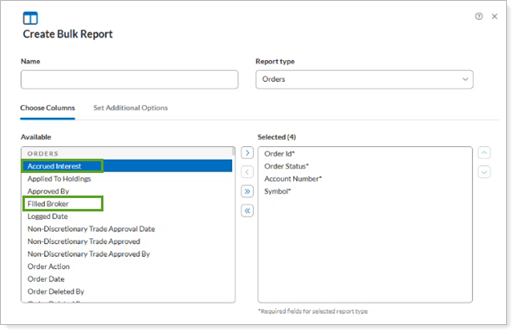
To improve transparency and support easier trade management, bulk Orders reports now include additional execution-related fields. Users with access to Order Blotter can now view the following columns in bulk Orders reports:
-
Accrued Interest
-
Filled Broker
For more information on Order Blotter in Tamarac Trading, see Manage Fixed Income Orders on the Order Blotter.
For more information on bulk reports, see Create, Edit, and Delete Bulk Reports.
Added fields to Security Information upload specifications
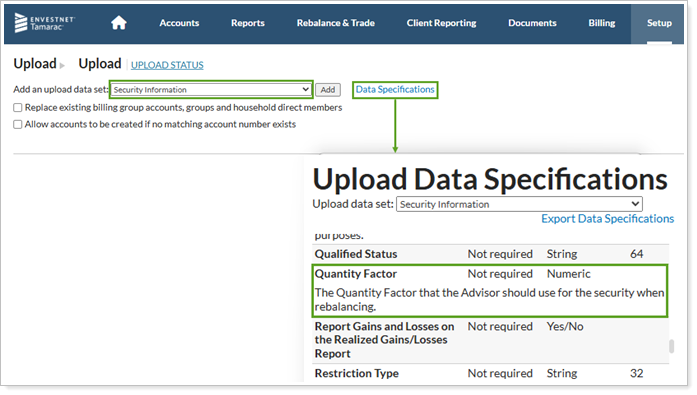
You use the Security Information upload to create or update securities in bulk in Tamarac. We’ve always supported the following data points in this upload:
-
Global Restriction Note
-
Quantity Factor
-
Security Description
-
Underlying Security
But because the Upload Data Specifications didn’t list them, you might not be aware the option existed – or known how to format the data correctly. To make this capability clear, we’ve added those fields to the Upload Data Specifications for the Security Information data set.
For more information on bulk data uploads, see Understanding Bulk Data Uploads.